Request responses from contacts
Email a form to a list of people from an opportunity — picking contacts, uploading a CSV, or typing rows by hand — and understand what the recipients get, what lands in your CRM, and why nothing shows in Responses yet.
Before you start
- Requests are sent from an opportunity, not from the form. Open the opportunity the responses should belong to and use its Actions menu. The Actions button is only shown to account admins.
- The form must already be active and have fields, or recipients will reach a closed form. See Publish and share a form.
- Recipients don't need an Incenti account. They answer at a public link.
Steps
Open the dialog
- Open the opportunity from Pipelines or Opportunities.
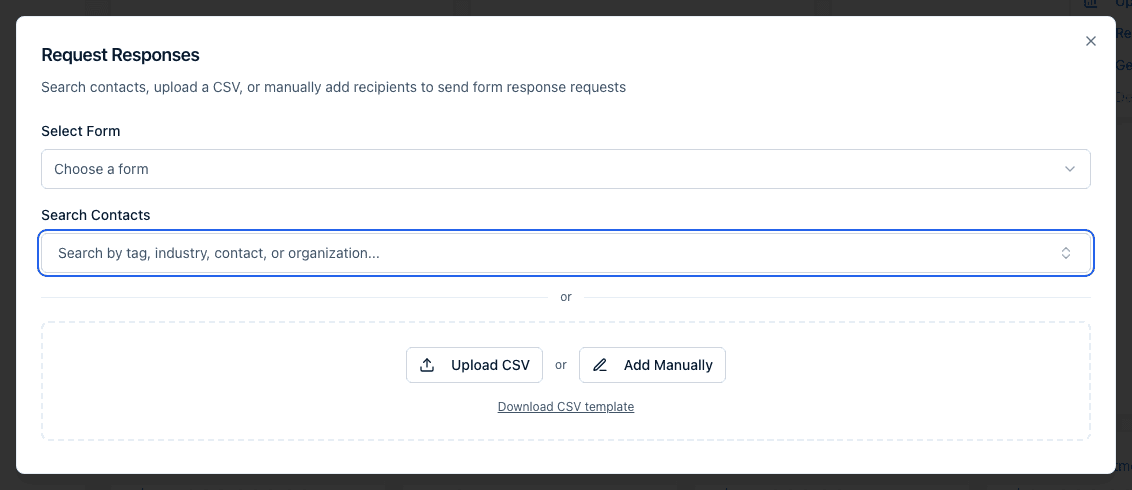
- Click Actions in the top right and choose Request Responses. The Request Responses dialog opens: "Search contacts, upload a CSV, or manually add recipients to send form response requests".
- Under Select Form, choose the form to send ("Choose a form").
Choose who to send to
You can combine all three of the following in one send.
- Search Contacts. The combobox reads "Search by tag, industry, contact, or organization...". Picking a Tag, an Industry, or an Organization pulls in every contact behind it — each row shows how many that is — and picking a Contact adds just that person. Selections appear as removable chips; click Add N selections to request to move them into the list. (This section only appears when your account has contacts, contact groups, or tags to search.)
- Upload CSV. Click Upload CSV and pick a
.csvfile. Use Download CSV template for the exact shape. The columns are First Name, Last Name, Email, and Organization Name; only Email has to be filled in on a row. A file with more than 1,000 rows is refused with "CSV exceeds the maximum of 1000 rows". - Add Manually. Click it to start with one empty row and type recipients straight into the preview table.
Review and send
- The preview table lists every row. Badges above it summarise them: N valid, N invalid, and N duplicates skipped (rows repeating an email address already in the list).
- Edit any cell in place to fix an invalid row, use the row controls to remove a row or add another, or click Back to start the list over. Invalid rows that you leave are simply skipped — "Invalid rows will be skipped during import."
- Click Send N Requests. You'll see "Requests initiated — you'll be notified when complete" and the dialog closes.
Send a link without emailing anyone
Choose Generate Form Link from the same Actions menu when you'd rather paste a link into your own email or a portal of your own. Pick a form under Select Form and copy the link that appears — it is the form's public address with the opportunity attached, so responses from it link to this opportunity exactly as an emailed request would.
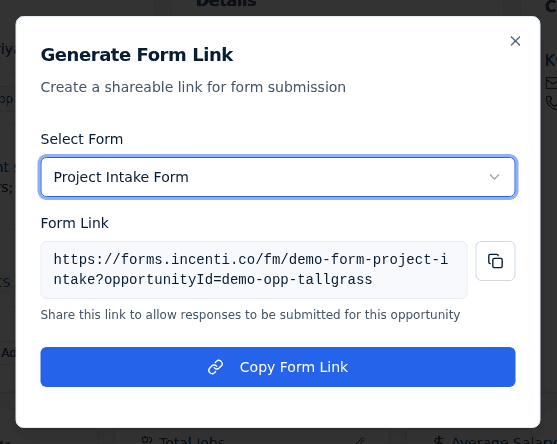
Copying runs a readiness check first. If the form isn't active or has no fields, you'll be told to fix that first; if the only problem is that the form isn't capturing an email address, you can proceed with Copy anyway.
What happens next
- Your recipients become CRM records first. Before any email goes out, each row is matched to an existing contact by email address or created as a new one, and the Organization Name column is matched or created the same way. Requesting responses therefore adds people to your contacts — that's deliberate, so replies have somewhere to land.
- Emails go out one per second. A large list takes a few minutes to work through.
- What the recipient gets. An email headed Response Request, with your account's logo and colour, saying that your organization "has requested that you complete this form name form", a button through to the form, a note inviting them to forward it if they're not the right person, your name, title, phone, and email as the signature, and a contact address for questions. The subject line and much of the wording come from the form's type — see Form types. If the form has an expiration set, the email adds a line: "Responses will no longer be accepted after date at time."
- You get a summary when the batch finishes. A bell notification reading Response requests delivered — "X/Y response requests delivered for form name" — plus an email whose subject depends on the form's type ("Form name Delivered For Response" by default). If any address failed, the email's subject instead reads "Your organization Form name Response Requests Failed to Deliver" and it lists the addresses that didn't go through.
- Nothing appears in Responses until someone starts. No draft is created in advance, so the responses list stays as it was until a recipient opens the link and answers the first question. That's normal — it isn't a sign the requests failed.
- Responses link themselves to the opportunity. The link carries the opportunity, so the moment a recipient starts, their response appears on the opportunity's Responses tab as well as in the main responses list.
Common questions
Q: How do I ask specific contacts to fill out a form? A: Open the opportunity the responses belong to, choose Actions → Request Responses, select the form, then pick contacts (or a tag, industry, or organization), upload a CSV, or type rows in by hand, and click Send N Requests.
Q: Why did requesting responses add people to my contacts? A: By design. Every recipient is created or matched as a contact — and their organization as an organization — before the emails go out, so that when someone replies their answers have a record to attach to and you can follow up from the CRM.
Q: I sent requests and nothing is showing in Responses. Did it work? A: Yes, almost certainly. No response row is created when a request is sent — one appears only once a recipient opens the link and starts answering. Check the Response requests delivered notification to confirm the emails went out.
Q: What is the CSV format and how many rows can I upload? A: Four columns — First Name, Last Name, Email, and Organization Name — of which only Email is required on each row. Up to 1,000 rows; anything larger is refused. Download CSV template gives you the headers.
Q: Can I change the wording of the request email? A: Not directly. The subject and body come from the form's type, and the logo, colour, signature and contact address come from your account and your user profile, so updating those changes what recipients see.
Q: Can I send a form without emailing from Incenti? A: Yes — use Generate Form Link in the same Actions menu and share the link yourself. It still ties every response to the opportunity.
Related
Last updated on