Formulas and calculated fields
Write a formula that adds up other answers, reference fields and table columns, use the built-in functions, pick an output format, and fix the parse and "Unknown field" warnings the editor shows.
Before you start
- You need a form open in the builder — see Build a form: fields, pages, and rules.
- A formula is read-only to the respondent: they never type into it. It recalculates as they fill in the answers it depends on.
- There are two places a formula lives: a Formula field, which produces one number for the whole form, and a Formula column inside a Table, which produces one number per row. Both use the same editor and the same syntax.
Add a formula field
- In the palette's Fields list, click Formula. The field is added to the current page.
- Click it on the canvas to open Field Details, and give it a Label (for example, "Total project cost").
- Type the expression into the Formula box. The placeholder shows the
shape of one:
e.g. unit_price * quantity + shipping. - Choose an Output format — Number, Currency, or Percentage. Choosing Currency adds a Currency picker, which defaults to USD when unset.
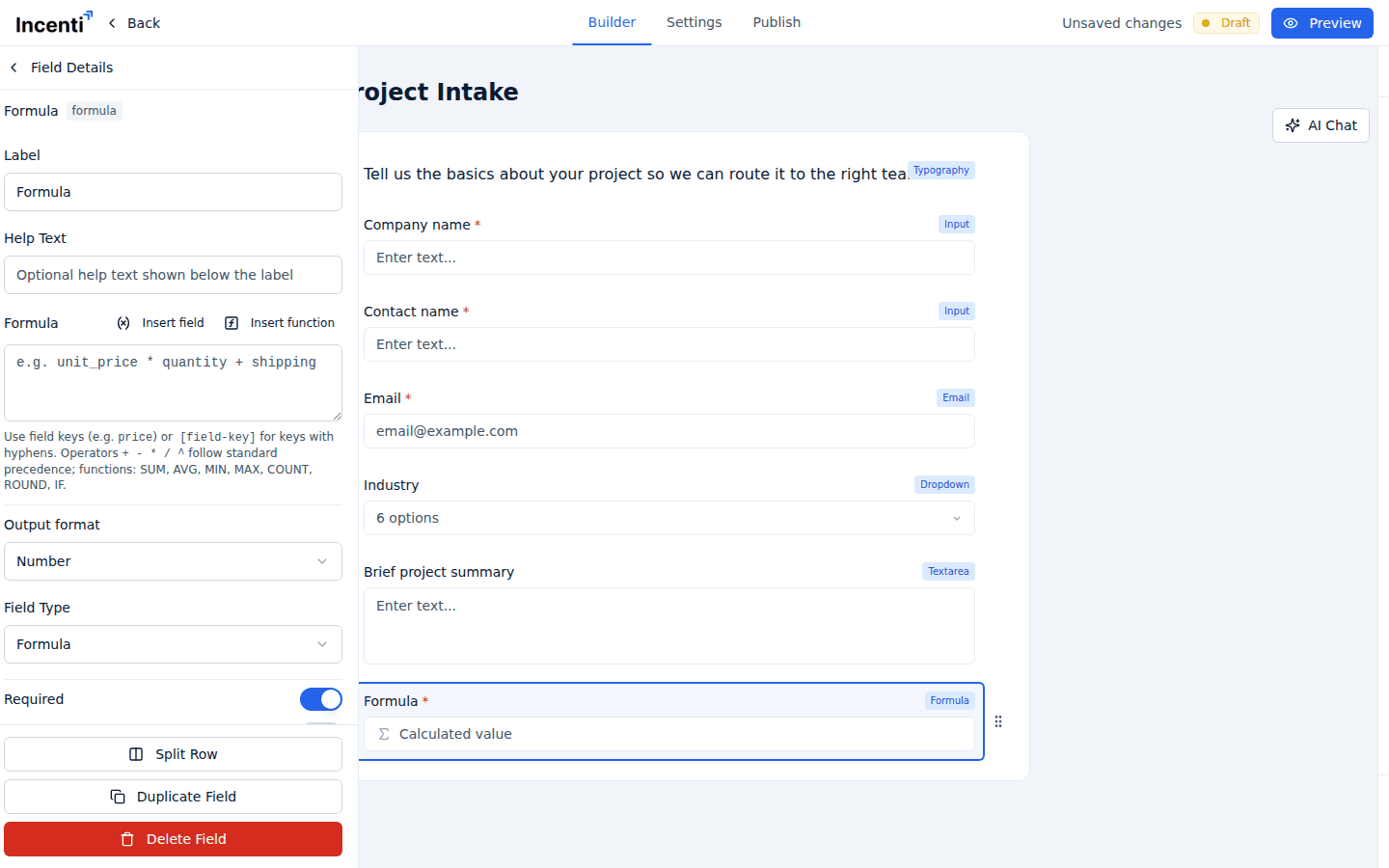
To add a calculated column to a table instead, open the table's column list, click the pencil on a column, and turn on the Formula switch in the Edit Column dialog. That forces the column to be read-only and required, and opens the same editor underneath.
Reference another field
A formula refers to other answers by their Key, not their label. A field's key is under Advanced in its own Field Details; a table column's key is in its Edit Column dialog.
- A key made only of letters, digits, and underscores can be written plainly:
unit_price * quantity. - A key containing hyphens or anything else must go in square brackets:
[unit-price] * [quantity].
Rather than typing keys from memory, use Insert field. It lists every non-Typography field on the form with its label and key, and table columns appear as "Table label · Column title". Clicking one appends the correctly formatted reference to whatever is already in the box.
Referencing a table column
A reference to a table column picks up every row's value in that column, so
wrapping it in an aggregate is usually what you want: SUM([line-total]) adds
up the whole column, AVG([salary]) averages it, COUNT([job-title]) counts
the filled rows.
Inside a Formula column, references to the table's other columns resolve to
that row's own values, so [quantity] * [unit-price] gives a per-row line
total. Combine the two: a Formula column for the line total, then a Formula
field with SUM([line-total]) for the grand total.
Operators and functions
Operators are +, -, *, /, and ^ (raise to a power), with the usual
precedence, and you can group with parentheses. Comparisons inside IF use
=, <>, <, <=, >, and >=.
Insert function lists the functions with a short description of each:
| Function | Signature | What it does |
|---|---|---|
| SUM | SUM([col]) | Total of all values in a table column or list of refs. |
| AVG | AVG([col]) | Average of values. Also accepted as AVERAGE. |
| MIN | MIN([col]) | Smallest value. |
| MAX | MAX([col]) | Largest value. |
| COUNT | COUNT([col]) | Number of values. |
| ROUND | ROUND(x, decimals) | Round to n decimal places (defaults to 0). |
| CEIL | CEIL(x) | Round up. Also accepted as CEILING. |
| FLOOR | FLOOR(x) | Round down. |
| ABS | ABS(x) | Absolute value. |
| IF | IF(cond, then, else) | Conditional. |
Clicking a function inserts its name with empty parentheses for you to fill in. Function names are not case-sensitive in the list above but are written in capitals by convention.
Examples
SUM([capital-cost]) + SUM([operating-cost])— two column totals added.ROUND([total-jobs] * [average-salary], 0)— a payroll estimate with no decimals.IF([headcount] > 50, [grant-base] * 1.25, [grant-base])— a bonus above a threshold.
Fix an error the editor shows
The editor checks the formula as you type and shows two kinds of message underneath the box.
A parse error
A red message names what went wrong — an unbalanced parenthesis, a stray operator, an unknown function name, or a function given the wrong number of arguments. The formula is not saved as valid until the message clears. Read the message, fix the expression, and the message disappears on its own.
"Unknown field(s): …"
An amber warning listing references that don't match any field key on this form. It is almost always one of three things:
- A typo in the key.
- The key was typed as a label ("Total Jobs") instead of a key
(
total-jobs). - A hyphenated key written without the square brackets.
Use Insert field to put the reference in for you rather than retyping it. Note that renaming a field's Key under Advanced does not update formulas that already point at the old key — they start reporting the old key as unknown.
Never point a formula at itself, directly or through a chain of other formulas. A circular reference can't be resolved and the field won't produce a value.
What happens next
- Respondents can't edit a formula. It renders as a read-only value and recalculates in front of them as they fill in the fields it depends on. The same is true for a Formula column in a table: the cell shows the computed value and can't be typed into.
- The result is recalculated on the server. Every time a response is saved and again when it is submitted, Incenti recomputes every formula from the raw answers rather than trusting what the browser sent, so an edited or stale browser value can never end up on the record.
- The output format only changes the display. A Currency formula shows a
currency symbol and a Percentage formula a
%sign; the stored value is the number itself. - Blank and non-numeric answers count as zero when a formula runs over a table column, so a partly filled table still produces a total rather than an error.
Common questions
Q: Can I add up a column of a table?
A: Yes. Give the column a Key in its Edit Column dialog, then add a
Formula field with SUM([that-key]). A reference to a table column
collects every row's value, so SUM, AVG, MIN, MAX, and COUNT all work
over the whole column.
Q: What functions can I use, and how do I reference another field?
A: SUM, AVG (or AVERAGE), MIN, MAX, COUNT, ROUND, CEIL (or
CEILING), FLOOR, ABS, and IF, plus the operators + - * / ^. Reference
a field by its Key — plainly if the key is simple, or in square brackets
like [unit-price] if it contains hyphens. Insert field and Insert
function write both for you.
Q: Why does my formula say "Unknown field"? A: The reference doesn't match any field key on this form. Check you used the field's Key (under Advanced), not its label, and that a hyphenated key is wrapped in square brackets. If you renamed a key after writing the formula, the formula still points at the old one.
Q: Can a respondent type over a calculated value? A: No. Formula fields and Formula table columns are read-only on the public form, and the value is recomputed on the server when the response is saved and submitted, so it always reflects the answers actually on file.
Q: My total is wrong because someone left a row blank — is that expected? A: Blank and non-numeric cells are treated as zero, so a half-filled table still totals rather than failing. If every row must be filled in, turn on Required for that column in its Edit Column dialog.
Related
Last updated on