Conditional rules
Build a rule that shows, hides, enables, disables, sets, or clears a field, section, or page based on an answer — and learn the limits: one condition per rule, show and hide that don't reverse, and Set Options.
Before you start
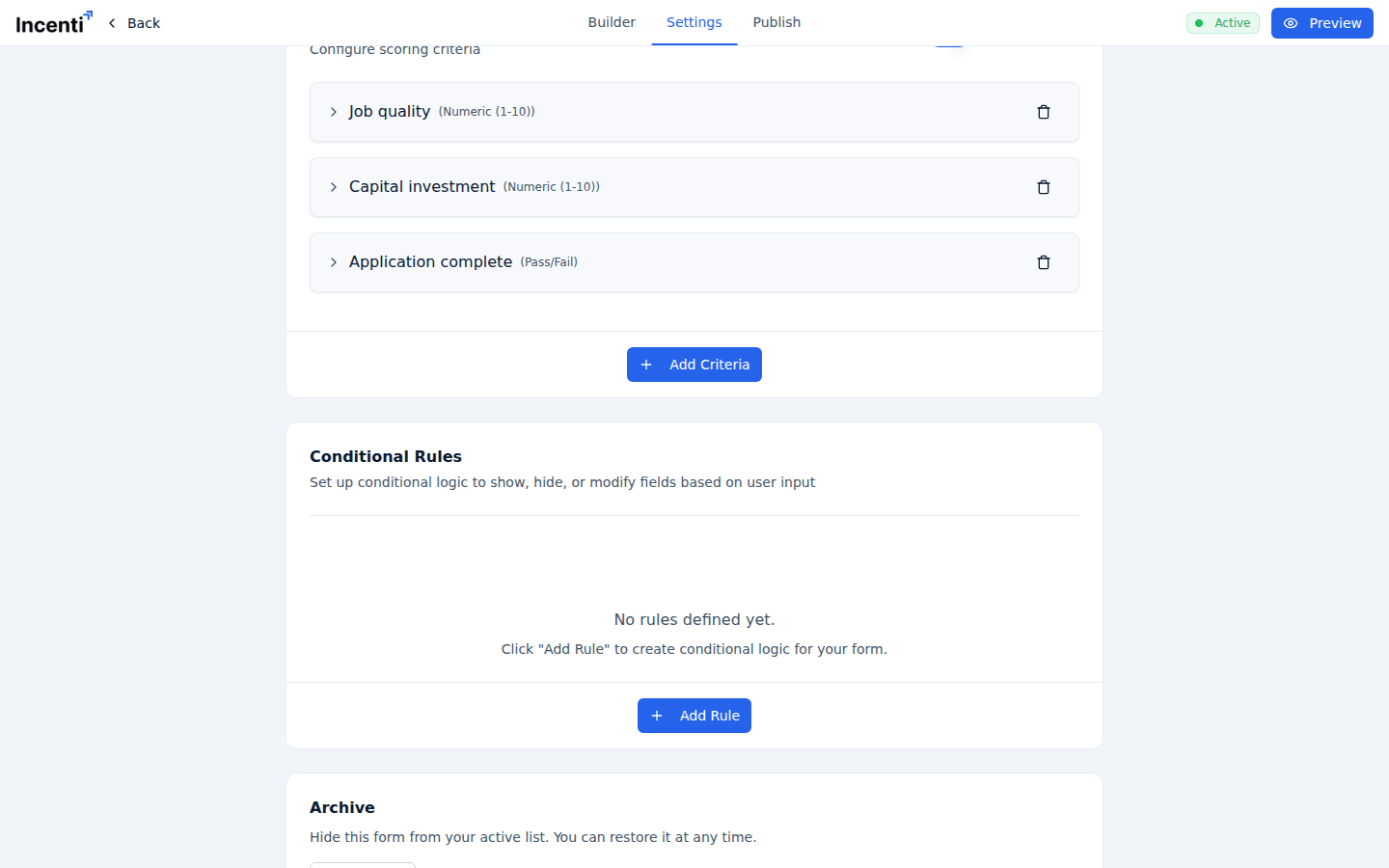
- You need a form open in the builder. Rules live on the Settings tab, under Conditional Rules — "Set up conditional logic to show, hide, or modify fields based on user input". With none defined yet the card reads No rules defined yet.
- The fields you want to reference must already exist, so build the questions first and add the logic afterwards.
- Rules are saved by the builder's autosave, the same as the rest of the form.
Steps
Create a rule
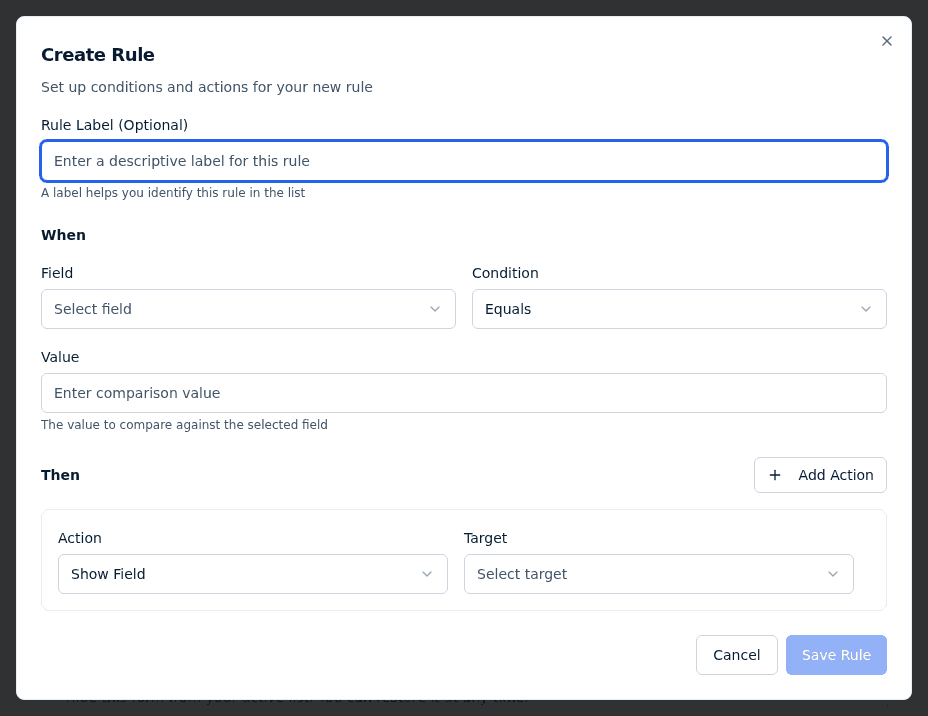
- Open the Settings tab and click Add Rule. The Create Rule dialog opens (it reads Edit Rule when you reopen an existing one).
- Fill in Rule Label (Optional). The hint reads "A label helps you identify this rule in the list" — worth using once you have more than a handful.
- Under When, pick the triggering Field.
- Pick a Condition: Equals, Not Equals, Is Blank, Is Not Blank, Contains, Not Contains, Greater Than, Less Than, Greater Than or Equal, or Less Than or Equal.
- Enter a Value to compare against ("The value to compare against the selected field"). The Value box disappears for Is Blank and Is Not Blank, which need nothing to compare to.
- Under Then, choose an Action and a Target. See Actions and targets below.
- Click Add Action to attach more actions to the same condition. Each extra action row gets its own trash icon.
- Click Save Rule. The button stays disabled until the rule has a triggering field and every action row has a target selected.
Actions and targets
Seven actions are available:
| Action | What it does |
|---|---|
| Show Field | Reveals a hidden target. |
| Hide Field | Hides the target and removes it from validation. |
| Enable Field | Makes the target editable. |
| Disable Field | Makes the target read-only. |
| Set Value | Writes a value into the target. |
| Clear Value | Empties the target. |
| Set Options | Replaces the choices on an options field. |
Despite the wording, targets are not only fields. The Target dropdown is grouped into Fields, Sections, and Pages, so a single action can reveal or hide a whole section or a whole page — that is how you branch a form without duplicating questions.
Choosing Set Value adds a Value to Set box below the action row. No other action takes a value.
Set Options has no place to enter the options in the rule editor, so a rule you build by hand can't populate them. Ask the Form Builder assistant to create the rule instead if you need to swap a dropdown's choices — see Build forms with the AI assistant.
Manage the rules you have
Existing rules are listed with a plain-language summary of each — for example, "When "State" equals "Yes" → Show "Follow-up question"". Drag a rule by its handle to reorder, or use the edit and delete icons on its row. Order matters: rules are applied top to bottom, so when two of them act on the same target the lower one has the final say.
If the form has property pages, some rules are created and managed for you to reveal and hide those pages as the respondent adds properties. Those don't appear in this list; a note above it says how many ("N rules are managed by the Properties pages and don't appear here."). Don't try to recreate them by hand.
See which fields a rule touches
On the canvas, any field used by a rule — as the trigger or as a target — carries an amber Rule badge under its preview. It is the quickest way to check that a rule points where you meant it to.
What happens next
- Rules run live while someone fills the form in. As soon as the triggering answer matches the condition, the actions apply — the field appears, disappears, locks, or takes its new value.
- A hidden field is never required. Hiding a field, by rule or by its own Hidden toggle, takes it out of validation entirely, so a respondent is never blocked by a question they can't see. Hidden pages and sections are skipped by Previous and Next too.
- Hiding is enforced again on submit. When a response is submitted, Incenti re-applies the form's rules on the server before checking required fields, so what the respondent actually saw is what gets validated.
- Show and hide do not reverse themselves. Once a rule has shown a field, changing the answer back does not hide it again, and the same goes the other way. Where you need both directions, write both rules — one for the matching answer and one for the answer that should undo it.
- Set Value is the exception — it does reverse. When the condition stops matching, a value the rule set is cleared again automatically, so you don't need a matching Clear Value rule.
- Rules are applied in list order. When two rules act on the same target, the one further down the list is applied last and wins, which is why the drag handles are there.
Common questions
Q: Can a rule have more than one condition, like "A is Yes AND B is over 50"? A: No. Each rule has exactly one When condition. It can have as many actions as you like, but to combine conditions you need either several rules (each doing part of the job) or an intermediate field — for example, a Formula field that produces the combined answer, which one rule then tests.
Q: How do I hide a whole page unless someone answers Yes? A: Add a rule whose When is that question equals "Yes" and whose action is Show Field with a Target taken from the Pages group. Set the page's fields to hidden to begin with so the page starts out of the way. Use a second rule with Hide Field on the same page target for the "No" answer if people may change their minds.
Q: A rule showed a field and it stayed visible after I changed the answer back. Why? A: Show and hide are one-way. The rule fired when the condition matched and nothing reverses it when the condition stops matching. Add the opposite rule — same field, the opposite condition, Hide Field — so both directions are covered.
Q: Can I make a field required only when another field has a value? A: No. Required is a property of the field, not something a rule can turn on. The usual workaround is to keep the field hidden and required, and use a rule to show it — a hidden field isn't validated, so it only becomes a blocker once the rule reveals it.
Q: What does Set Options do and how do I enter the options? A: It replaces the choices on a Dropdown or Checkbox field. The rule editor has no box for typing those choices, so a hand-built rule can't fill them in — ask the Form Builder assistant to create the rule for you instead.
Related
Last updated on