Map fields to your CRM
Use Auto Populate to connect a form field to a contact, organization, project, or property record, so a submission updates your CRM without retyping — and see which fields are mapped from the canvas.
Before you start
- You need a form open in the builder, with the field you want to map already on the canvas.
- Mapping is per field and lives under Advanced in Field Details. To map several related answers at once — a whole contact block, a whole address — add a Field Group instead and set its CRM auto-save choice there. See Field groups and reusable field sets.
Steps
Map a single field
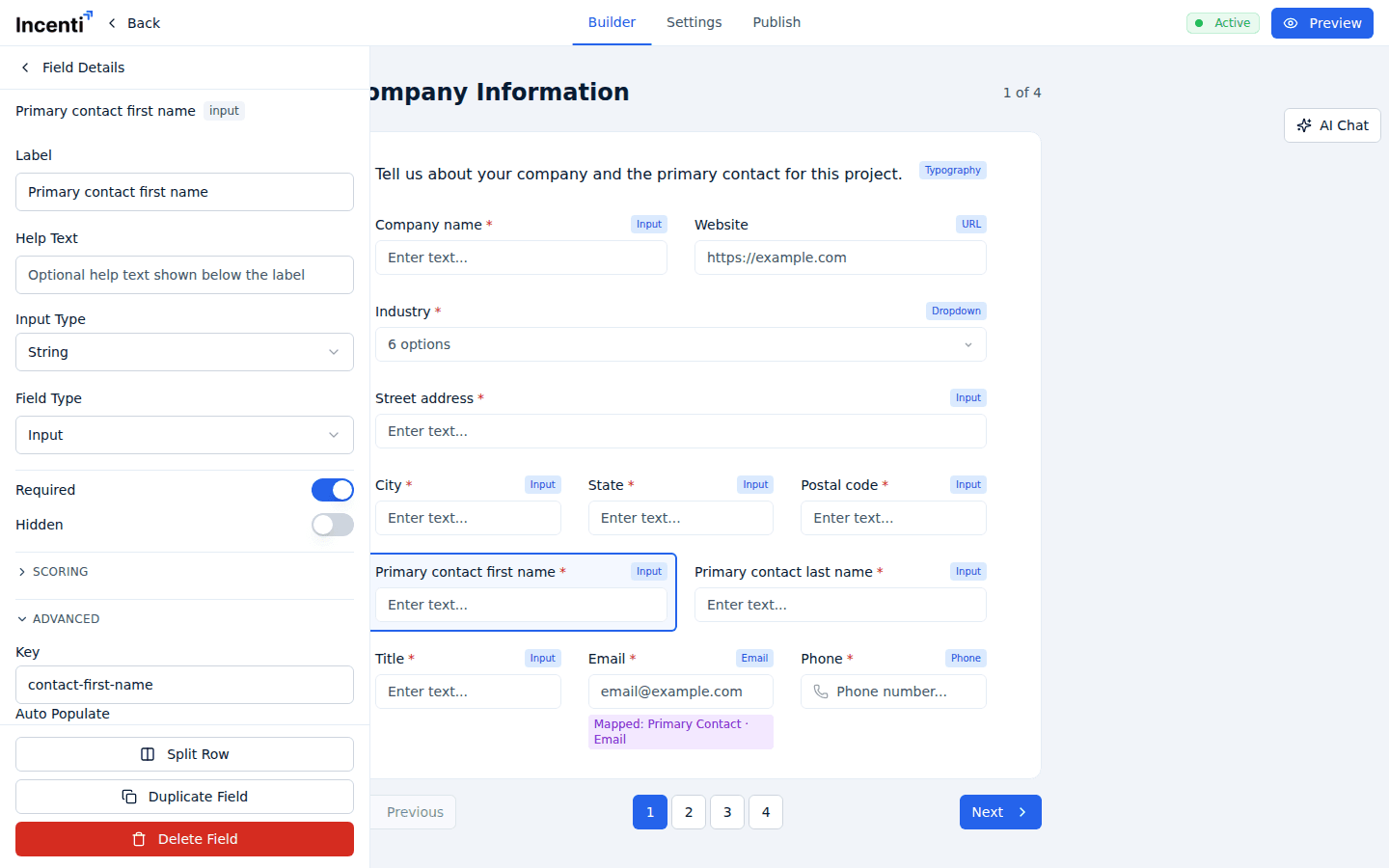
- Click the field on the canvas to open Field Details in the left panel.
- Expand Advanced. It holds the field's Key and an Auto Populate control.
- Open the first dropdown and choose the record the answer belongs to: Primary Contact, Organization, Project, or Property.
- A second dropdown appears. Choose the specific value on that record — for example, Primary Contact → Email, or Organization → Main City.
- To remove a mapping, click the X beside the entity dropdown.
There's no save button; the builder autosaves the change.
What each entity offers
- Primary Contact — First Name, Last Name, Email, Phone, Industries, the three address sets (Main, Mailing, and Other, each with Address 1, Address 2, City, Region, and Postal Code), and Detail for a custom attribute.
- Organization — Name, Phone, Website, Industries, the same three address sets, and Detail.
- Project — Name, Description, Start Date, End Date, and Detail.
- Property — the property catalog: status, acreage, utilities, transportation, incentives and zones, badges, and the rest of the fields you see on a property record.
Economic development organization accounts get three extra Project targets that site selector accounts don't see: Total Jobs, Total Capital Investment, and Average Salary. Map them and an incentive application fills in an opportunity's headline numbers by itself.
Site selector accounts see Name, Description, Start Date, End Date, and Detail under Project. The jobs, capital investment, and average salary targets are specific to economic development organization accounts and don't appear here.
Fields you can't map here
Two cases show the mapping as read-only rather than editable:
- A field inside a mapped field group. It shows the mapping the group derives, with the note "Managed by the group's CRM auto-save setting." Change it from the group's own settings.
- A field on a property page. It shows "Managed by the property pages' save setting."
Separately, if the form has property pages, Property is removed from the entity dropdown for ordinary fields, with the note "New property mappings are managed by the property pages." A mapping made before the property pages existed is still shown rather than silently dropped.
Legacy Address groups
An older Address group that predates CRM auto-save shows "No CRM auto-save configured." in Group Details, with a Configure as Address group button. Click it to pick a target and kind the modern way — see Field groups and reusable field sets for the options.
Check your work from the canvas
A mapped field carries a purple badge under its preview reading Mapped: entity · value — for example, "Mapped: Primary Contact · Email". Scanning the canvas for those badges is the fastest way to confirm a form captures everything you expect before you activate it.
What happens next
- A submission writes to your CRM. When a response comes in, the mapped answers create or update the matching contact, organization, project, and property records: the contact is matched on email address, the organization on name, and a property on its street address and city. No match means a new record.
- Existing data is never overwritten. Mapped answers only fill values that are currently blank. Where the record already holds something different, the existing value is kept and the difference is recorded as a sync conflict for you to review — see CRM sync and conflicts.
- Mapping drives autofill. When someone on an Incenti account answers your form in the portal, Autofill uses these mappings to pull the right values out of their own records. Mapping the same things the same way across your forms is what makes that reliable — see Autofill a response.
- Nothing about the mapping is visible to respondents. They just see the question.
Common questions
Q: What's the difference between mapping a field and adding a field group? A: A field group adds several related questions at once (a whole contact block, a whole address) and carries one CRM choice for all of them. Mapping is what you do to a single question you added yourself. Groups are less work and harder to get inconsistent; single-field mapping is there for the odd question that doesn't fit a group.
Q: Why can't I choose Property in the Auto Populate list? A: The form has property pages, which own property mapping for the whole form. The note under the dropdown says so. Manage those fields from the Property Pages panel instead.
Q: A submitted answer didn't update the contact record — why not? A: Mapped answers only fill blanks. If the contact already had a different value, Incenti keeps what was there and records the difference as a sync conflict on the response, so you can decide rather than losing data silently.
Q: Does mapping a field mean the respondent sees their own data pre-filled? A: Only inside the portal. A respondent who has their own Incenti account and continues the form there can use Autofill, which reads these mappings. A plain public form link never pre-fills anything.
Q: Can I map a field to something not in the list, like a custom attribute? A: Yes — each entity has a Detail target for exactly that.
Related
Last updated on