Form types
Understand what a form type is, pick one when you create a form, and see where types show up in the portal today.
Before you start
- A form type is a category label, such as Incentive Application or BR&E Survey, that describes what a form is for. Incenti maintains the list of types; you can't create or edit one yourself.
- Which types you see depends on your account type. If a type doesn't fit, you can leave a form as Other.
Choose a type when you create a form
-
Start a new form (see Create a form) and reach the Form Details screen.
-
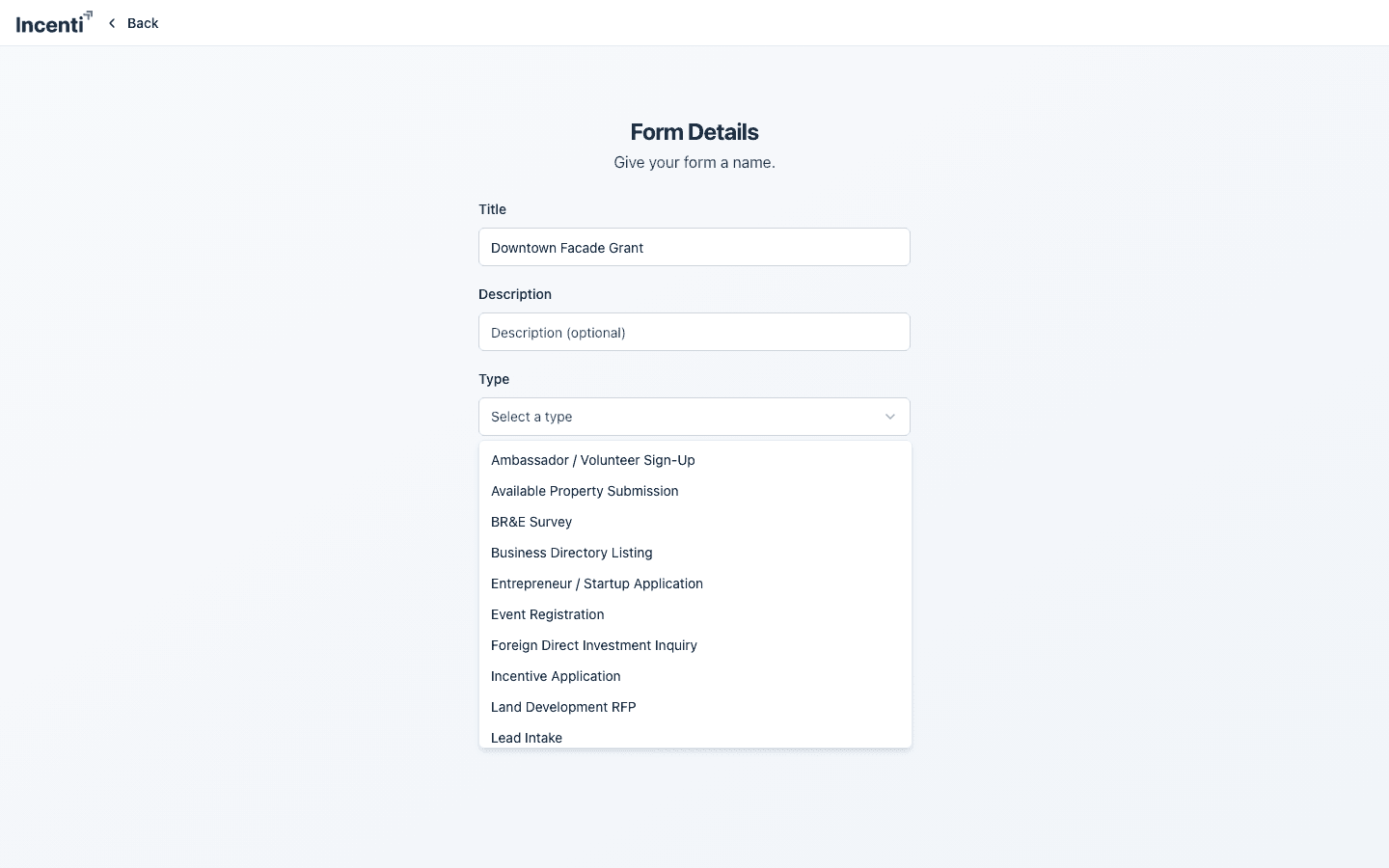
Open the Type dropdown (placeholder Select a type). The list shows the types available for your account type, sorted alphabetically, with Other as the last option.
-
Pick a type, or choose Other if nothing matches — Other doesn't store any type on the form at all.
-
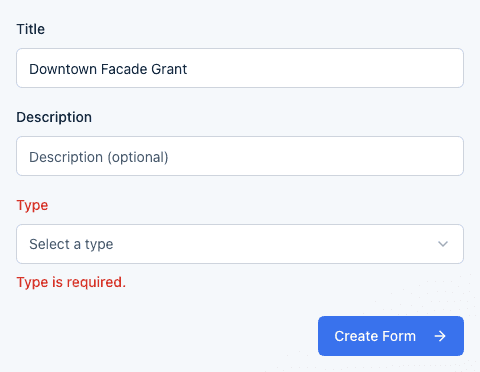
Type is required: if you click Create Form without choosing anything, you'll see Type is required. under the field.
If you started from a template, the type is already set to that template's type and the dropdown is disabled — see Start a form from a template. A Smart Document Form (document scan) works like a blank form: you choose the type yourself.
Where form types appear
In the portal, form types show up in exactly two places:
- The Type dropdown on the Form Details step described above.
- The Categories sidebar in the template browser (when you choose Use a template), where each category is a form type that has at least one published template.
There's no type column on the Forms list, no type badge on the form page, and no way to filter forms by type anywhere else. If you're looking for a form by its type, you'll need to check its name or open it.
Outside the portal, the type does one more thing — it chooses the wording of the emails your form sends.
Form types change your emails
The type decides the subject line and body copy of three emails:
| What the type changes | |
|---|---|
| The response request sent to recipients | Subject, opening sentence, button label, and the forwarding note. |
| The delivery summary sent back to you | Subject and heading. |
| The new-response notice sent to your team | Subject, heading, and body line. |
For example, a form with no type (or Other) sends a request subject of "Your organization Form name" and a new-response subject of "Form name response received - Your organization". A Lead Intake form sends "Your organization Lead Intake Form" and "Lead intake response received - Your organization"; a Request for Information form sends "Your organization Request for Information"; a Workforce Survey form sends "Your organization Workforce Survey".
Two types also change the request email's content rather than just its wording:
- Request for Information adds the deadline line — "Responses will no longer be accepted after date at time" — whenever the form has an expiration set.
- Request for Information and Workforce Survey both add a sentence inviting recipients to forward the email to partners.
Example types by account type
The exact list can grow over time, but as of this writing:
- Ambassador / Volunteer Sign-Up
- Available Property Submission
- BR&E Survey
- Business Directory Listing
- Entrepreneur / Startup Application
- Event Registration
- Foreign Direct Investment Inquiry
- Incentive Application
- Land Development RFP
- Lead Intake
- Membership / Investor Application
- Redevelopment Grant
- Request for Information
- Revolving Loan Fund Application
- Site Visit Request
- Small Business Grant
- Small Business Registration / Application
- Sponsorship Request
- Stakeholder Feedback Survey
- Tax Form
- Workforce Survey
- Client Intake
- Lead Intake
- NDA / Confidentiality Agreement
- Perception Survey
- Request for Information
- Workforce Survey
What happens next
- The type is fixed once the form is created. The builder's Settings tab has no field for changing it — if you need a different type, create a new form instead.
- Duplicating a form keeps the original's type (see Duplicate, archive, and delete forms).
- Types keep the template browser's Categories sidebar organized and relevant to your account type. They don't drive reporting or any filtering beyond that sidebar, but they do select the wording of the emails your form sends.
Common questions
Q: Can I add my own form type? A: No. Incenti manages the list of form types. If you need one that doesn't exist, contact support with the request.
Q: I picked the wrong type — how do I change it? A: You can't change a form's type after it's created. Create a new form with the right type instead; you can duplicate the original first to reuse its fields.
Q: Why don't I see the type on my forms list? A: It isn't shown there today. The Forms list has no type column or filter — type only appears on the Form Details step and in the template browser's category sidebar.
Q: Does the form type change the emails my applicants receive? A: Yes. The type picks the subject line and body copy for response requests, the delivery summary you get back, and the new-response notice your team gets. A Request for Information form also adds the deadline line to the request email when the form has an expiration.
Q: Does choosing Other affect anything? A: Only the email wording, which falls back to the generic version ("Your organization Form name"). Other stores no type on the form and doesn't limit anything the form can do.
Related
Last updated on