Start a form from a template
Browse Incenti's published form templates, preview one, and create your own editable copy with its fields, pages, rules, and scoring already in place.
Before you start
- You need access to the Forms area of the portal.
- Templates are standard templates: Incenti staff write and publish them. You can't create, edit, or save your own template — if you want to reuse a form you already built, duplicate it instead (see Duplicate, archive, and delete forms).
- Which templates you see depends on your account type — see Which templates you see below.
Steps
-
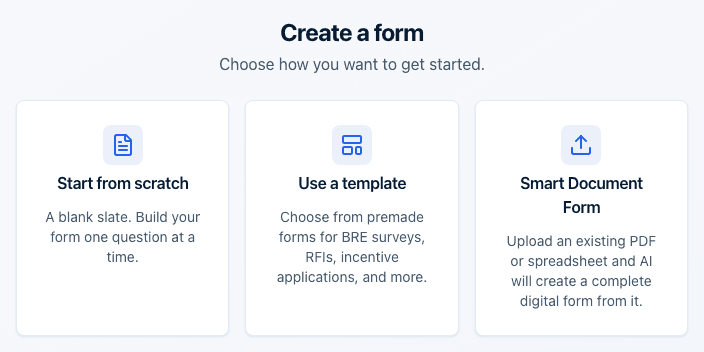
Open Forms and select Add Form. On the Choose how you want to get started screen, click Use a template.
-
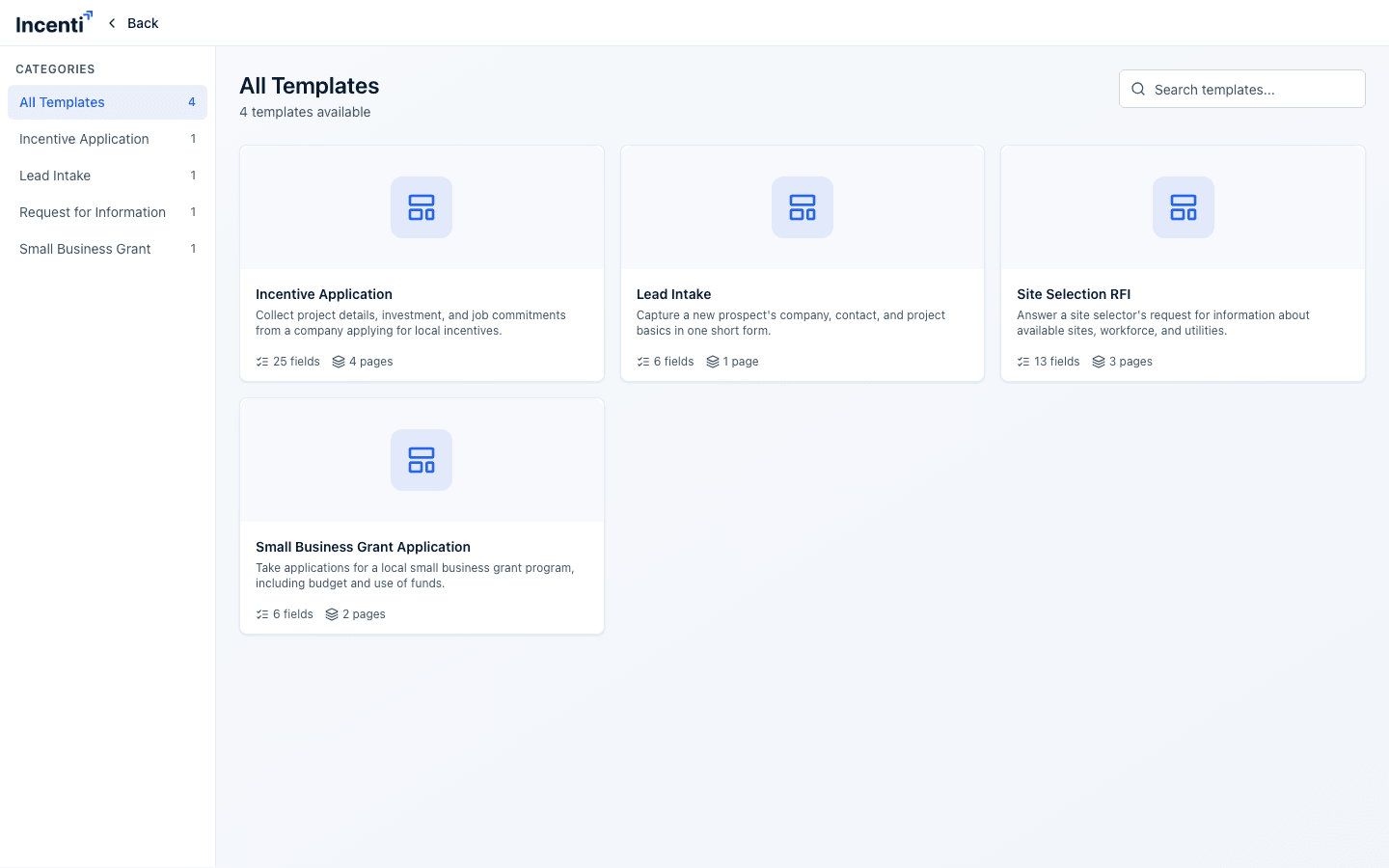
You land on the template browser. Use the Categories list on the left — All Templates or one of the form types that has at least one template — to narrow the list, or type into Search templates... to filter by name. The heading above the cards shows how many templates are available in the selected category.
-
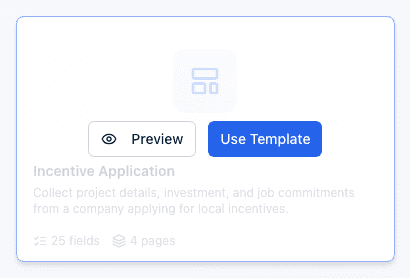
Hover a template card to see its Preview and Use Template buttons. Click Preview to open the template in a new tab exactly as a respondent would see it. You can page through it with Next — a preview skips validation, so required fields don't stop you and you never see the inline error messages — and Submit is disabled.
-
Click Use Template on the template you want.
-
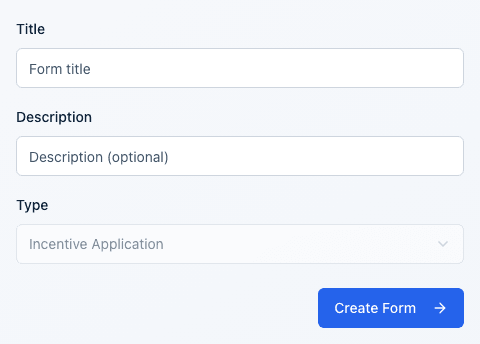
On Form Details ("Name your new form from template"), enter a Title (required) and, optionally, a Description. The Type dropdown is pre-filled with the template's form type and disabled — you can't change it here.
-
Click Create Form. You'll see a "Form created successfully" toast and land in the form builder with your new form's editable copy.
Which templates you see
Templates are grouped by form type, and each type is aimed at economic development organizations, site selectors, or both. The browser only lists templates whose type matches your account type, so two organizations of different types see different lists. If nothing matches, the browser says No templates available.
Economic development organization accounts see EDO-oriented categories — for example, Incentive Application, BR&E Survey, Request for Information, or Lead Intake. Incenti adds templates over time, so treat these as examples rather than a fixed list.
Site selector accounts see site-selection-oriented categories — for example, Client Intake, Request for Information, Lead Intake, or NDA / Confidentiality Agreement. Incenti adds templates over time, so treat these as examples rather than a fixed list.
What happens next
- Your new form is created in Draft status. It's a full, independent copy of the template: its pages, sections, fields and options, any conditional rules, and its scoring criteria (including whether scoring is enabled) all copy over.
- The copy is completely separate from the template. If Incenti later updates the template, your form doesn't change, and nothing you do to your form touches the template.
- The form's type came from the template and can't be changed afterward — the builder's Settings tab has no field for it.
- The form doesn't accept responses until you activate it from the builder's Publish tab.
Common questions
Q: Can I save my own form as a template so my team can reuse it? A: No. Templates are authored and published by Incenti staff only; there's no way for a customer account to create or save one. If you want a repeatable starting point from your own work, use Duplicate on the Forms list instead — see Duplicate, archive, and delete forms.
Q: I don't see the template a colleague at another organization used. A: The template list depends on your account type — an EDO account and a site selector account see different templates — and also on whether the template is currently published. If a colleague's organization has a different account type, or the template hasn't been published, it won't show up for you.
Q: If Incenti updates a template after I've already created a form from it, does my form change too? A: No. Creating a form from a template makes an independent copy. Later edits to the template never flow into forms already created from it, and edits to your form never touch the template.
Q: Why didn't the required fields stop me when I previewed a template? A: Preview deliberately lets Next through without checking anything, so you can read the whole template quickly. Create your copy and open its live link if you want to see validation behave the way respondents will experience it.
Q: Can I change the form's type after creating it from a template? A: No. The type comes from the template and is fixed at creation — the Type field is shown but disabled on the Form Details screen, and the builder's Settings tab doesn't offer a way to change it either. Create a new form if you need a different type.
Related
Last updated on