Publish and share a form
Activate a form so it accepts responses, copy its public link or embed code, preview it, send response requests, set an expiration, and close it when you're done.
Before you start
- You need a form open in the builder. From the Publish tab you can see and change whether it's accepting responses and get its public link.
- A form starts out with status Draft and won't accept responses until you activate it.
Steps
Check form status
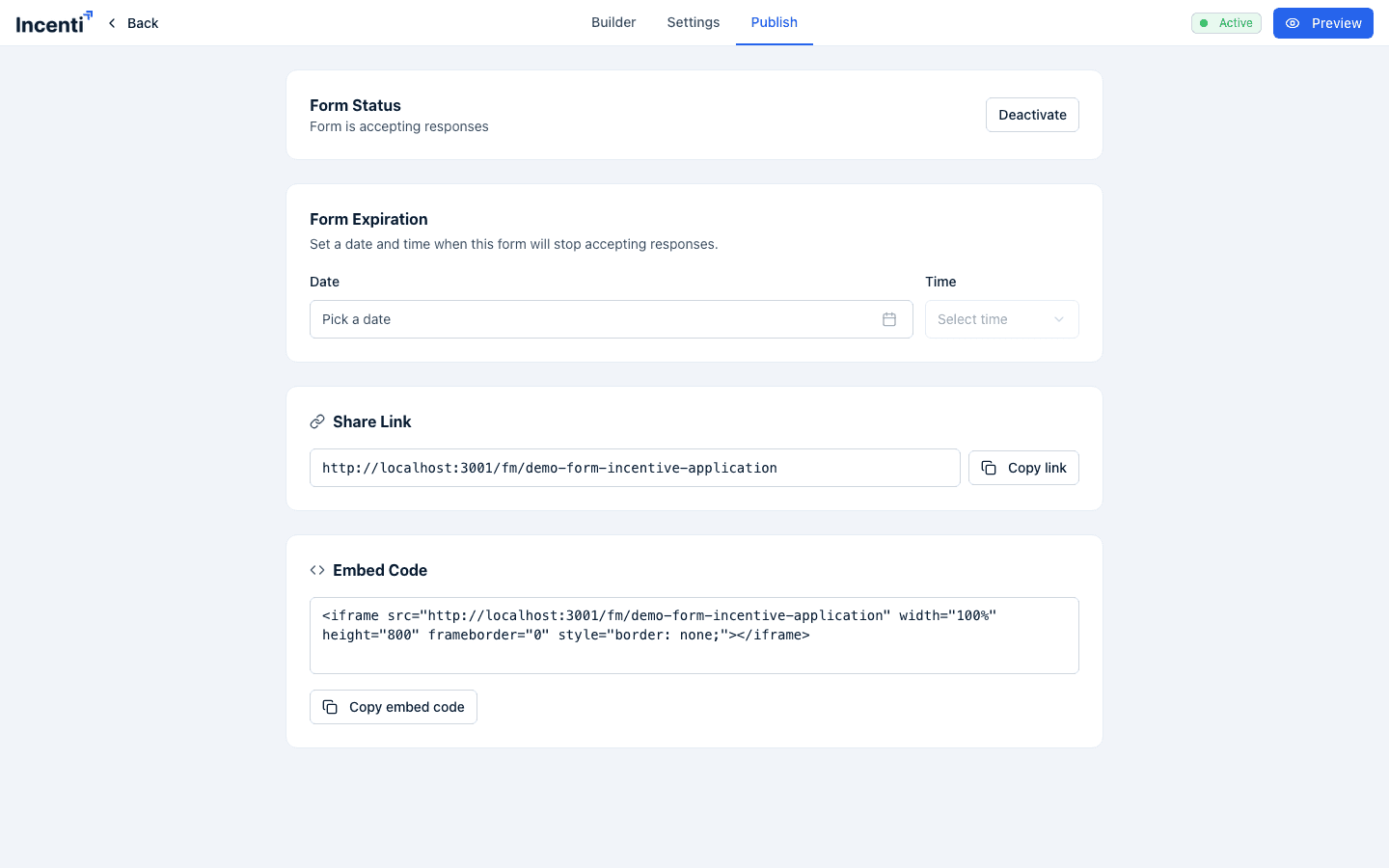
The builder header shows the form's status as a badge: Draft, Active, or Closed. On the Publish tab, the Form Status card shows whether the form "is accepting responses" or "is not accepting responses," with a button to toggle it.
Activate the form
Click Activate on the Form Status card. A confirmation dialog asks "Activate this form?" — confirm with Yes to allow the form to accept responses. If the form isn't ready (see below), you'll see a warning first.
Resolve "not ready" warnings
Before you can send requests, share, or activate a form with unresolved issues, a dialog explains what's missing:
- Form is not active — activate it from the publish tab first (a blocking issue).
- Form has no fields — add at least one field before sharing (a blocking issue).
- Not capturing contact information — the form isn't collecting an email, so you won't be able to follow up with respondents (a warning, not a blocker — a Set up contact fields button jumps into the builder with an AI prompt pre-filled to add contact capture for you).
Blocking issues only let you close the dialog or jump to Edit form. Warning-only issues let you proceed anyway, with a button labeled to match what you were doing (for example, Send anyway, Activate anyway, or Copy anyway).
Preview the form
Click Preview in the builder header (top right) to open the form exactly as a respondent would see it, in a new tab. Preview mode does not create a saved response draft and skips the "closed form" message, so you can preview a Draft or Closed form the same way a live one would look once active.
Get the public link or embed code
On the Publish tab, the Share Link card shows the form's public URL
and a Copy link button; the Embed Code card shows an <iframe> snippet
and a Copy embed code button for embedding the form on another page.
Copying either one is blocked by the same readiness dialog described above
if the form isn't ready to share.
Send response requests
Click Send Requests (available from the form's detail page) to open the Request Responses dialog: "Search contacts, upload a CSV, or manually add recipients to send form response requests." You can:
- Search and select existing Contacts, Organizations, Tags, or Industries to pull in their contacts
- Upload a CSV of recipients (up to 1,000 rows) using Download CSV template as a starting point
- Add rows manually and edit them in a preview table before sending
Each recipient gets an email invitation to fill out the form. Sending is also blocked by the readiness dialog when the form isn't ready — you can still choose Send anyway if the only issue is the contact-capture warning.
Set an expiration
On the Publish tab, the Form Expiration card lets you "Set a date and time when this form will stop accepting responses." Pick a date and time, or click Clear to remove the expiration and leave the form open-ended.
Close the form
Click Deactivate on the Form Status card (shown once the form is Active) to stop it accepting responses. A confirmation dialog asks "Close this form? This will stop the form from accepting new responses." Confirm with Yes.
What happens next
- Activating a form makes its public link live immediately — anyone with the link (or an embedded copy) can submit a response.
- A respondent who opens a Draft form's link sees "This form is not yet available" and a note that it isn't accepting responses yet, rather than the form itself.
- A respondent who opens a Closed form's link (including one that reached its expiration) sees "This form is no longer available" and a thank-you message that it's no longer accepting responses.
- Sending response requests emails each recipient a link to fill out the form; you'll be notified once the batch finishes processing.
- Deactivating a form doesn't delete any responses already submitted — it only stops new ones from coming in.
Common questions
Q: What's the difference between Draft, Active, and Closed? A: Draft is the starting status — the form isn't public yet. Active means the form is accepting responses at its public link. Closed means the form existed and may have collected responses before, but isn't accepting new ones now (including once its expiration date passes).
Q: Can I still share or copy the link for a form that isn't ready? A: If the only problem is that the form isn't capturing contact information, yes — you'll see a warning and a "anyway" option to proceed. If the form has no fields or isn't active yet, those are blocking issues and you'll need to fix them first.
Q: What does a respondent see if I close the form after people have already started filling it out? A: They'll see the "This form is no longer available" message with a thank-you note the next time they load the form's link; it won't accept a new submission.
Q: How is Preview different from actually opening the public link? A: Preview shows the form exactly as a respondent would see it, but doesn't save a response draft and works even if the form is still in Draft or has been Closed — so you can check your work before or after the form is live.
Related
Last updated on