Build forms with the AI assistant
Use the Form Builder AI panel to add and rearrange fields, tables, pages, sections, scoring, rules and CRM mappings by asking for them — and reject a turn you don't like in one click.
Before you start
- You need a form open in the builder. The assistant is part of the Builder tab and works on the form you have open — it never touches another form.
- The panel is open by default on the right of the canvas. If it's closed, the AI Chat button at the right edge of the builder reopens it.
- Everything the assistant does goes through the builder's ordinary autosave, so there's nothing extra to save.
Steps
Ask for a change
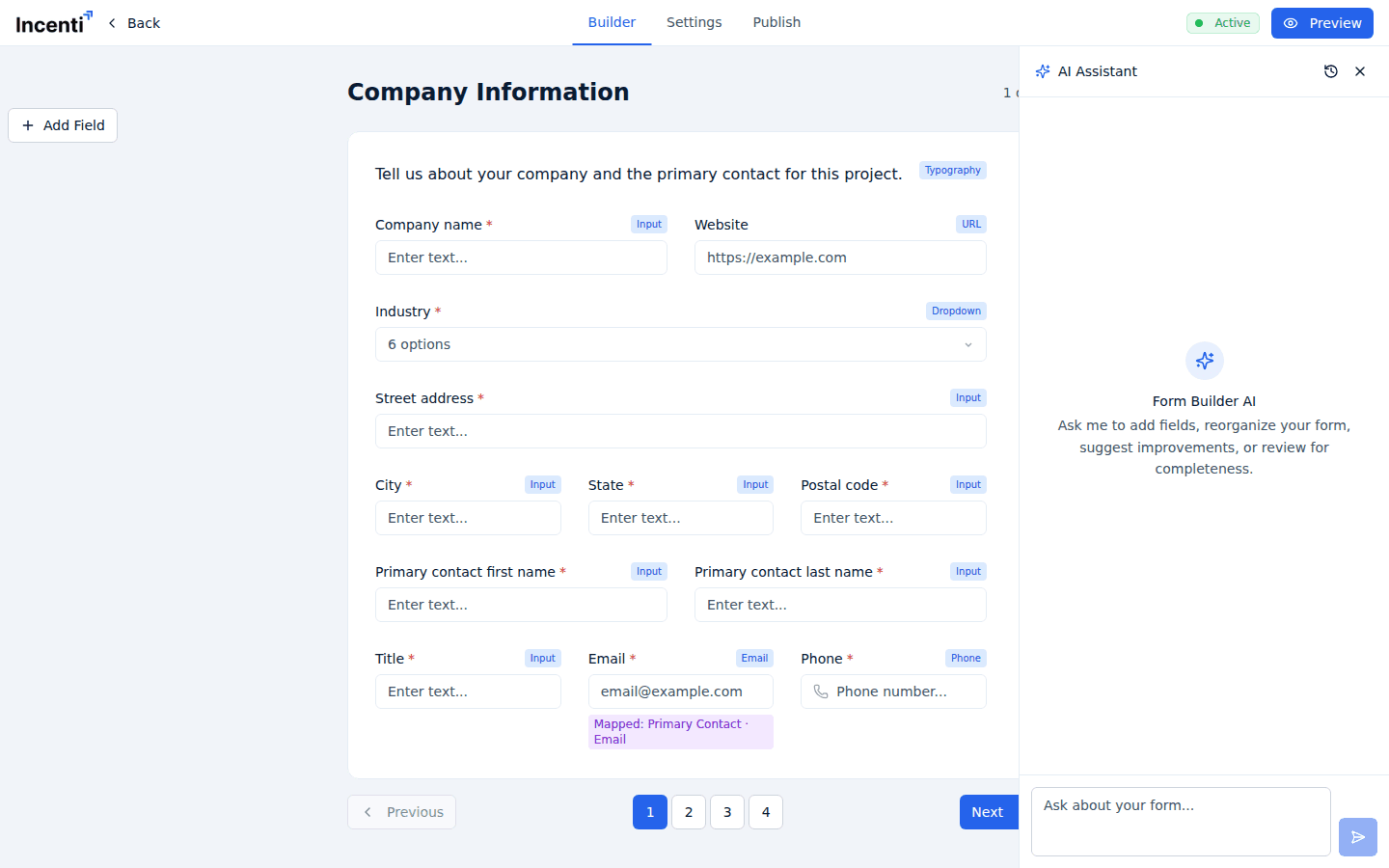
- Open the form in the builder. The panel on the right is headed Form Builder AI with the empty-state line "Ask me to add fields, reorganize your form, suggest improvements, or review for completeness."
- Type into the box at the bottom — its placeholder reads "Ask about your form..." — and send.
- The assistant replies, and any changes it made land on the canvas immediately. A card under its reply reads "N changes applied:" and lists each one with a green tick.
Undo a turn you don't want
The card from the assistant's most recent turn carries a Reject Changes button. Clicking it puts the form back exactly as it was before that turn — all of the changes in that turn, not the one you disliked.
Reject Changes is only offered on the latest turn, and sending another message counts as accepting what came before. If you want to undo something, do it before you type your next request.
Manage the conversation
Three icons sit in the panel header:
- Chat history — switch to an earlier conversation on this form, or start a new one.
- Clear chat — begin a fresh conversation.
- Close chat — collapse the panel and give the canvas the full width. The AI Chat button brings it back.
Conversations are kept per form and per person, so your chat about one form never shows up on another, and a colleague working on the same form has their own.
The "Set up contact fields" shortcut
If you try to activate, share, or send a form that isn't collecting an email address, the readiness dialog offers a Set up contact fields button. It takes you into the builder with a request already typed into the assistant's box: find or create fields for first name, last name, email, and organization name, and map each one to the matching CRM record without disturbing mappings that already exist. Send it, review what it did, and reject it if you'd rather do it by hand.
What the assistant can do
Ask in plain language — "split this into two pages", "add a table of annual jobs and wages", "score this on job quality". Behind the scenes it works through a fixed set of operations:
| Area | What it can change |
|---|---|
| Fields | Add, remove, update, duplicate, and move a field. |
| Tables | Add, remove, and update columns; set the row count; split one table into two or merge two into one. |
| Pages | Add, remove, rename, reorder, merge, split, and move fields between pages. |
| Sections | Add and remove a section on a page. |
| Scoring | Turn scoring on or off, and add, update, or remove criteria. |
| Rules | Add, update, and remove conditional rules. |
| CRM mapping | Set or remove a field's Auto Populate target. |
| Field groups | Add a group, change where it saves, or remove it. |
| Property pages | Add or remove the page set, change its minimum and maximum, change whether properties are saved, and add, remove, or restore fields on it. |
It can also review the form and suggest improvements without changing anything — ask it what's missing and it will answer rather than edit.
What happens next
- Changes apply to the canvas straight away and are then autosaved like any other edit. The header shows Saving… while that happens.
- The assistant works only on the open form. It can't create a new form, activate or close one, send response requests, or read or edit responses people have already submitted.
- It never publishes anything. Activating a form is always a deliberate step you take on the Publish tab — see Publish and share a form.
- It can't upload files or write a form from a document. Starting from a document is the Smart Document Form option on Create a form.
Common questions
Q: Can the AI build the form for me? A: It can do most of the mechanical work — adding and arranging fields, tables, pages and sections, writing scoring criteria and conditional rules, and mapping fields to your CRM. You still choose the questions and review the result, and you still activate the form yourself.
Q: I asked for something and I don't like the result — how do I undo it? A: Click Reject Changes on the card under the assistant's reply. It puts the form back to how it was before that turn. The button only appears on the most recent turn, and sending another message accepts what came before, so undo first and ask again afterwards.
Q: Can a colleague see my conversation with the assistant? A: No. Chat sessions are kept per form and per person. Someone else editing the same form gets their own conversation and their own history.
Q: Where did my earlier conversation go? A: Use the Chat history icon in the panel header to reopen it. Clear chat starts a new conversation rather than deleting the old one.
Q: Why did a request already appear in the box when I opened the builder? A: You arrived through the Set up contact fields button on the readiness warning. It pre-fills a request that adds and maps first name, last name, email, and organization name fields for you. Send it, or clear the box and ask for something else.
Related
Last updated on