Received and Submitted responses
Understand the Received and Submitted tabs on the responses list, what lands in each, and how to search, filter, sort, and act on the responses in the table.
Before you start
- You need access to the Responses area of the portal.
- A response is one submission of a form — either a form your account owns, or a form someone else's account owns that your account submitted to.
Find a response
Choose the right tab
The responses list has two tabs relevant here, plus a third for saved answers:
- Received — responses submitted to one of your account's own forms. This is the default tab.
- Submitted — responses your account submitted to another account's form, or a document your account uploaded to create a response.
(A third tab, Answers Library, holds saved answers rather than responses and isn't covered on this page.)
Received tab
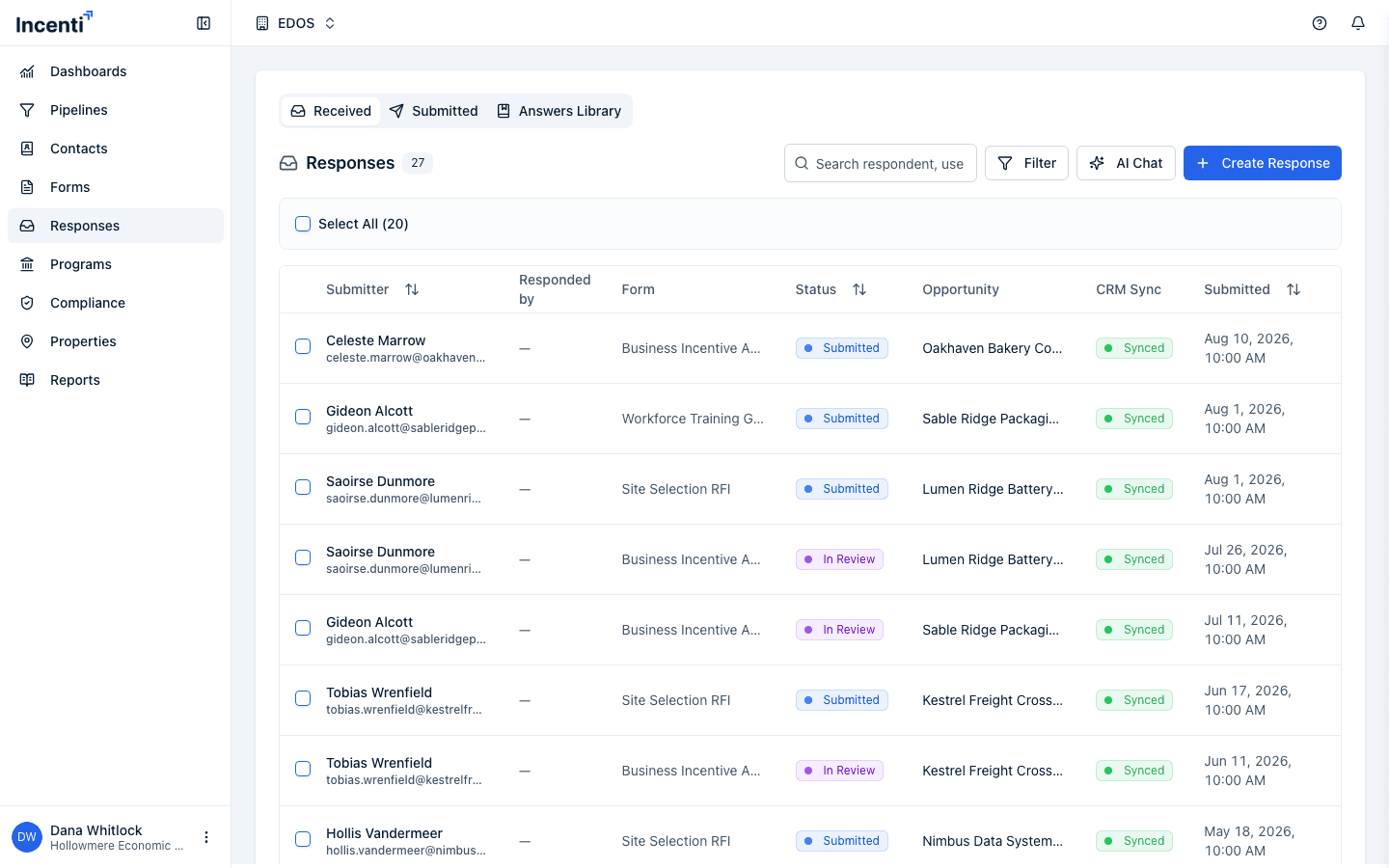
The Received tab shows a count badge next to the Responses heading and, by default, only responses in these statuses: Submitted, In Review, Approved, Shortlisted, and Stale — drafts (Pending, In Progress) and Declined responses are hidden until you change the filter.
Columns shown: Submitter (name, with email underneath), Responded by, Form, Status, Opportunity (only shown once at least one response in the list is connected to one), CRM Sync, Score (only shown once at least one response in the list has been scored), and Submitted (date and time). Click Submitter, Status, Score, or Submitted to sort by that column; clicking again reverses the direction.
Selecting one or more changeable responses (not Approved or Declined) reveals bulk actions above the table: Connect to Opportunity or Promote to Opportunity (when none of the selection is connected yet), Reconnect to Different Opportunity or Disconnect (when all of the selection is already connected), Score with AI, and Change Status. Each row also has a delete icon that opens a Remove Response confirmation.
When you filter by a specific form (from the filter modal, or by clicking a form name in the list), a List / Compare toggle appears above the table. Compare lays the selected form's responses out question-by-question instead of response-by-response.
Submitted tab
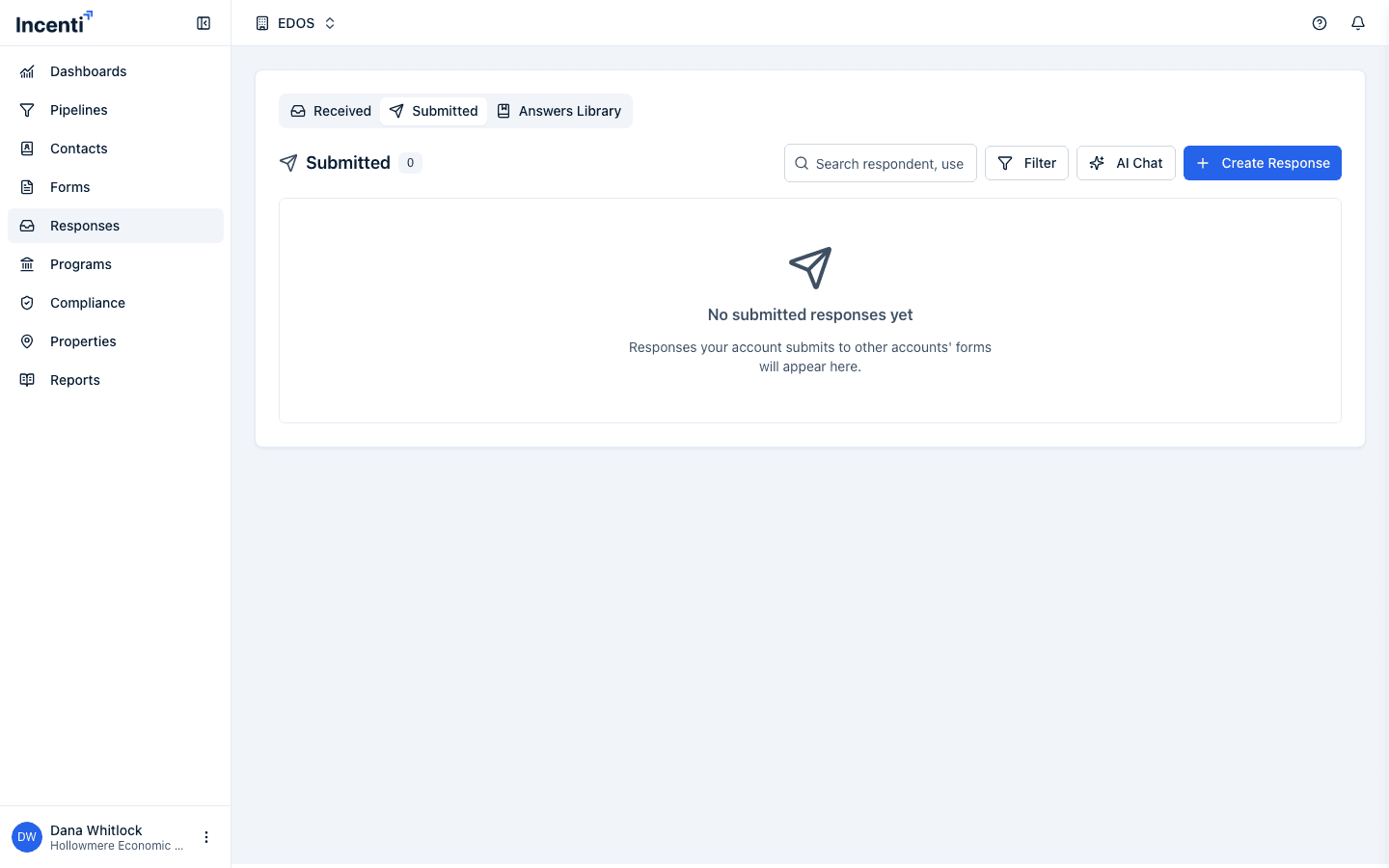
The Submitted tab is read-only: no checkboxes, no bulk actions, no status/score columns. Columns shown: Submitter, Form, Account (the account whose form received it), Status, and Submitted. By default it shows every status, not just the Received tab's default subset. Clicking a row still in progress opens the form to continue it — a document-sourced response continues on the portal's own detail page; any other still-open response opens in a new tab on the public form itself.
Search, filter, and page through the list
Both tabs share a search box (placeholder Search respondent, user or form) and a Filter button, which shows a count badge once one or more filters are active. The filter dialog title is Filter Responses:
- Filter by Status — a checkbox per status, each showing a count; a status with zero matching responses is disabled.
- Filter by Score Percentage (Received tab only) — Minimum % / Maximum % inputs. Unscored responses drop out of the list once either bound is set.
- Filter by Connection (Received tab only) — Connected opportunity and Connected form search comboboxes.
The dialog's footer has Reset to Default (restores the tab's default status filter), Cancel, and Apply Filters. When more than one page of results exists, pagination controls (Previous / Next, with a "Page X of Y" label) appear below the table.
Every list row is clickable and opens the response's detail page.
What happens next
Bulk status changes, opportunity connect/disconnect, and AI scoring all run from this list and refresh it in place — see Review a response for what each one does. Uploading a document from Create Response on this page starts a background job; a new row for it appears in your Submitted tab once it's ready, and you're notified separately — see Create a response from a document.
Common questions
Q: Why don't I see a response I know was submitted? A: On the Received tab, drafts and declined responses are hidden by default — open Filter and check the statuses you want, or click Reset to Default if you'd previously narrowed the filter yourself. Also confirm you're on the right tab: a response to your own form is on Received; a response your account submitted to someone else's form is on Submitted.
Q: What's the difference between Connect to Opportunity and Promote to Opportunity? A: Both appear as bulk actions on the Received tab when none of your selected responses are already connected to an opportunity. Connect to Opportunity links the selection to an opportunity that already exists; Promote to Opportunity creates a new one from the selection.
Q: Can I sort or filter the Submitted tab by status or score? A: You can filter Submitted by status (the same Filter Responses dialog, without the score or connection sections), but there's no score column or sorting there — score and CRM sync are internal workflow state that only shows on the Received tab.
Related
Last updated on