Import contacts from a CSV
Prepare a CSV of contacts, review and fix the rows in the import preview, start the import, and understand how existing contacts are matched, how organizations are chosen, and what the completion email and notification tell you.
Before you start
- Anyone on your account can run an import; nothing is queued for approval.
- Imports create contacts (and, where needed, the organizations they belong to). There's no separate organization import.
- An import never overwrites a contact you already have. Read How rows are matched before importing a list you've edited outside the portal.
Steps
Prepare the file
The file must be a .csv — the file picker won't offer anything else — with these
four column headers, spelled exactly like this:
| Column | Required | Notes |
|---|---|---|
| First Name | No | Stored as typed |
| Last Name | No | Stored as typed |
| Yes | Lower-cased and trimmed before it's used | |
| Organization Name | No | The organization the contact should belong to |
There's no column-mapping step, so a header that doesn't match is simply ignored and its column is dropped. Only Email is required on a row; a row without a valid one is marked invalid and skipped. Phone numbers, titles, addresses, tags, and industries can't be imported — add those after the contacts land.
A file can hold up to 1,000 rows. A bigger file is refused with "CSV exceeds the maximum of 1000 rows", an empty one with "The CSV file is empty", and a file we can't read with "Failed to parse CSV file". Split a longer list and run it twice.
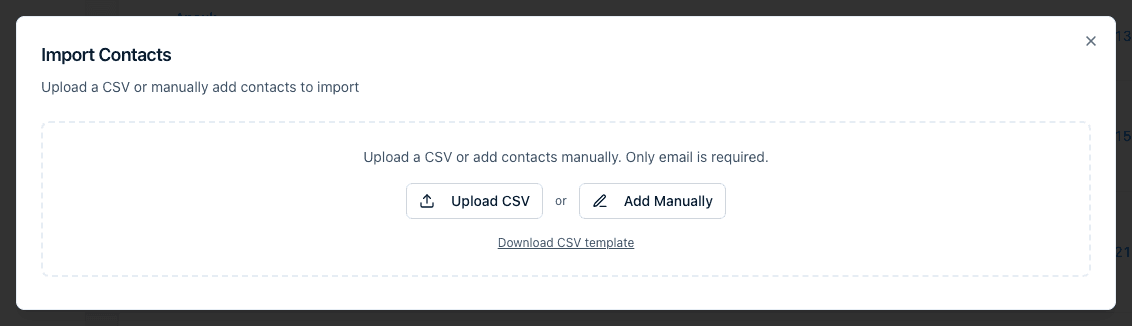
Click Import CSV on the Contacts page, then Download CSV template to get
import-template.csv, a file with just the four headers to fill in.
Review the preview
Choose Upload CSV and pick your file — or Add Manually, which skips the file entirely and drops you into an empty row with the cursor in Email. Either way you land on the preview table, which is editable:
- Click any cell to edit it, then press Enter (or click away) to keep the change, or Escape to cancel.
- Add Row appends a blank row; the trash icon at the end of a row removes it.
- The badges above the table count N valid, N invalid, and N duplicates skipped, and update as you edit.
- Each row shows a status icon and, where something's wrong, the reason in the Errors column — "Email is required", "Invalid email format", or "Duplicate email".
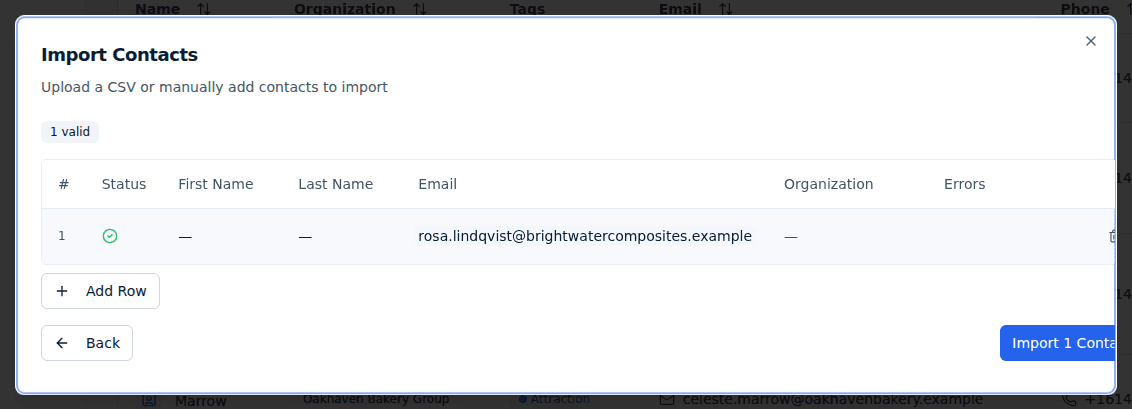
"Duplicates" here means repeats within this file: the second and later rows with an email address that already appeared above. They're skipped so the same person isn't processed twice. Rows matching a contact you already have in the portal are not flagged — they count as valid and are processed as described below.
Use Back to drop the file and start over. When the preview looks right, click Import N Contacts; the button counts only the valid rows, and invalid rows are skipped ("Invalid rows will be skipped during import.").
Start the import
You'll see "Import started — you'll be notified when complete" and the dialog closes. The import runs in the background in batches of 25 rows, so contacts appear in the list gradually rather than all at once — refresh the page to see progress. You don't have to stay on the page, and closing the tab doesn't stop it.
How rows are matched
Contacts you already have
If a row's email address already belongs to a contact on your account, that contact is kept as it is. Its name, phone, title, and everything else stay exactly as they were — an import is never an update. If the contact had been deleted, the same email address restores it, with its old details and history intact.
This is why a 60-row import can report far fewer new contacts than rows, and why a contact you deleted can reappear after someone imports an older spreadsheet.
Organizations
When a row has an Organization Name, how we find the organization depends on the email address:
- A company email address (anything that isn't a well-known personal domain) is
matched by domain: we look for an organization whose Domain is the part
after the
@. If one exists, the contact joins it — even if that organization has a different name than the one in your file. If none exists, a new organization is created with the name from your file and that domain saved on it. - A personal email address (Gmail, Outlook, and similar) is matched by name instead, ignoring capitalisation. If no organization has that name, one is created with no domain.
On top of that, every contact created anywhere in the portal — by import, by hand, or through a form response — is linked to an organization whose Domain matches their email address, even when no organization was named. Keeping Domain correct on your organizations is what makes this work in your favour.
What happens next
When the job finishes, two things arrive for the person who started the import:
- A bell notification: "Import Complete: N of M processed", with counts of the contacts and organizations created versus the ones that already existed.
- An email with the same summary, listing every row that failed and the reason it failed, so you can fix those rows and re-import just them.
Contacts created by an import behave like any other contact: they can be tagged, edited, linked to opportunities, and included in response requests right away.
Common questions
Q: The import says 40 processed but only 12 contacts are new. Where did the rest go? A: They already existed. Any row whose email address matches a contact on your account is counted as processed but left untouched — imports never update an existing contact, and repeats inside the same file are skipped as duplicates.
Q: I updated names and phone numbers in my spreadsheet and re-imported. Nothing changed. A: That's expected — an import only ever creates or restores contacts. To change details on contacts you already have, edit them in the portal with Actions → Edit Contact.
Q: My contact ended up under an organization with a different name than my file said. A: For company email addresses the organization is matched by email domain, not by the name in your file. If an organization already has that domain, the contact joins it. Fix it by editing the contact's Organizations field, or by correcting the Domain on the organizations involved.
Q: Can I import phone numbers, titles, tags, or addresses? A: No. The import reads only First Name, Last Name, Email, and Organization Name. Add the rest afterwards on each contact's page.
Q: Why were some rows skipped as duplicates when those people aren't in my account yet? A: "Duplicate" refers to the file, not your account: the same email address appearing more than once in the upload. Only the first of those rows is imported.
Related
Last updated on