Forms list: search, filter, and preview
Find a form on the Forms list with search, the status filter, and the Active and Archived tabs; read its columns; sort and page through them; preview a form as a respondent; and see why the list may be missing entirely.
Before you start
- Open Forms in the left navigation. The list shows every form your account owns.
- If Forms isn't in your navigation at all, see When Forms or Responses are missing.
Steps
Narrow the list
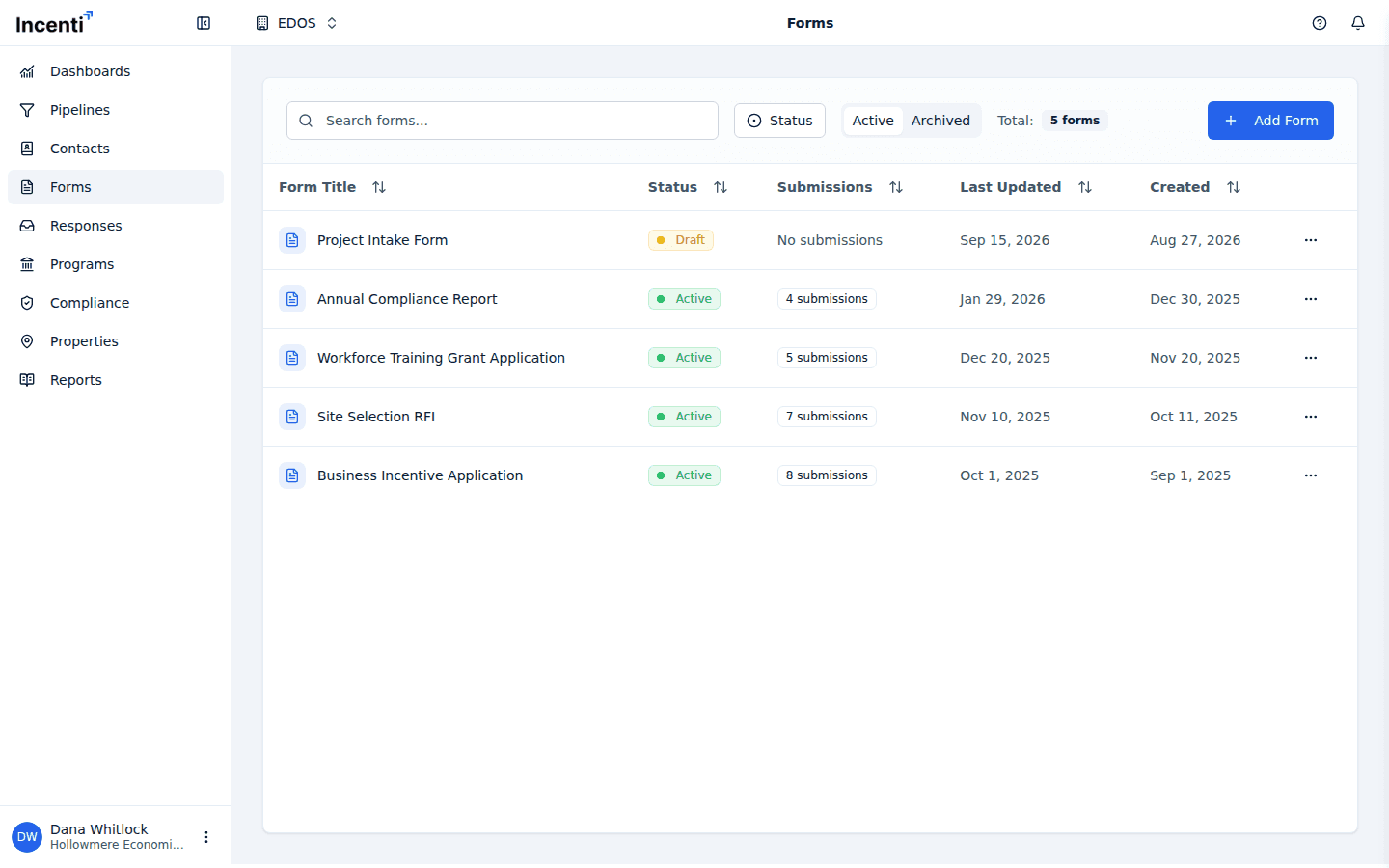
Four controls sit above the table:
- Search forms... — filters as you type, across the columns shown.
- The status filter button — tick Draft, Active, and Closed to show only the statuses you want.
- The Active / Archived tabs — Active is the default and hides archived forms; Archived shows only those. See Duplicate, archive, and delete forms.
- A Total: badge — how many forms match what you've selected, not how many your account has in total.
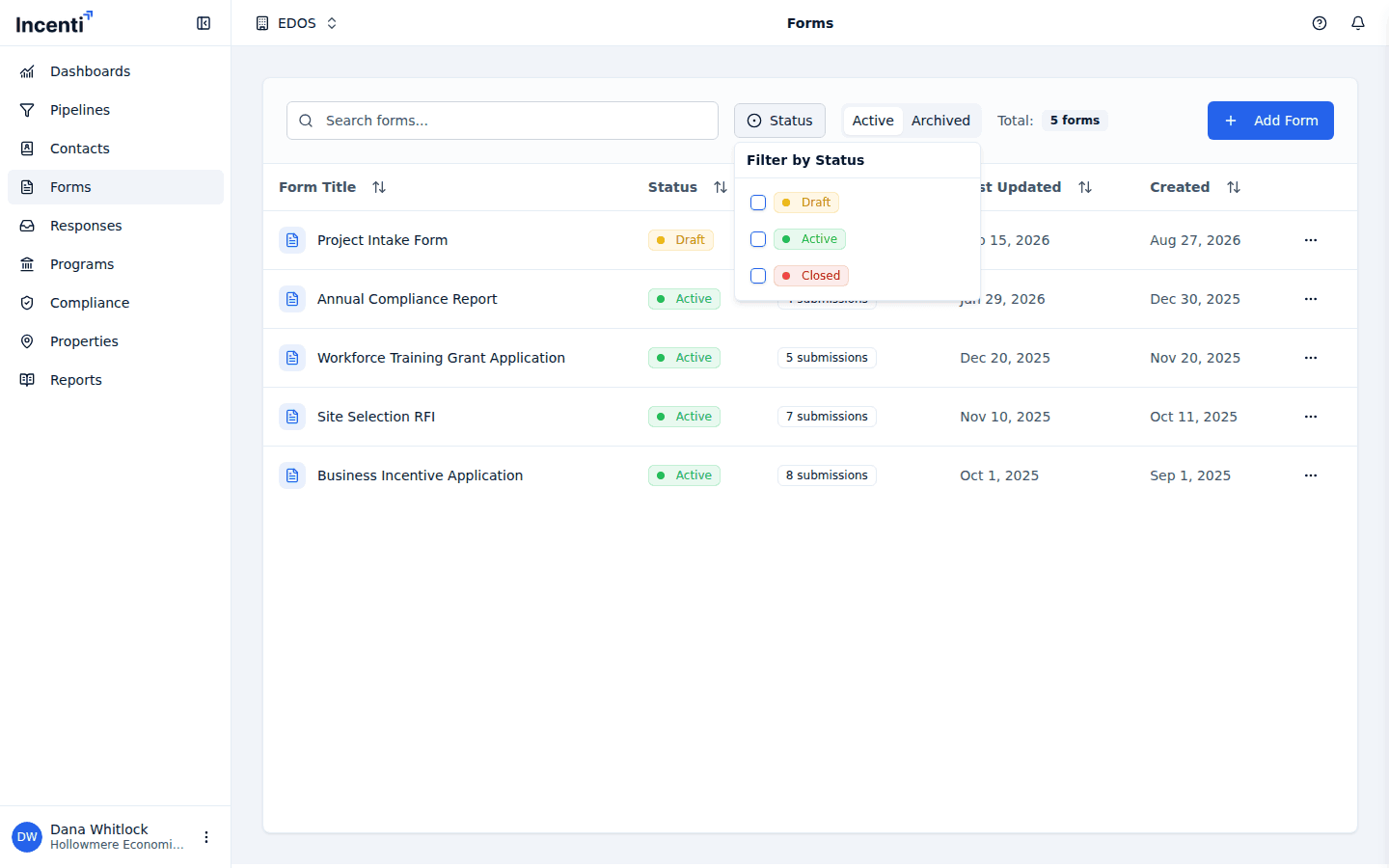
Read the columns
| Column | What it shows |
|---|---|
| Form Title | The form's name. |
| Status | Draft, Active, or Closed, plus an Archived badge when it applies. |
| Submissions | "N submissions", or "No submissions" when none have arrived. |
| Last Updated | When the form itself was last edited. |
| Created | When the form was created. |
Click a column heading to sort by it, and click again to reverse the order. The footer reads "Page X of Y" with controls to move between pages when there are more forms than fit.
When nothing matches you'll see No forms found with either "Try adjusting your search" or, on an account with no forms yet, "Forms will appear here once created."
Open a form
Clicking a row opens that form's responses, not the builder — you land on the responses list already filtered to this form. That's the usual thing you want from a list of forms.
To do anything else, use the ⋯ menu at the end of the row:
- Edit — opens the builder.
- Preview — opens the form in a new tab as a respondent sees it.
- Duplicate — makes a draft copy.
- Archive / Unarchive — moves the form between the two tabs.
Preview a form
Preview opens the public form in a new tab with ?preview=true on the
address. It behaves like the real thing with three differences:
- No draft is saved. Nothing you type is stored and no response appears in your list.
- Next doesn't validate. You can page through the whole form without filling anything in, so required-field messages never appear. That makes preview a poor way to test your validation — use the live form for that.
- Submit is disabled. The button on the last page reads Submit but does nothing.
Preview also ignores the form's status and expiration, so you can check a Draft or Closed form the way it would look once it's live. The same Preview button sits in the builder header while you're editing.
When Forms or Responses are missing
Forms and Responses are separate modules, and either can be switched off for an account. If one of them isn't in your navigation — or a link to it returns a page-not-found — the module isn't enabled for your account rather than anything being wrong with your permissions. Contact Incenti support to have it turned on.
Otherwise there's no distinction between admins and members here: anyone with access to the Forms area can create, edit, activate, close, duplicate, and archive forms.
Common questions
Q: I clicked a form and ended up on a list of responses. How do I edit it? A: A row click is a shortcut to that form's responses. To edit the form, use the ⋯ menu on its row and choose Edit.
Q: Why doesn't the Total badge match the number of forms I have? A: It counts what currently matches your search, status filter, and the Active / Archived tab. Clear the search and the status filter to see everything on the current tab.
Q: Where did a form go? It's not on the list. A: Check the Archived tab — archiving hides a form from Active without deleting it. Also clear the search box and any status filter, since both narrow the list silently.
Q: My required fields didn't stop me in Preview. Is validation broken? A: No. Preview deliberately lets Next through without checking anything so you can read the whole form quickly. Open the live link to see validation behave as respondents will experience it.
Q: Can I preview a form that isn't published yet? A: Yes. Preview ignores the form's status and its expiration, so Draft and Closed forms both open normally.
Related
Last updated on