Upload a response against an existing form
Attach a completed copy of one of your published forms that an applicant sent back as a file, so it joins that form's responses, gets scored, and is recorded as theirs.
Before you start
- You need a published form of your own that the applicant filled out and returned to you as a file — PDF, Word (.docx), or a spreadsheet (.xlsx, .xls, .csv, .ods), under 25MB.
- The applicant needs to exist as a contact, because the response is recorded as theirs. Add them first if they don't — see Contacts and organizations.
- One file at a time. The dialog refuses a second file with "Attach one returned document at a time."
Steps
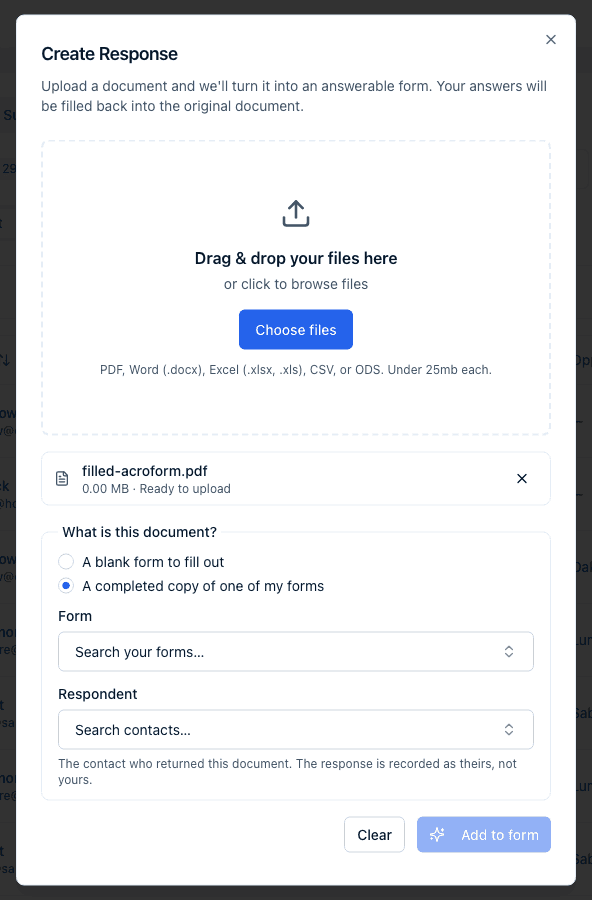
- On the responses list, open the Received tab and click Create Response.
- Drop the returned file onto the upload area or click Choose files and pick it.
- Under What is this document? (it appears once a file is listed), choose A completed copy of one of my forms.
- In Form, search for and pick the form the applicant filled out (only your own published forms are listed).
- In Respondent, pick the contact who returned it. The dialog notes: "The contact who returned this document. The response is recorded as theirs, not yours."
- Click Add to form and wait while it reads the file.
- When it finishes, the dialog says Response added to form name and tells you whether every value matched a field. Click Open response.
Resolve values that didn't match
Answers are matched to your form's questions by field and by label. Anything the file contained that has no matching question is kept aside rather than guessed. The result screen tells you: "N values from the document could not be matched to a field. You can assign or dismiss them from the response's Details rail."
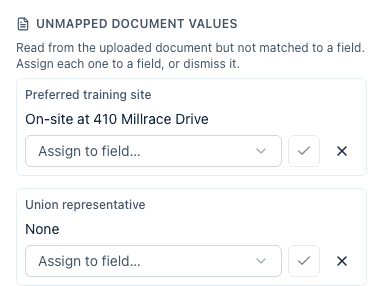
- Open the response and, in the left rail, find Unmapped document values under Details. It reads "Read from the uploaded document but not matched to a field. Assign each one to a field, or dismiss it."
- For each value, either pick a question from Assign to field… and click the checkmark, or click the X to dismiss it.
- Assigned values appear in the Response card immediately; the block disappears once every value is resolved.
Pick a question whose answer type fits the value — a number for a numeric question, one of the listed options for a dropdown. The picker lists every question on the form.
What happens next
- The response is stored as Submitted on the form you picked, with the contact as its respondent and today as the submission date. It shows up in the form's responses in the Received tab, in Compare, and in the opportunity's Responses tab like any other submission.
- If the form scores responses, scoring runs in the background and the score appears once it finishes — see Score responses with AI.
- The normal "new response" notification goes to your team, and the submission runs through CRM sync.
- The file you uploaded is attached to the response as its document. Nothing is written back into it.
- Every matched answer is marked as read from the document; Show sources and the AI chat both report that.
Common questions
Q: Why isn't my form in the Form picker? A: Only your account's own published forms appear. Draft forms, archived forms, templates, and forms generated from documents aren't offered. Publish the form first.
Q: Can I upload several returned documents at once? A: Not against an existing form — it takes one file at a time so each one is tied to the right contact. Repeat the steps for each returned document.
Q: The value went into the wrong field. How do I fix it? A: Click Edit on the response, change the answer, and Save changes. If you assigned an unmapped value to the wrong question, edit that answer the same way; the unmapped value itself can't be un-assigned.
Q: Will the applicant get an email? A: No. Uploading a returned document creates the response on their behalf without notifying them. Your team receives the usual new-response notification.
Q: Does this replace an existing response from that contact? A: No. It adds a new response. If the contact already submitted the form online, you'll have two, so check the list before uploading.
Related
Last updated on