Export responses
Download one response as a CSV or PDF, download the completed copy of a document response, and know what each file contains before you send it on.
Before you start
- Exporting happens one response at a time, from the response's own detail page. Open the responses list and click any row to get there.
- Both sides can export: the account that owns the form, and the account that submitted the response. There's no separate permission for it.
- Everything in the file comes from the response as it stands right now. Edit an answer and export again to get the change.
Export one response
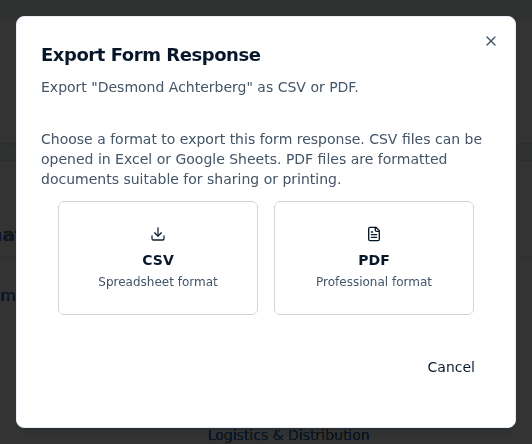
- Open the response and click Export.
- In the Export Form Response dialog, choose CSV (spreadsheet format) or PDF (professional format).
- The file downloads straight away and a toast confirms "Response exported successfully as CSV" or "… as PDF".
The file is named after the respondent with the date and time of the export appended —
for example response_Ridgeline_Manufacturing_2026-09-17_14-32-07.csv — so exporting the
same response twice never overwrites the first file.
What's in the CSV
A CSV is laid out for reading in Excel or Google Sheets, in this order:
- A header block: Form Response Export, the response name, Submitted on, and Status.
- A SCORING block when the response has a score: the raw score, the percentage, and then Criterion Scores — each criterion's name, its score out of its maximum, and its explanation on the line below.
- A FORM FIELDS block with a Question and Answer column, one row per question in the order the form asks them. Instruction and heading blocks come through too, under their own label or simply as "Typography". A table question gets a summary row reading "Table with columns: …" followed by one row per table row.
- A footer with the connected opportunity, the form name, Exported on, and "Powered by Incenti".
Questions hidden by the form's rules are included, so nothing from the submission is silently dropped.
What's in the PDF
The PDF is the version to send to someone: the respondent's name and submission date at the top, a Scoring section with the score, percentage, and criterion breakdown when there is one, then the answers grouped under their page and section headings exactly as the form was laid out. Uploaded files appear as links, a signature shows the typed name and the date it was signed, and tables are drawn as tables.
Unlike the CSV, the PDF leaves out questions that the form's rules hid from the respondent — it shows the form they actually saw.
Download a completed document
A response you created by uploading a document exports differently. Once Incenti has written your answers back into the original file, Export offers only that Completed document, named after the original file, instead of the CSV and PDF choices. Clicking it downloads the filled-in original and confirms "Completed document downloaded".
If the filled copy hasn't been generated yet, you'll see "No completed document is available for this response" — save your answers once more with Save & generate document and try again in a moment. See Create a response from a document.
Getting several responses at once
There is no button that exports a whole list of responses to one file. Two ways round it:
- Compare view. Filter the Received tab to a single form and switch to Compare. That lays every response to the form out side by side, question by question, with a Score row — the fastest way to read a whole round of submissions on one screen.
- Export each one. For a permanent record, export the responses you need individually; the timestamped file names keep them apart.
If what you actually want is a repeatable roll-up of response data — counts by status, scores over time, answers to one question across a whole form — build it as a dashboard or a report instead of exporting files.
What happens next
- Exporting reads the response; it changes nothing. The response's status, score, and CRM sync are untouched, and nobody is notified.
- The completed document link points at the most recently generated copy. Editing the answers regenerates it in the background, so export again after an edit.
Common questions
Q: What's the difference between the CSV and the PDF? A: The CSV is raw question-and-answer rows for a spreadsheet, and it includes questions the form's rules hid. The PDF is a formatted document laid out by page and section, with the hidden questions left out — better for sending to a colleague or filing.
Q: Why does Export only offer a "Completed document" on this response? A: Because the response was created from a document you uploaded. The original file with your answers written into it is what people actually want from those, so the generic CSV/PDF renderings are hidden.
Q: How do I export every response to a form into one spreadsheet? A: You can't from the responses list — export is per response. Use the Compare view to read a form's responses side by side, or build a dashboard or report over the response data.
Q: Does the export include the score? A: Yes, when the response has one. Both formats show the raw score, the percentage, and each criterion with its own score and explanation.
Q: Does the export include the files the respondent uploaded? A: Not the files themselves — the export lists them as links, which open the stored file.
Related
Last updated on