Edit a response and fix field types
Change a response's saved answers from either side, understand what an edit does and does not trigger, and correct a question whose answer type was detected wrongly.
Before you start
- Editing happens on a response's detail page. Open the responses list and click any row.
- Two accounts can edit the same response: the account that owns the form, and the account that submitted it. Nobody else can open it at all.
- There is no time limit and no status gate. A response can be edited while it's still a draft, after it's been submitted, and even after it's been accepted or declined.
Edit the answers
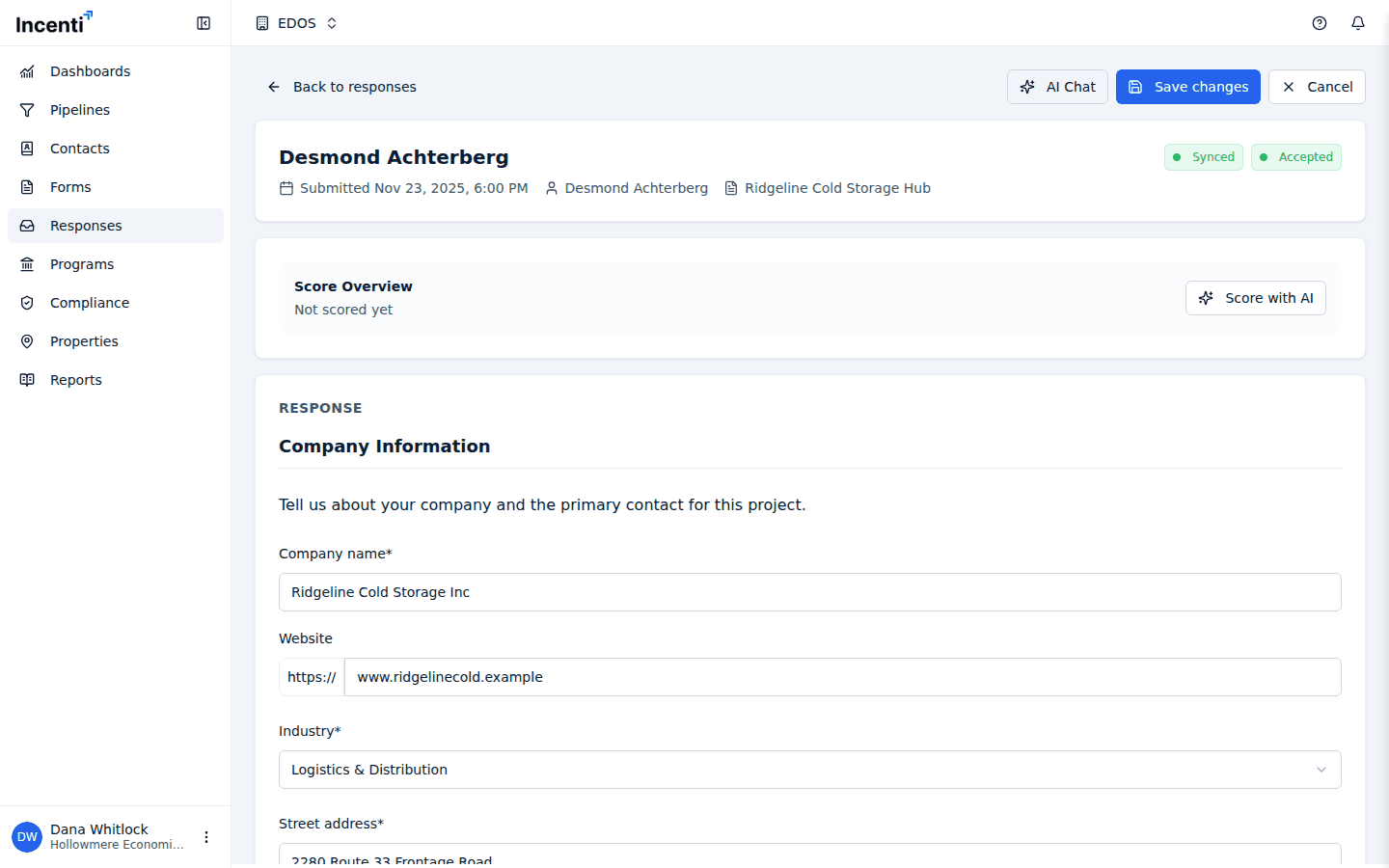
- Click Edit. Every answer becomes an editable field, laid out page by page exactly as the form was.
- Change what you need.
- Click Save changes, then confirm in the Save Changes dialog ("Are you sure you want to save the changes to this response?"). Cancel discards everything instead.
A response you're still filling in from an uploaded document behaves slightly differently: it opens in the editable state already, the button reads Save & generate document, there's no confirmation step, and the page stays editable after each save so you can keep working.
Editing does not tell the other side. A respondent who revises answers after submitting does not notify the receiving account, and the response keeps whatever status and score it already had — so a decision made on the old answers can quietly go out of date. If a change matters, say so.
What an edit does and doesn't trigger
| After you save | What happens |
|---|---|
| The response's status | Unchanged. A submitted response stays submitted; an accepted one stays accepted. |
| Notifications | None. Neither side is emailed or notified. |
| Score | Unchanged. Saving by hand never re-runs scoring. |
| A document response's filled copy | Regenerated in the background from the new answers. |
| CRM records | Unchanged. The CRM sync runs at submission, not on every edit. |
Scoring is the one to watch: a change you make through Edit leaves the old score in place, while a change applied through the AI chat's Confirm changes queues a rescore automatically. To refresh a score after editing by hand, use Rescore with AI in the Score Overview — see Score responses with AI.
Fix a question whose answer type is wrong
Responses created from an uploaded document are the only ones where you can change how a question is answered — an ordinary form's structure belongs to its owner and only changes in the form builder.
Reading a document is guesswork, and it sometimes goes wrong. The classic case is a blank "City: ______" line read as a dropdown with no options, which can't be answered at all and blocks submission. In edit mode, each question carries a small Change field type link underneath — or Fix this field, in red next to "This dropdown has no options to choose from.", when the question is unanswerable as it stands.
The Change field type dialog explains its own scope: "Correct how this question is answered. Only this question changes — nothing is added or removed from the form." It offers:
- Question — the wording of the question, which you can correct at the same time.
- Answer type — one of Short text, Long text, Number ("Digits only"), Currency, Percentage, Web address, Date, Email, Phone, Dropdown ("Pick one from a list you define"), or Checkboxes ("Pick any number from a list you define").
- Options — shown for Dropdown and Checkboxes: one row per choice, with Add option and a remove icon. A dropdown needs at least two, and says so if you try to save with fewer.
Save and you'll see "Field updated." — or "Field updated. The previous answer no longer fit and was cleared." when the answer that was already there couldn't be carried across to the new type. Questions can never be added, removed, or reordered here.
The AI chat can propose the same change for you. Ask it to fix a question and a Change field type card appears in the chat, describing what it wants to do — for example, "Make City a dropdown field with 4 options" — with the options listed underneath. Nothing changes until you click Confirm; Reject discards it.
What happens next
- Saved answers are stored immediately and shown on the page as soon as it refreshes.
- On a document response, saving fires off a fresh copy of the original document with your answers written into it. Download it from Export once it's ready.
- If a required question is still blank, that only matters when you try to move a document response to Ready for Submission or Submitted — plain saves are never blocked.
Common questions
Q: Can I still edit my submission after I sent it? A: Yes, from the portal. Open it on your Submitted tab and click Edit — this works at any status, including after the receiving account has accepted or declined it. The public form link itself is closed once you submit: reopening it just shows "Thank you!"
Q: Will the organization know I edited my answers later? A: No. They aren't emailed or notified, and the status and score they already recorded don't change. Contact them directly if the change matters.
Q: I edited an answer — why didn't the score update? A: Manual edits don't re-run scoring. Only a change applied through the AI chat does that automatically. Use Rescore with AI in the Score Overview to refresh it yourself.
Q: The scan detected the wrong field type — can I fix it? A: Yes, on responses created from an uploaded document. Click Edit, then Change field type (or Fix this field) under the question and pick the right answer type.
Q: I changed a question's type and my answer disappeared — why? A: The answer that was there didn't fit the new type, so it was cleared, and the toast said so. Re-enter it in the new format.
Q: Why can't I change a field type on a response to someone else's form? A: That form's questions belong to the account that built it, and are only changed in the form builder. Type fixes exist only for the one-off forms generated from an uploaded document.
Related
Last updated on