Create a response from a document
Upload a document from the responses list to have it turned into an answerable form, fill it in, and get the answers written back into the original document.
Before you start
- You need access to the Responses area of the portal.
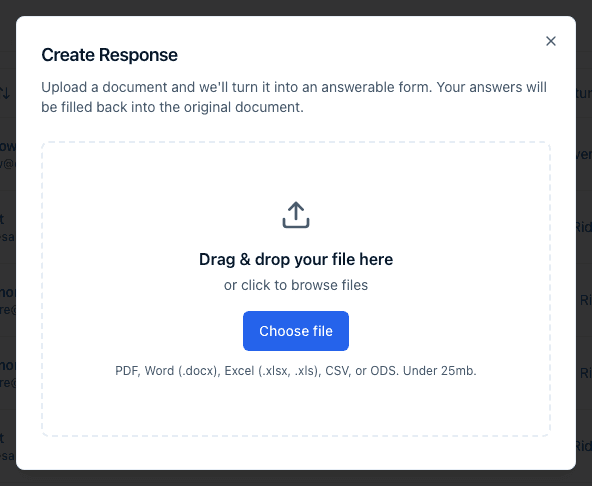
- Have the document you want to fill out ready to upload: PDF, Word (.docx), or a spreadsheet (.xlsx, .xls, .csv, .ods). Legacy .doc files aren't supported — save the file as .docx first. The file must be under 25MB.
Steps
- On the responses list, click Create Response.
- In the Create Response dialog, drag and drop your file onto the upload area, or click Choose file to browse for it.
- Once a file is selected, click Create response to upload it and start processing.
- You can close the dialog while it processes — reading the document can take a minute or two. It says: "You can close this dialog — the response will appear in the list when it's ready."
- When it's ready, either come back to the dialog (it shows "Your document is ready to answer" with a Start answering button) or open it from your Submitted tab, where it appears with a way to continue it.
- Answer the generated form's questions, then save your answers.
What happens next
After upload, the document is read in the background and turned into a one-off form matching its questions. When that finishes, you get a notification in the portal and an email titled "Your document is ready to answer" with a Start answering button, and the response shows up, ready to continue, in your Submitted tab.
Only users on the account that uploaded the document can answer the generated form. The response lives in your account's Submitted tab and is not visible to any other account.
As you answer and save, there is no separate submit button for this kind of response — instead a status control next to the response lets you move it through Pending, In progress, Ready for submission, and Submitted yourself. Moving to Ready for submission or Submitted checks that every required field is answered first; if something is missing, you'll see which fields need to be filled in before you can continue.
Every time you save your answers, the original document is regenerated in the background with your answers written into it — an AcroForm PDF or a spreadsheet (.xlsx) is filled in place; a Word document is filled using its own anchors; other PDFs get your answers overlaid onto the original layout, and if none of those apply, a PDF rendition of the completed form is generated instead. Download the latest filled copy from Export on the response's detail page.
Common questions
Q: What file types can I upload to create a response? A: PDF, Word (.docx), and spreadsheet files (.xlsx, .xls, .csv, .ods), each under 25MB. Legacy .doc files are rejected — re-save them as .docx first.
Q: How long does it take before I can answer the document? A: The dialog says this can take a minute or two. You don't need to keep the dialog open — you'll be notified and the response will be ready in your Submitted tab.
Q: Can someone else on my account finish answering the document I uploaded? A: Yes. Anyone on the account that uploaded the document can open the response from the Submitted tab and continue answering. Users outside your account cannot.
Q: Where do I get the filled-in version of my original document? A: Open the response and click Export — once a filled copy has been generated, it's offered there as the Completed document.
Related
Last updated on