Compare responses side by side
Lay every response to one form out in a single table — the overall score, each scoring criterion, and every answer as rows, one column per response — from the responses list or straight from an opportunity's Responses tab.
Before you start
- You need responses to the same form. Compare works one form at a time, because its rows are that form's questions.
- Scores only appear if the form has scoring turned on and at least one of the responses has been scored — see Score responses with AI. Without scores, the table still compares every answer.
- Respondents never see this view or any score; it's only on the Received tab of the responses list.
Open the comparison from an opportunity
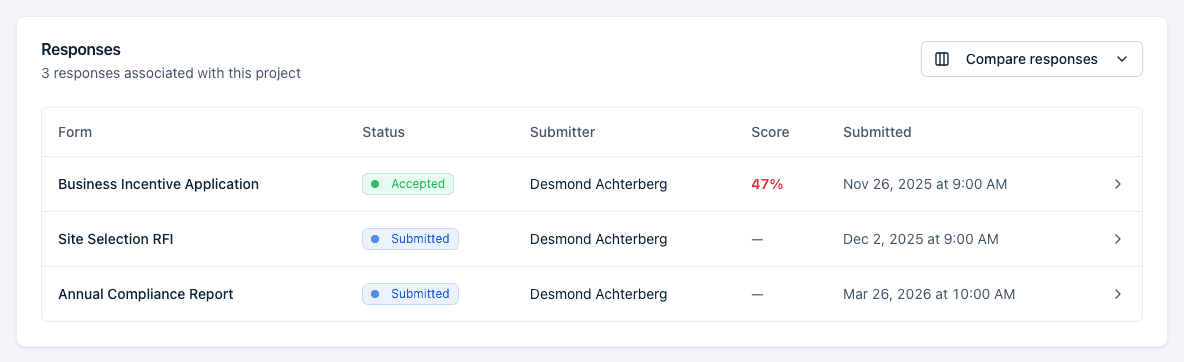
- Open the opportunity and click its Responses tab.
- Click Compare responses at the top right of the Responses card. If the opportunity's responses came in through more than one form, the button opens a menu with one entry per form — pick the form to compare.
- The responses list opens in Compare mode, already filtered to that form and to the responses connected to this opportunity.
Use the browser's back button to return to the opportunity.
Open the comparison from the responses list

- Open Responses and stay on the Received tab.
- Click Compare in the List / Compare toggle above the table.
- If the list isn't already filtered to one form, the tab reads "Choose a form to compare" — search for the form and pick it. The list is filtered to that form and the comparison table opens.
To narrow the columns to one project, open Filter and choose a connected opportunity. The status filter and score-range filter you set on the List view apply to Compare too, so both views always show the same set of responses. Clearing the form filter (or Clear filters) returns you to the List view.
Read the table
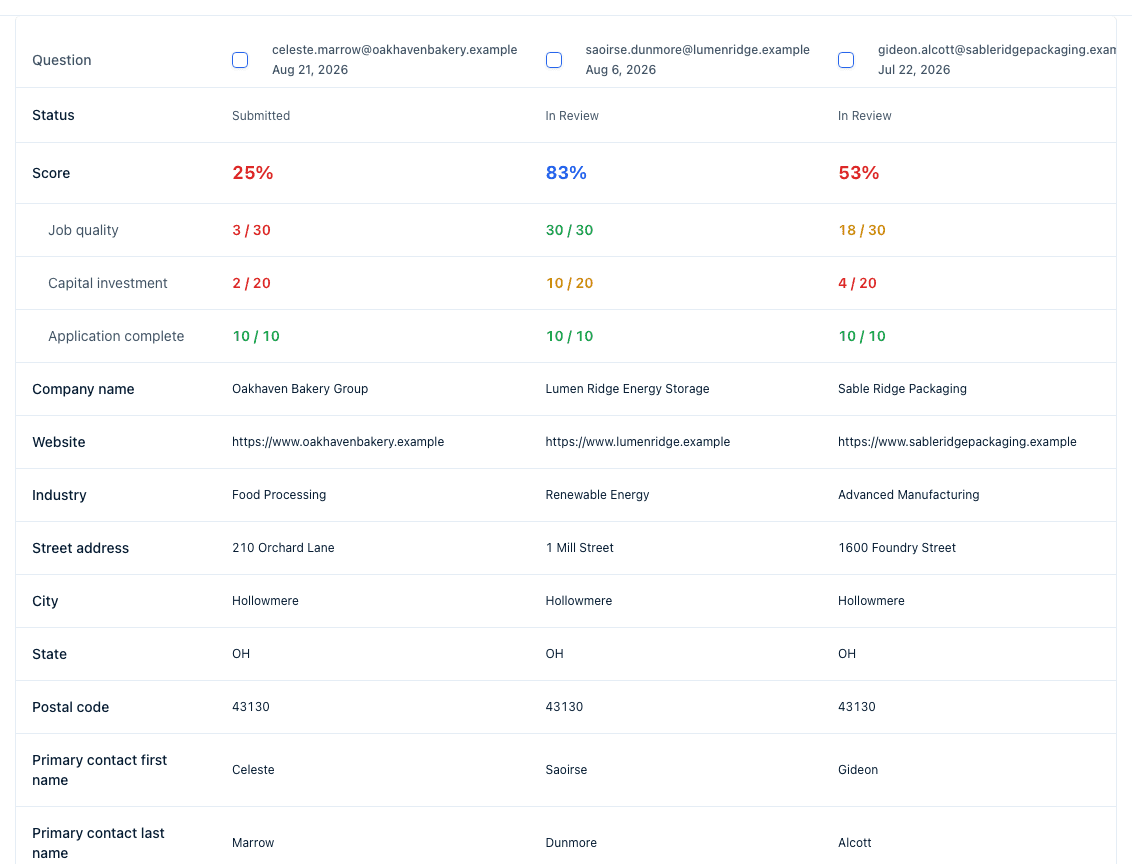
Each column is one response, headed by the respondent's email address or, when the form captured no email, its response number (for example "Response #12"). Click a column heading to open that response. The rows are, from top to bottom:
- Status — Accepted, Shortlisted, Declined, or the response's current status.
- Score — the overall percentage, colour-coded. Hover over it to see the raw score ("Score: 75/110 (68%)") and every criterion's points.
- One row per scoring criterion, indented under Score, showing that response's points out of the criterion's maximum (for example "10 / 20"). Hover over a value to read the AI's explanation for it. A dash means that response wasn't scored, or wasn't scored on that criterion — which happens when the opportunity's own criteria override differs from the form's.
- One row per question on the form, with each response's answer. The question column stays pinned while you scroll sideways through many responses.
The Score and criterion rows only appear once at least one response in the table has been scored.
See the score breakdown without opening a response
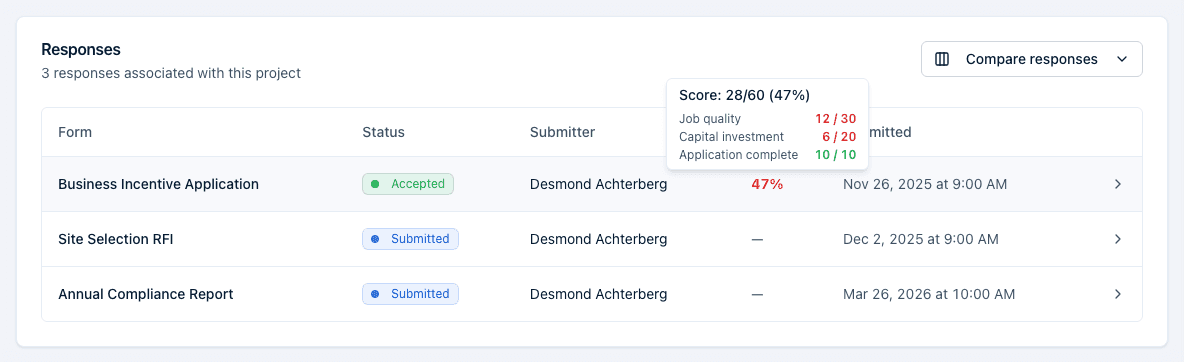
Anywhere an overall score percentage is shown — the Score column on the responses list, the Score column on an opportunity's Responses tab, and the Score row of the comparison table — hover over the percentage. The pop-up lists the raw score and each criterion by name with its points, the same breakdown the response's detail page shows under Criteria Breakdown, minus the explanations. Open the response for the full breakdown or to rescore.
Change statuses from the comparison
When at least one column can still change status (it isn't already Accepted or Declined), a checkbox appears in each such column heading and a Select All bar above the table. Tick the responses, click Change Status, and pick Accept, Shortlist, or Decline — the same dialog the list view uses, including the option to decline the others when you accept one.
What happens next
- Opening Compare loads every response to the form, including its answers, in one go. With very many responses it can take a moment longer than the list.
- Scores shown here are the same as everywhere else: the latest final score per response, else its latest score. Rescoring a response updates its column the next time the page loads.
Common questions
Q: I opened Compare from my opportunity but some of its responses are missing. A: Compare shows one form at a time. If the opportunity collected responses through two forms, the Compare responses button becomes a menu — pick the other form to see the rest. The default status filter also hides Declined and Pending responses; open Filter and adjust Filter by Status to include them.
Q: Why is there no Score row? A: None of the responses in the table has been scored yet. Score one from its detail page or select several on the List view and use Score with AI; the row appears once a score exists.
Q: Two responses to the same form show different criteria rows. Why? A: One of them is connected to an opportunity that carries its own scoring criteria override. The table shows every criterion any response was scored on, and a dash where a response wasn't scored on that criterion.
Q: The column shows an email but I'd like to see the company name. A: Column headings use the email (or response number) so two submitters from the same organisation stay distinguishable. Click the heading to open the response, where the name and organisation are shown.
Q: I clicked Compare and it asks me to choose a form. Why? A: The table's rows are one form's questions, so it needs to know which form. Search for the form in the picker and choose it; the list is filtered to that form and the comparison opens. Opening Compare from an opportunity's Responses tab skips this step.
Q: Can I compare responses across different forms? A: No. Rows are the form's questions, so the table needs one form. Use the List view with an opportunity filter to see responses from several forms together, with their overall scores.
Related
Last updated on