Sessions and security
How long a sign-in link and a signed-in session last, what returns you to the page you were on, why one email belongs to one account, what each error screen means — including the new-version reload notice — and what Incenti staff can see.
Before you start
- Incenti has no passwords. You sign in with a link emailed to you, or with your Google or Microsoft account. See Sign in to Incenti.
- Everything on this page is about your own sign-in. Adding and removing people is in Invite and manage users.
How long links and sessions last
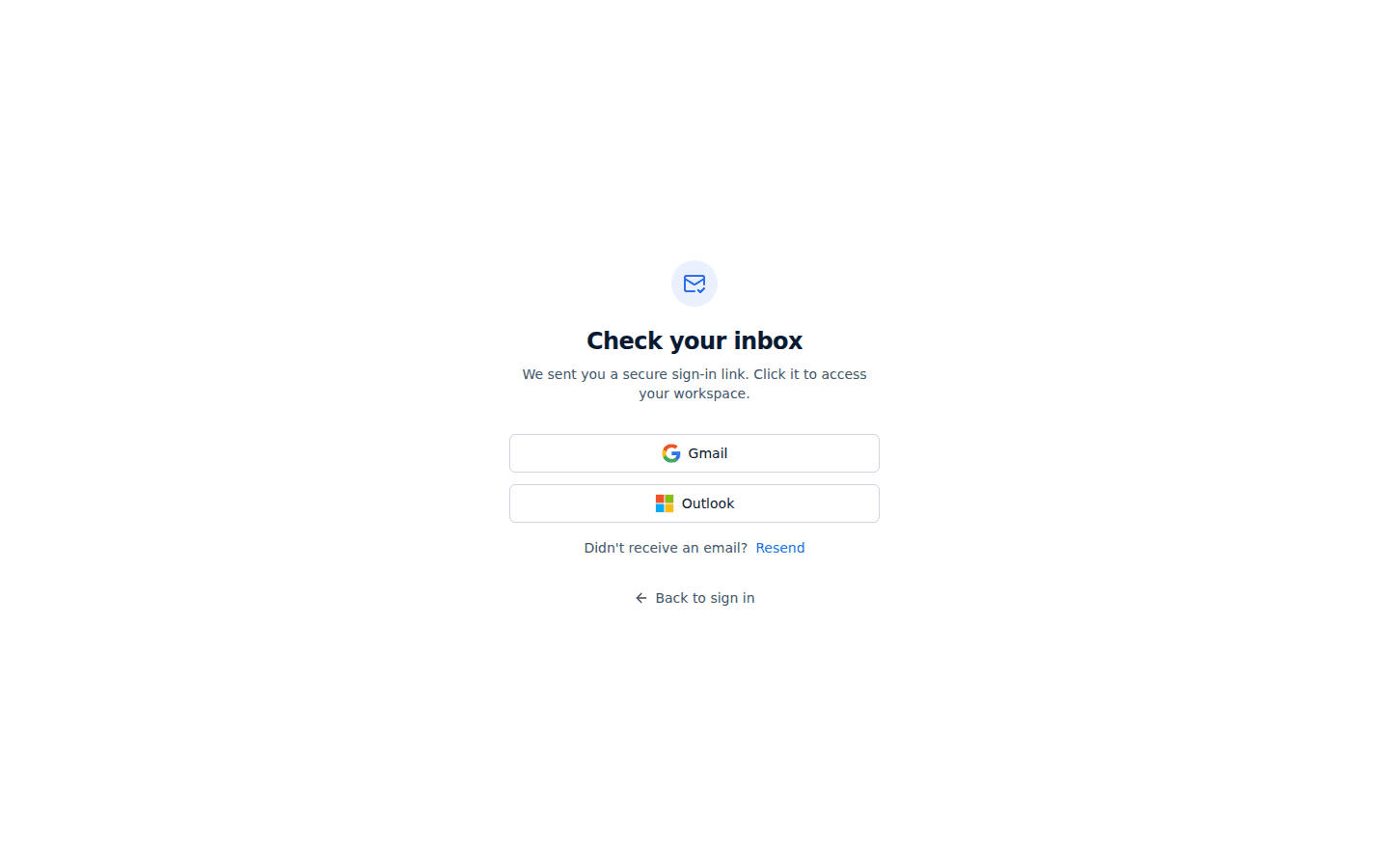
- A sign-in link is valid for 24 hours from the moment it is sent. After that, request a new one from the sign-in page.
- Requesting another link does not cancel the earlier one. Any link you were sent in the last 24 hours still works, so an old email in your inbox can sign you in — treat these links like passwords and do not forward them.
- A signed-in session lasts up to 30 days. Within it, your access is renewed roughly every hour without you noticing. Close your laptop for a week and you are still signed in; leave it more than 30 days and you need a fresh link.
- Signing in on a second device or browser does not sign you out of the first. Each browser holds its own session.
Getting back to where you were
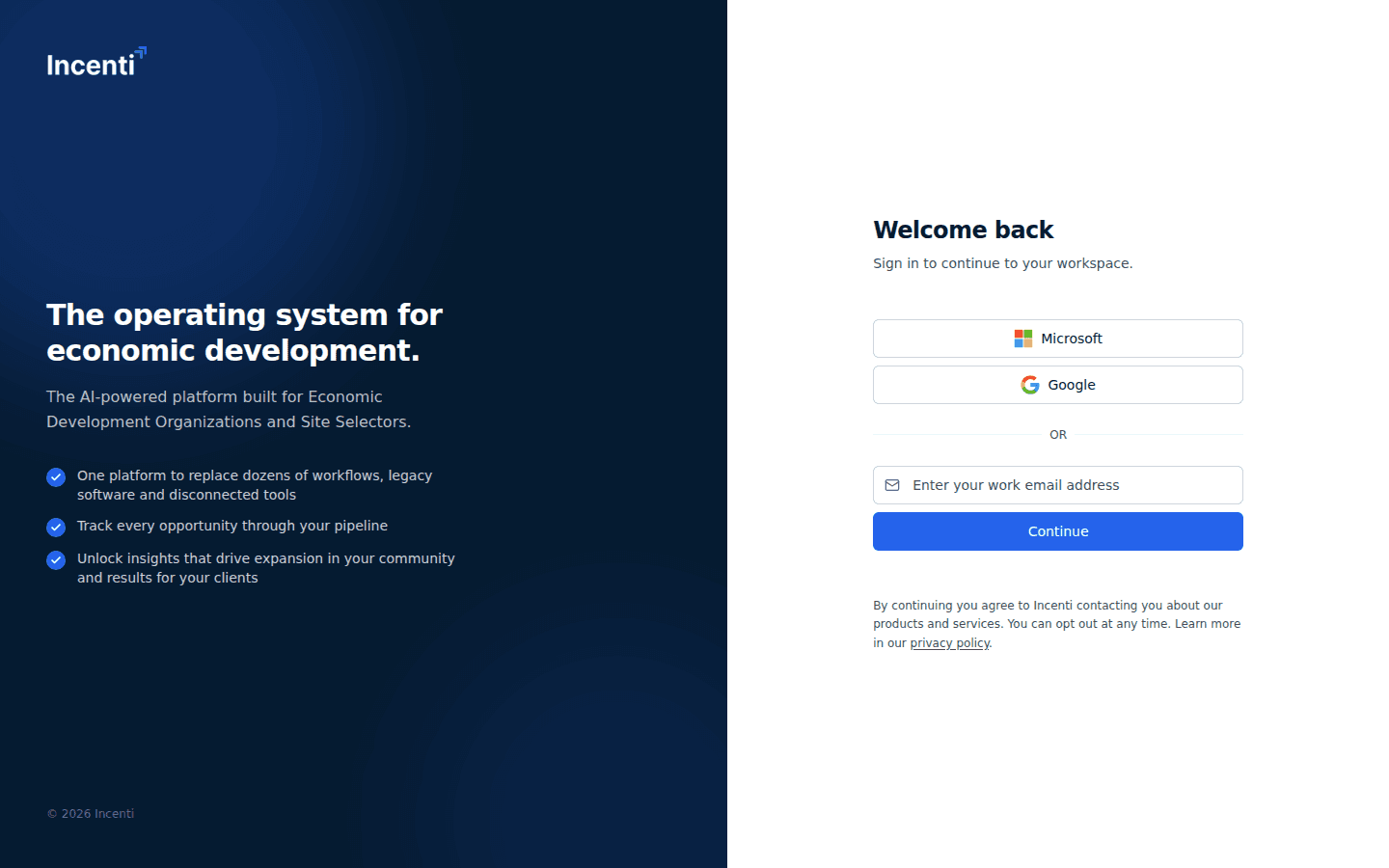
If you open an Incenti link while signed out — or your session has expired while you were away — Incenti remembers the page you were headed to, sends you to the sign-in page, and returns you to that exact page once you are signed in. That works for both the emailed link and the Google and Microsoft buttons, so you rarely have to navigate back by hand.
Signing out
Open the user menu at the bottom of the sidebar and choose Logout. That clears the session in this browser and returns you to the sign-in page. Signing out on one device does not sign you out on your others.
One email, one account
Your email address belongs to exactly one Incenti account. There is no account switcher for customers, and an admin at another organization cannot add your existing address to their account — the address is already taken. If you work with two organizations that both use Incenti, each needs its own address.
What each error screen means
If something is wrong, Incenti shows a full screen with a title, a short explanation, and an error code at the bottom.
| Screen | What it means | What to do |
|---|---|---|
| Access Denied (code 1000) | The sign-in link has expired or has already been used, or a Google/Microsoft sign-in did not complete | Select Try Again and request a new link |
| User Not Found (code 1001) | No Incenti user exists for that email address | Check the spelling, then ask an admin at your organization to add you |
| Account Not Yet Activated (code 1002) | Your organization's account has not been activated by Incenti yet | Contact Incenti support |
| User Account Disabled (code 1003) | An admin on your account has disabled your user | Ask an admin at your organization to enable you again |
You may also see Unable to log in. as a message on the sign-in page itself, right after entering an address that no Incenti user has. That one appears before any email is sent.
Some of these screens offer a Contact Support or Contact Administrator button that opens your mail app addressed to a different domain. Use support@incenti.co — that is the address Incenti support monitors.
Error screens while you are signed in
Two more screens can appear while you are signed in, apart from the sign-in checks above.
If a page fails because your tab was open since before Incenti released an update, you see a full screen titled A new version of Incenti is available: "This tab was open while we released an update. Reload the page to keep working." with a single Reload button.
If the same thing happens inside a button click or a background refresh instead, Incenti shows a toast in the corner with the same title, "Reload the page to keep working.", and a Reload action. It stays until you act on it, and shows only once even if the failure repeats.
Nothing is wrong with your account or your data — the tab was simply open before the update. Reloading is the only fix; anything already saved is unaffected, but anything typed and not yet saved may need to be re-entered.
Any other unexpected error shows Something went wrong (on Responses, Something went wrong loading responses) with Try again and, outside Responses, Go to dashboard, plus a "Reference:" code — have it ready if you contact support.
Signing in with Google or Microsoft
Two extra rules apply to the Google and Microsoft buttons:
- The provider must report your email address as verified. If it does not, Incenti refuses the sign-in and you land on Access Denied.
- The address the provider returns has to match an existing Incenti user. If it does not, you land on User Not Found, even if a different address of yours does have an Incenti user.
What Incenti staff can see
Incenti support staff can open a customer account to work on a problem you have reported. While they do, they see your account's data the way a member of your team would, and anything they change is recorded against their own Incenti user, not yours. No user on your account can do this, and nobody from another customer account can ever see yours.
Incenti does not have a change-history screen you can open: there is no audit trail in the product showing who changed a setting or a record and when. If you need to know what happened to a specific record, contact support.
Common questions
Q: How long do I stay signed in? A: Up to 30 days per browser, renewed automatically about every hour while you use Incenti. After 30 days away you need a new sign-in link.
Q: My sign-in link says Access Denied. Did I do something wrong? A: Usually it means the link is older than 24 hours or has already been used once. Request a fresh one from the sign-in page and open it in the same browser you want to be signed in to.
Q: It says "Account Not Yet Activated" — what does that mean? A: Your organization's Incenti account has not been switched on yet. No user on it can sign in until Incenti activates it. Email support@incenti.co.
Q: Someone left the company — how do I stop them signing in? A: An admin on your account disables their user; their links stop working immediately and they see User Account Disabled. See Invite and manage users.
Q: Can I see who changed a setting on our account? A: No. Incenti does not show a change history for account settings or records. Contact support if you need to trace a specific change.
Q: It says a new version of Incenti is available. Did I lose anything? A: No. Your browser tab was simply open since before Incenti released an update, and it can no longer talk to the updated server — nothing is wrong with your account or data. Select Reload. Anything already saved is unaffected; anything you had typed but not yet saved may need to be entered again.
Q: I got "Something went wrong" with a reference code — what do I do? A: Select Try again first. If it keeps happening, contact support and give them the reference code shown on the screen — that is what they will ask for first.
Related
Last updated on