Sign in to Incenti
Sign in with your work email, Google, or Microsoft account, confirm your identity from the emailed link, and sign out when you're done.
Before you start
- You need an existing Incenti user account. An account admin adds new users under Users — see Invite and manage users.
- Have access to the email inbox for your Incenti account, or a Google or Microsoft account with the same email address.
Steps
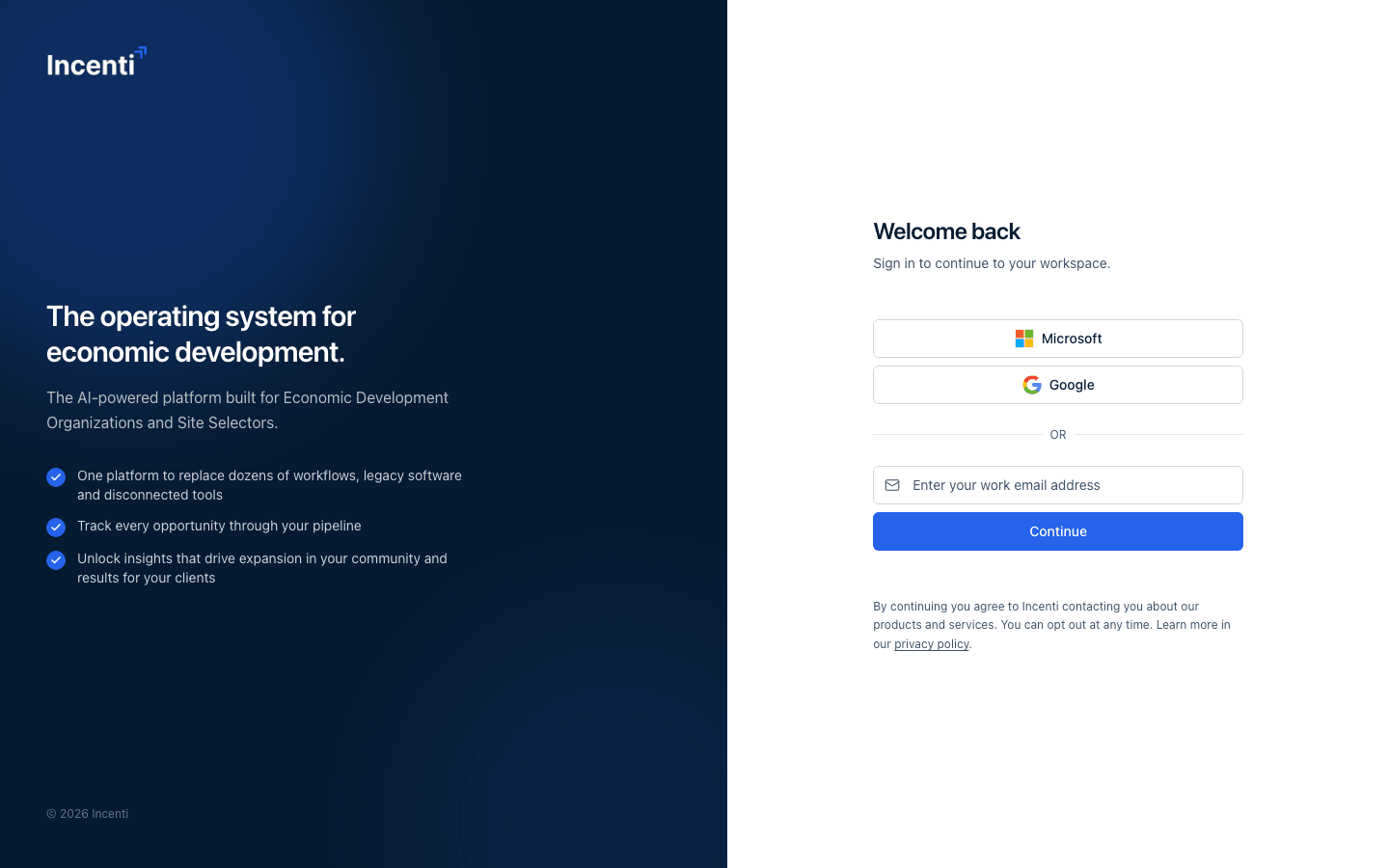
- Go to the sign-in page. You'll see two ways to continue: buttons for Microsoft and Google, and an email field under "or".
- To sign in with an email link: enter your address in Enter your work email address and select Continue.
- You're taken to a Check your inbox screen that reads "We sent you a secure sign-in link. Click it to access your workspace." Open that email and click the link.
- To sign in with Microsoft or Google instead, select the matching button. You're sent to that provider's own sign-in screen, then brought back to Incenti automatically once you approve it there — no password on the Incenti side.
- If the email didn't arrive, go back to the Check your inbox screen and select Resend.
What happens next
- Clicking the emailed link signs you in and takes you into your workspace (or back to the page you were on if you were redirected here first).
- If you enter an email that isn't set up on any account, you'll see an "Unable to log in." message describing that the user wasn't found — double check the address or ask your account admin to add you.
- To sign out, open your profile menu (bottom of the sidebar) and choose Logout. You're signed out and returned to the sign-in page.
Common questions
Q: I clicked the sign-in link but it says it's invalid or expired. What do I do? A: Go back to the sign-in page and request a new link — email sign-in links are only valid for a limited time.
Q: Can I use my Google or Microsoft account to sign in? A: Yes. On the sign-in page, choose Microsoft or Google instead of entering your email.
Q: I typed my email and nothing happened — is that normal? A: If the email isn't recognized, you'll see an "Unable to log in." message right away rather than being silently sent a link. If you don't see that message, check that the email matches the one your admin used to add you.
Q: How do I sign out? A: Open the user menu at the bottom of the sidebar and select Logout.
Related
Last updated on