Update your profile and theme
Open your profile from the user menu, edit your name, title, email, and phone inline, switch between Light, Dark, and System theme, and sign out.
Before you start
- Incenti sign-in doesn't use a password — there's nothing to change here. See Sign in to Incenti for how signing in works.
- You can always edit your own profile. Changing someone else's requires the Admin account role — see Invite and manage users.
Open your profile
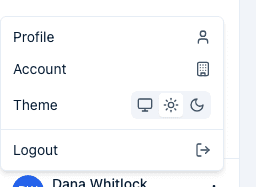
- Select your name or the three-dot button at the bottom of the sidebar. Either one opens the user menu.
- Choose Profile. Your profile page opens.
Edit your details
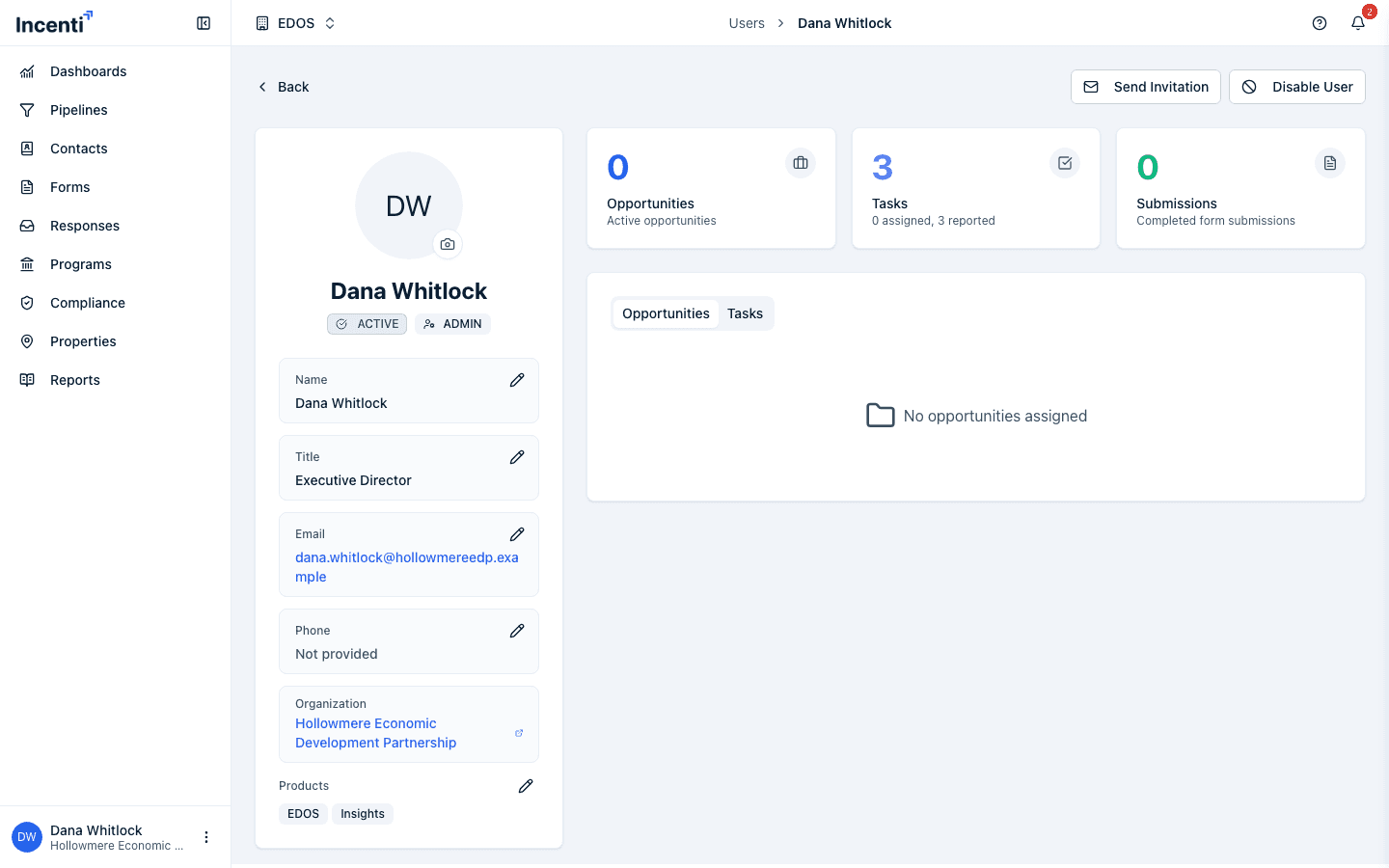
- On your profile page, find the field you want to change: Name, Title, Email, or Phone.
- Select the pencil icon next to that field.
- Type the new value. For Name and Phone, select Save (or press Enter); Cancel or Escape discards the change. Title and Email save on their own when you press Enter or click outside the field, and Escape cancels.
- To change your profile picture, select the camera icon on your avatar and choose an image file (under 5 MB).
Your Account Role badge and your Products list are shown on the same card. Only an Admin can change them (the pencil next to Products appears for Admins), so a Member who needs a different role or product asks an Admin. See Invite and manage users. The cards and tabs on the right summarize the opportunities, tasks, and submissions attached to you.
Change the theme
- Open the user menu at the bottom of the sidebar.
- Next to Theme, select Light, Dark, or System.
The change applies immediately — no save step.
Sign out
- Open the user menu at the bottom of the sidebar.
- Select Logout.
You're signed out and returned to the sign-in page.
What happens next
- Your theme choice is saved to your user, so it follows you the next time you sign in on this or any other device or browser — you don't need to set it again.
- Changes to your name, title, email, phone, or profile picture are visible to teammates immediately, including on the Users tab of your account page. Your sign-in address stays as it was.
Common questions
Q: How do I change my password? A: There's no password to change. Incenti sign-in uses an emailed sign-in link, or your Google or Microsoft account. See Sign in to Incenti.
Q: Can I change my email address? A: You can edit Email on your profile, and that is the address teammates see and where response-related emails go. It does not change the address you sign in with. To change your sign-in address, contact Incenti support.
Q: Dark mode keeps switching back / the theme is different on my laptop. A: Check that Theme on the user menu is set to Light or Dark rather than System — System follows your device's setting, which can differ between devices. Once you pick Light or Dark explicitly, that choice is saved to your user and should follow you everywhere you sign in.
Q: I don't see a way to change my Account Role or which products I can access. A: Only an Admin on your account can change those. Ask an Admin to update them. See Roles and permissions and Invite and manage users.
Related
Last updated on