Contact support
How to reach Incenti support by email, from the Help icon in the portal, or through the in-app assistant, and what to include so support can help faster.
Email support
Email support@incenti.co any time. This is the address to use for a bug report, a question about your account, or anything the help pages don't answer.
If a sign-in error screen offers a Contact Support or Contact Administrator button, it may open your mail app addressed to a different address. support@incenti.co is the one Incenti support monitors — use it.
Ask the in-app assistant
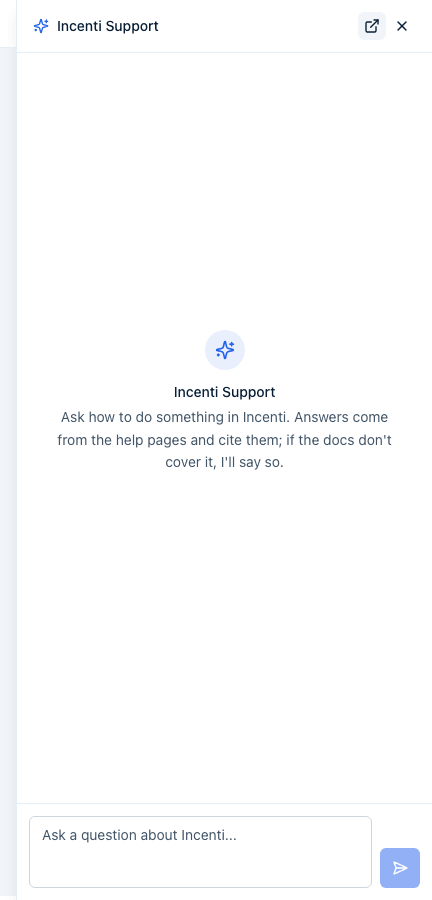
Every page in Incenti has a Help icon (a question mark in a circle) at the right of the top bar. Click it to open a chat panel called Incenti Support.

The panel's intro explains what it does: "Ask how to do something in Incenti. Answers come from the help pages and cite them; if the docs don't cover it, I'll say so." Type your question in the box that reads Ask a question about Incenti.... The assistant answers only from the Incenti help pages and cites the page it used — it won't guess.
If the help pages don't cover your question, the assistant says so and offers to connect you with a person. Accept the offer, or ask for a person yourself, and it hands the conversation to Incenti's support team: a summary, the recent conversation, the help pages it checked, and your name, email, and account. Support then replies by email to your signed-in email address. You can also click Open help site in the panel's header to leave the chat and browse the help site directly.
What the hand-off sends to support
When the assistant hands your conversation over, the email it sends to Incenti support contains:
- A short summary, written by the assistant, of what you need a person for.
- The recent conversation, oldest message first — up to the last 40 messages, with very long messages trimmed.
- The help pages the assistant looked at while answering you.
- Your name, your email address, your account's name and type, and the screen you were on when you asked.
Support replies by email to your signed-in address. Nothing else from your account — no responses, contacts, or documents — is attached.
Your conversations with the assistant
Every message you send and every answer you get is saved, which is what makes Chat history work when you come back later. Those conversations are private to you: a teammate opening the same panel sees their own threads, not yours, and there is no screen in Incenti that shows another user's conversations.
The panel's header has three controls:
- Chat history lists your earlier conversations; select one to reopen it.
- Clear chat starts a new conversation. The old one stays under Chat history.
- Close chat closes the panel and keeps the conversation for next time.
You can send up to 20 messages a minute. Beyond that, a message isn't sent and a toast reads "You're sending messages too quickly — wait a minute and try again." Wait a minute and send it again. If an answer fails for another reason you'll see "The assistant couldn't respond. Please try again."
More about the assistants in Incenti — what each one can see and what it can change — is on AI assistants in Incenti.
What to include
Whichever way you reach support, include as much of this as you can:
- The page or screen you were on — paste the URL.
- What you expected to happen and what happened instead.
- The name of the form, response, or project involved, if any.
- Roughly when it happened.
- A screenshot, if the problem is visual.
Support replies by email. If you need a firm timeline, ask your account representative.
Common questions
Q: How fast will someone reply? A: Support replies by email; there's no fixed turnaround listed here. If you need a commitment, ask your account representative.
Q: I'm filling out a form someone sent me and it isn't working — do I email Incenti?
A: No. If you're filling out a public form (a link like .../fm/{id}) and something
isn't working, contact the organization that sent you the form, not Incenti support.
Q: The assistant said the documentation doesn't cover my question — what now? A: Accept its offer to connect you with a person, or ask it directly for a person. It will send your conversation to support, who follow up by email. You can also email support@incenti.co yourself at any time.
Q: What exactly does the assistant send to support when it hands off? A: A short summary of your question, the recent conversation, the help pages it checked, and your name, email, account, and current screen. See "What the hand-off sends to support" above.
Q: Is my chat with the assistant saved, and can my admin read it? A: It is saved so Chat history works, and it is private to you — no admin or teammate can open your conversations.
Q: Which support address is right? A: support@incenti.co. Some in-product error screens open your mail app addressed to a different address; that one isn't monitored.
Q: Can I ask support to add more users or raise a limit? A: Yes — that's exactly the support path for a seat limit. See Seat limits.
Related
Last updated on