Upload and manage documents
Upload files to your account, an opportunity, a contact, or an organization, then find, edit, download, or delete them from the Documents tab, and open a linked document in the full-page viewer.
Before you start
- A document is a file attached to a record — your account, an opportunity, a contact, or an organization. The same Documents table appears on each of those pages.
- Every signed-in user on the account can upload, edit, download, and delete documents on any record they can open. There's no admin-only restriction on documents.
- This page covers the general Documents table. Documents attached to a form response have their own flow — see Review a response and Create a response from a document. Report exports also land in your account's Documents list automatically (see "What happens next" below), but manage them from the report itself — see Publish and export a report.
Steps
Find the Documents tab
-
Open your account page (click your name at the bottom of the sidebar, then Account) and select the Documents tab, or open an opportunity, contact, or organization and select its Documents tab.
-
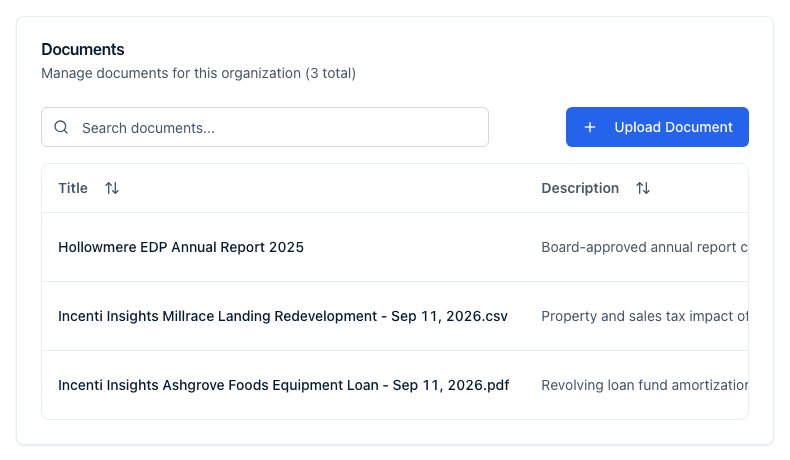
The card header reads "Manage documents for this organization (N total)" on the account page, and lists every document attached to that record in a table with Title, Description, Type, Uploaded By, and Uploaded columns.
-
Use the Search documents... box to filter the table by any column. When the list spans multiple pages, Previous and Next buttons and a "Page X of Y" indicator appear below it.
Upload a document
-
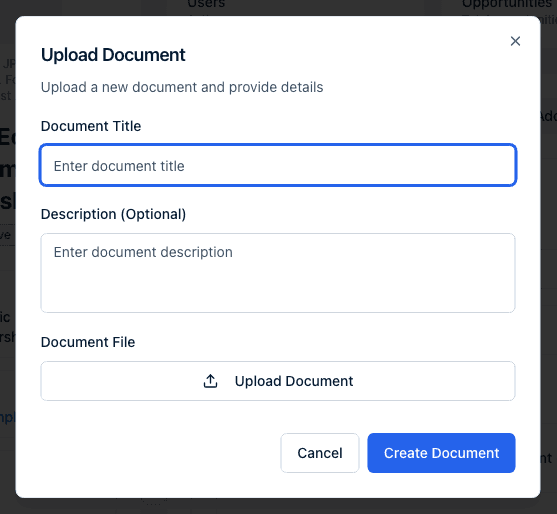
Click Upload Document.
-
In the Upload Document dialog, enter a Document Title (required) and an optional Description.
-
Click Upload Document under Document File to open the file picker. Its filter offers PDF, Word documents, text files, and PNG or JPG images, but Incenti itself accepts more than that — see "What you can upload" below. The maximum size is 25 MB. The file starts uploading as soon as you choose it — the button reads "Uploading…" while it does.
-
Once the upload finishes, the file's type badge, file name, and an X to remove and choose a different file appear in place of the button. If the file type isn't supported, you'll see "Please upload a valid document or image file"; if the upload itself fails, you'll see "Failed to upload file."
-
Click Create Document. If you try to submit without a file, you'll see "Please upload a document file." A successful upload shows "Document created successfully" and the file appears in the table right away.
What you can upload
The file picker's filter is narrower than what Incenti accepts. Set the picker to show all files and you can also attach:
- Spreadsheets:
.xls,.xlsx,.csv,.ods - Presentations:
.ppt,.pptx,.odp - More documents and images:
.odt,.gif,.bmp,.svg,.webp - Archives:
.zip,.7z,.rar,.tar,.gz
Anything else is refused with "Please upload a valid document or image file". The size limit is 25 MB for every type; a larger file fails with "Failed to upload file" rather than a size message, because the size isn't checked before the upload starts.
Logos and profile photos are different: those must be images under 5 MB.
Edit, download, or delete a document
- Click anywhere on a document's row to open the Edit Document dialog, where you can change the Document Title, Description, or replace the file the same way you uploaded it. Click Update Document to save — you'll see "Document updated successfully."
- Click the download icon on a row (tooltip "Download document") to open the file in a new browser tab.
- Click the trash icon on a row (tooltip "Delete document") to open the Delete Document confirmation, which names the document and warns that the action cannot be undone. Click Delete to confirm — you'll see "Document deleted successfully." Deleting a document removes it from the list for everyone on the account.
View a document
Some places in Incenti link directly to a document's full-page viewer
(/documents/[id]) — for example, a document attached to a report export.
That page shows a Back button, the file's type badge, its upload date,
and a Download button. PDFs and images preview inline; other file types
show "Preview not available — This file type cannot be previewed in the
browser" with a Download File button. Rows in a Documents table open
the Edit Document dialog instead of this viewer.
What happens next
- An uploaded document appears in its Documents table immediately — there's no processing delay and no notification to other users on the account.
- Exporting a report (PDF or CSV) from the Reports module automatically adds that export as a document to your account's Documents list, named after the export file.
- Deleting a document removes it from the table for everyone on the account immediately, and there's no Archived tab or undo in the product — contact support@incenti.co if you need one back.
- A deleted document's download link keeps working. Deleting removes the row, not the file, so anyone who already has the link can still open it. Treat a shared link as permanent. See What is kept, archived, and deleted.
Common questions
Q: What file types and sizes can I upload? A: Up to 25 MB, and more types than the picker's filter suggests: PDF, Word, plain text, images (PNG, JPG, GIF, BMP, SVG, WebP), spreadsheets (XLS, XLSX, CSV, ODS), presentations (PPT, PPTX, ODP), OpenDocument text, and archives (ZIP, 7Z, RAR, TAR, GZ). Anything else shows "Please upload a valid document or image file."
Q: Can I upload an Excel file or a zip? A: Yes. The picker's filter hides them, so switch it to show all files and choose the one you want — the upload itself accepts both.
Q: I deleted a document but the link still opens it. Why? A: Deleting removes the document from the table; it does not invalidate the file's link. Anyone who already has the link can still open the file.
Q: Is there one page listing every document in the account? A: No. Documents are always shown on the record they're attached to — your account page, an opportunity, a contact, or an organization. The account page's Documents tab is the closest thing to a full list for account-level files.
Q: Can a member delete a document an admin uploaded? A: Yes. Document permissions aren't tied to who uploaded the file or to the admin role — any signed-in user on the account who can open the record can upload, edit, download, or delete its documents.
Q: Where did my report PDF go? A: Report exports are added automatically to your account's Documents list, named after the export file. You can also manage exports from the report itself — see Publish and export a report.
Q: Why does my spreadsheet say preview not available? A: The in-app viewer only previews PDFs and images inline. Other file types, including spreadsheets and Word documents, show a "Preview not available" message with a Download File button instead.
Related
Last updated on