Define custom metrics for opportunities
Create account-wide custom fields — like Jobs Created or Capital Investment — so every opportunity in your pipeline can carry a value for them, then record and view those values on each opportunity.
Before you start
- Only account admins can create, edit, or delete metric definitions. Everyone signed in to the account can see the list and view recorded values.
- A metric definition is a custom, account-wide field you define once so every opportunity (a project in your pipeline) can carry a value for it — for example Jobs Created or Capital Investment.
- Custom metrics are recorded on opportunities. Dashboards can chart them through the Metric data source (see Understand where dashboard KPI values come from); they aren't used in reports, exports, or forms.
Steps
Open the Metrics tab
-
Click your name at the bottom of the sidebar, then choose Account.
-
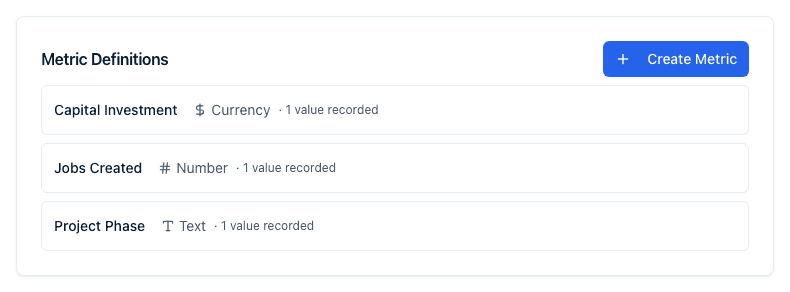
Open the Metrics tab. The Metric Definitions card lists every metric your account has defined, or "No metrics defined" if you haven't created any yet.
-
Each row shows the metric's display name, its type (with an icon), and how many opportunities currently have a value recorded for it (for example, "· 4 values recorded"). Hover a row to reveal edit and delete icons.
Create a metric definition
-
Click Create Metric.
-
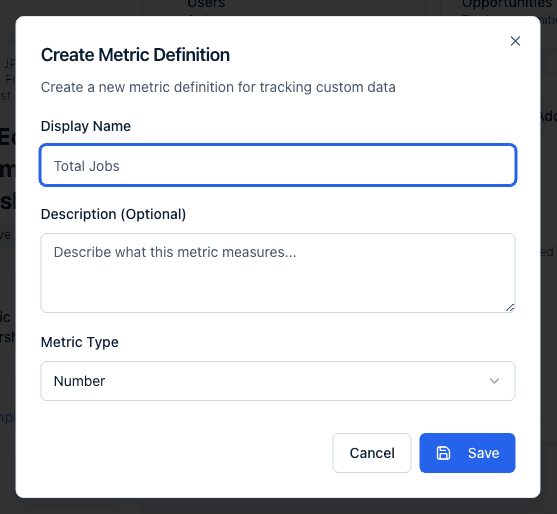
Fill in the Create Metric Definition dialog. Display Name is required (for example "Total Jobs"); Description (Optional) and Metric Type (defaults to Number) are next.
-
Depending on the type you choose, an extra field appears — see the table below.
-
Click Save. An internal key for the metric is generated from its display name automatically; you don't set it yourself.
Choose a metric type
| Type | Use it for | Extra setting |
|---|---|---|
| Number | A plain number, e.g. jobs created | — |
| Text | Free-form or predefined text | Allowed Values (Optional) — a comma-separated list (e.g. "Low, Medium, High") that turns the value field into a dropdown |
| Yes / No | A yes or no value | — |
| Currency | A monetary amount | Currency — which currency the value is entered and shown in |
| Percentage | A percentage value | — |
| Date | A calendar date | — |
| Duration | A length of time | — |
Edit or delete a definition
- Hover the definition's row and click the pencil icon to open Edit Metric Definition. You can change Display Name, Description, and Allowed Values, but Metric Type and Currency are locked once a definition is created.
- Click Save.
- To remove a definition, click the trash icon and confirm in the dialog,
which reads: "Are you sure you want to delete
<name>? This will also delete all associated metric values. This action cannot be undone." Click Delete Metric Definition to confirm.
Record values on an opportunity
-
Open an opportunity's page and click Actions, then Update Metrics. This option is available to account admins only.
-
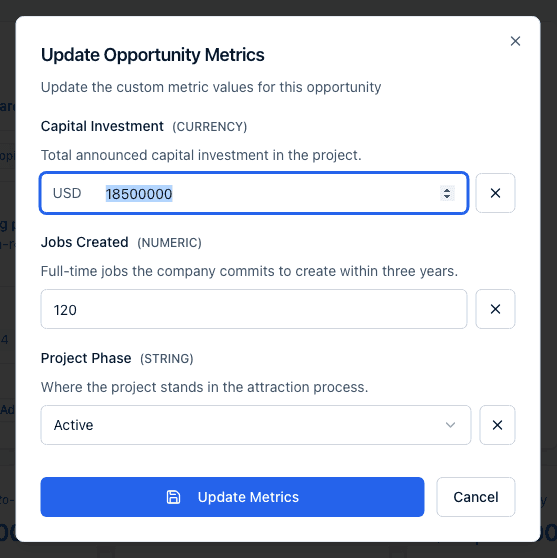
In the Update Opportunity Metrics dialog, enter a value for each metric — a Yes/No select, a dropdown of allowed values for a Text metric that has them, or a typed value otherwise. Click the button next to a field to clear its value.
-
Click Update Metrics to save. If your account hasn't defined any metrics yet, the dialog says so and points you to your account administrator instead of showing any fields.
-
Recorded values appear on the opportunity's Metrics card, formatted by type — numbers with thousands separators, currency in the chosen currency, percentages with a
%sign. A metric with no value shows "—".
Who can define metrics and who can record values
Both are admin tasks, for two different reasons:
- Defining a metric — creating, editing, or deleting a metric definition — is restricted to account admins by Incenti itself. A member sees the Metric Definitions list and the values recorded, but no Create Metric button and no edit or delete icons.
- Recording a value on an opportunity sits behind the opportunity's Actions menu, and that whole menu is limited to account admins. So a member cannot enter a value even for a metric an admin has already defined.
There is no bulk import for metric values: they are entered opportunity by opportunity through Actions → Update Metrics.
What happens next
- A new metric definition appears in the Metric Definitions list immediately with 0 values recorded, and shows up as a field the next time anyone opens Update Metrics on any opportunity.
- Deleting a definition removes it from the list and from the Update Metrics dialog going forward; its recorded values are no longer counted or shown.
- Editing a definition's display name or description updates it everywhere it appears immediately; existing recorded values are unaffected.
Common questions
Q: Why is Metric Type greyed out when I edit? A: Metric Type (and Currency, for currency metrics) can only be set when you create a definition. Changing the type of a metric that may already have recorded values would make those values inconsistent, so both are locked in the Edit Metric Definition dialog.
Q: I deleted a metric by mistake — can I get the values back? A: Create a new metric definition with the exact same Display Name. The same internal key is generated, which restores the deleted definition (including any values still recorded against it) instead of creating a separate one. Using a different display name creates a new, empty definition.
Q: Why can't a member update metrics on an opportunity? A: Update Metrics lives in the opportunity's Actions menu, which is limited to account admins, the same as creating and editing metric definitions themselves. Ask an account admin to record or change the values.
Q: Can I import metric values in bulk? A: No. Values are recorded one opportunity at a time from Actions → Update Metrics; there's no CSV import for them.
Q: Do custom metrics show up in dashboards or reports? A: Dashboards, yes: a dashboard chart with its Data source set to Metric can sum, average, or count the values recorded for one custom metric (see Understand where dashboard KPI values come from). Reports, exports, and forms don't use them; otherwise they appear only on the account's Metrics tab and on individual opportunities' Metrics cards.
Related
Last updated on