View and update your account settings
Open your organization's account page to review its profile, logo, and stat cards, edit the fields you're allowed to, and use the Users, Metrics, Addresses, Documents, and Responses tabs.
Before you start
- Everyone signed in to an account can open its account page and view its settings. Only account admins can edit the profile fields, change the logo, or create metric definitions.
- Your account is your organization's record in Incenti. The page works the same way whether your organization is set up as an economic development organization (EDO) or a site selector account — the account type itself is not shown to customers.
Steps
Open your account page
- Click your name at the bottom of the left sidebar to open the account menu, then choose Account. The menu also has Profile, Theme, and Logout.
- You can also get there from your own profile page: click the Organization link among your profile's fields.
Update the profile
The left-hand card shows your account's logo, an Active or Inactive badge, and its Name, Domain, Phone, and Description. If your account is a sub-account, you'll also see a Sub-account of badge and a read-only Parent Account field.
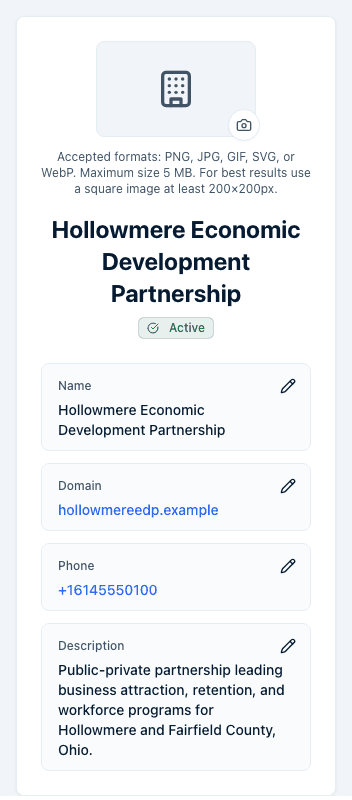
If you're an account admin, each field has a pencil next to it:
- Click the pencil next to Name or Domain to edit it inline. Type your change, then press Enter or click away to save, or Escape to cancel. Name is required — leaving it blank shows "Name is required."
- Click the pencil next to Phone to open the phone field. Enter a number and click Save, or Cancel to discard your change. An invalid number shows "Enter a valid phone number."
- Click the pencil next to Description to open a text area. Edit the text and click Save, or Cancel to discard your change.
- Each successful save shows an "Account updated" confirmation.
If you're not an account admin, the card shows the same information without pencils — you can read it but not change it.
Change the logo
- Hover the logo and click the camera button in its corner (only visible to account admins). If no logo is set yet, you'll see a building icon in its place.
- Choose an image file. Accepted formats are PNG, JPG, GIF, SVG, and WebP, up to 5 MB. For best results use a square image at least 200×200 pixels.
- The logo saves as soon as you choose the file — there's no separate save step. A confirmation reads "Account logo updated."
Read the tabs
The right-hand side starts with three stat cards, Users, Opportunities,
and Forms, giving simple counts for the account. Below them is a card
with tabs for Users, Metrics, Addresses, Documents, and
Responses. A Sub-accounts tab appears too if Incenti has linked
sub-accounts to your account. The tab you're on is saved in the page's web
address, so you can share a link straight to it (for example, ending in
?tab=metrics).
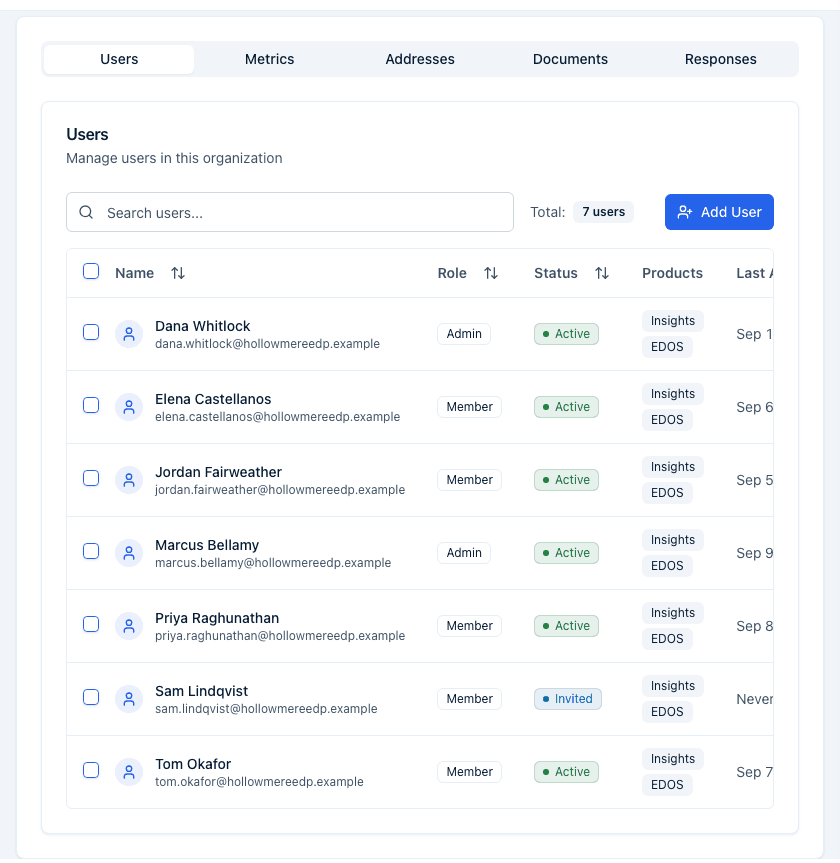
- Users — the same user list and Add User flow as the main Users page. See Invite and manage users for the full walkthrough.
- Metrics — your account's metric definitions, with Create Metric for account admins. See Custom metrics.
- Addresses — your account's saved addresses. See Manage your account's addresses.
- Documents — files attached to your account. See Manage your account's documents.
- Responses — a read-only table of responses your organization has submitted to other accounts' forms, with a Filter button. These are the same rows as the Submitted tab on the Responses page. See Received vs. submitted responses.
Sub-accounts
If Incenti has linked one or more sub-accounts to your account, a Sub-accounts tab lists each one with its Name, Type, Status, Updated, and Created date. Sub-accounts are set up by Incenti, not by customers — contact Incenti support if you need a sub-account linked or unlinked. See Parent accounts and sub-accounts.
What the Domain field is for
Domain is your organization's web domain, for example hollowmere.gov.
It is a descriptive field:
- It shows on your account profile as part of your organization's record.
- It is offered as your organization's website when Incenti autofills a response on your behalf.
It is not a sign-in setting. Nobody joins your account automatically because their email is at that domain, and changing it never affects who can sign in.
Fields only Incenti can change
Four things on an account are set by Incenti and never shown with an edit pencil to a customer:
- Account type — economic development organization or site selector. It decides, among other things, whether Programs appears in your sidebar.
- Brand colour — the accent colour used on the emails your contacts and applicants receive, such as the button on a response request. Your account logo appears on those emails too, and that one you can change yourself from this page.
- Active or Inactive — whether the account is activated at all. While an account is inactive, every user on it is stopped at the Account Not Yet Activated screen when they try to sign in.
- Sub-account links — which accounts sit under yours.
Email support@incenti.co to change any of these, including to close or deactivate your account. Export anything you want to keep before asking for a deactivation — see What is kept, archived, and deleted.
There is no change history
Incenti does not show who changed an account setting, or when. There is no audit trail screen anywhere in the product for account settings or for records. If you need to trace a change, contact support@incenti.co with the detail you can recall.
What happens next
- Profile edits and logo changes take effect immediately and are visible to everyone on the account the next time they load the page.
- Changing Name, Domain, Phone, or Description doesn't affect your users' sign-in or any existing forms, responses, or opportunities.
- The Users, Opportunities, and Forms stat cards update as those records change elsewhere in Incenti; there's nothing to refresh manually.
Common questions
Q: Why can't I edit the account name? A: Only account admins can edit account profile fields. If you don't see a pencil next to Name or the other fields, ask an account admin at your organization to make the change, or to grant you the admin role. See Roles and permissions.
Q: How do I change the colour or logo on the emails our applicants receive? A: The logo is your account logo — change it on this page and it updates those emails. The brand colour is set by Incenti; email support@incenti.co with the colour you want.
Q: What is the Domain field used for? A: It records your organization's web domain and is offered as your website when Incenti autofills a response. It has no effect on sign-in and does not add anyone to your account.
Q: Can I see who changed a setting? A: No. Incenti has no audit trail you can open. Contact support@incenti.co if you need help tracing a change.
Q: How do we close or deactivate our account? A: Email support@incenti.co. Deactivation is an Incenti operation, and once it is done nobody on the account can sign in, so export your data first.
Q: Can I add a sub-account myself? A: No. Linking or unlinking a sub-account is done by Incenti, not from this page. Contact Incenti support if you need a sub-account added or removed.
Q: The Users, Opportunities, or Forms count looks wrong. What is it counting? A: Each stat card is a simple count: Users counts users on the account, Opportunities counts its total opportunities, and Forms counts its forms. They aren't filtered by activity even though their subtext says "Active."
Related
Last updated on