Publish and export a report
Turn a Draft report into a Published one by exporting it as a PDF or CSV, export it again in another format, archive an old export, and link exported documents to a project.
Before you start
- You need an open report. See Create and manage reports if you haven't created one yet.
- Every report starts as Draft. The first export is what publishes it — there's no separate "publish" step.
Steps
Export a Draft report (this also publishes it)
-
On the report page, click Publish and Export in the top right.
-
The Publish and Export Report dialog opens, with the text
Publish "<name>" and export to your preferred format.Under "Choose your export format:" pick PDF (Professional format) or CSV (Spreadsheet format), or click Cancel to back out.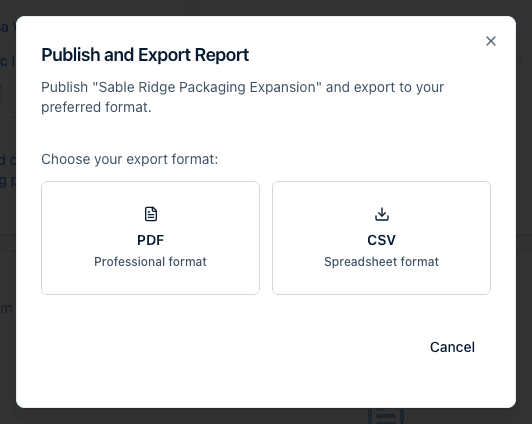
-
The export runs right away in the page — the button you clicked shows "Exporting..." for a moment. You'll see a "Report published and exported as PDF successfully" (or "...as CSV successfully") message. No email or notification is sent.
Export an already-Published report
Once a report is Published, the same button is labeled Add Export
instead. Click it, choose PDF or CSV in the Export Report
dialog (Export "<name>" to your preferred format.), and the file is
generated the same way — this doesn't create a second, separate report.
Find and download an export
After an export finishes, the page refreshes and the file appears as a new
row in the Exported Documents card. The file is named
Incenti Insights <report name> - <Mon D, YYYY>.pdf or .csv (characters
like /, :, or ? in the report name are replaced with hyphens). Each
row shows a PDF or CSV type badge, any linked projects, who exported it
(avatar and name) and when, and a Download link.
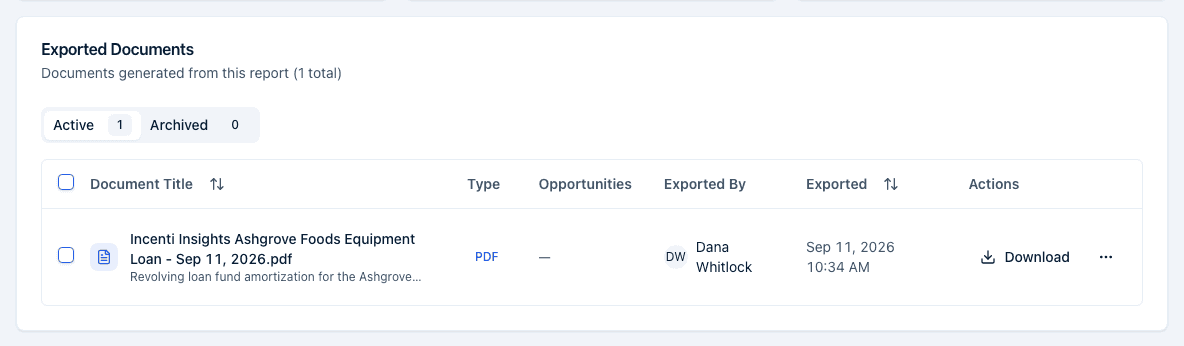
There's no limit on how many times you can export — every export adds a new row; older exports stay listed and downloadable.
Active and Archived exports
The Exported Documents card has two tabs, Active and Archived, each with a count badge. New exports land under Active; archiving one moves it to Archived rather than deleting it. A tab with nothing in it reads "No active documents" or "No archived documents".
What's in the PDF and the CSV
Both formats carry the same figures, laid out differently: the PDF is formatted for sharing and the CSV for spreadsheets. Both open with your account's name (the PDF also places your account logo in the top-right of the first page) and both end with a "Powered by Incenti" mark. Some CSV labels differ from the on-screen ones. For the exact sections, columns, and label differences of each report type, see What's in an exported file.
An export link is public: anyone who has the URL can download that file without signing in to Incenti. Treat a downloaded link like the file itself and only pass it to people who should see the figures.
Export again in another format
A published report's figures are locked, so every later export carries the same numbers. Click Add Export again to get the other format or a second copy. Each export creates a fresh document and doesn't overwrite or remove the earlier one, so both stay listed in Exported Documents.
Archive an exported document
- In the Exported Documents card, use the ⋯ menu on a row and choose Archive.
- A confirmation dialog, Archive document?, explains that
"<name>" will be archived everywhere it is referencedand lists any other places the document shows up — projects, form responses, tasks, contacts, or other reports — so you know what else will lose access to it. Confirm with Archive, or use Unarchive later from the same menu to bring it back.
Link an exported document to a project
- In Exported Documents, tick the checkbox on one or more rows. A "N document(s) selected" bar appears with a Link to Project button. The button is disabled when your account has no opportunities yet — there's nothing to link to. Create a project first (see Opportunities).
- Click it. In the Link Documents to Opportunity dialog, choose a project from the picker (placeholder "Select an opportunity"), then click Link to Opportunity.
- The document is now attached to that project's Documents (see Opportunities). This doesn't change the report page's own Connected Opportunities card, which tracks a different connection.
What happens next
- Publishing locks the report's inputs — every field becomes disabled and can't be changed afterward, for all three report types.
- Publishing can't be undone from the portal — there's no "unpublish." Archiving a report is separate from its Published status and doesn't change it.
- The list page's Published column fills in with the publish date once a report's first export completes.
Common questions
Q: I exported a PDF and spotted a wrong number. Can I fix it and export again? A: Not on that report — publishing locks its inputs, and an exported file is a snapshot of the figures at that moment. Create a new report with the corrected numbers and export that; archive the old one if you no longer need it.
Q: I published my Economic Impact report and now I can't edit the numbers. Is that a bug? A: No — that's expected. Publishing locks the inputs on every report type so the published figures can't drift from what was exported.
Q: Where is the delete button for an exported document? A: There isn't one. Use the ⋯ menu on the document's row in Exported Documents and choose Archive instead — the confirmation dialog will show you everywhere else that document is used (projects, responses, tasks, contacts, other reports) before you confirm.
Q: Can I export the same report as both PDF and CSV? A: Yes. Click Add Export (or Publish and Export for the first one) and choose the other format — each export adds its own row to Exported Documents rather than replacing the previous file.
Q: Where did my archived exports go? A: They're on the Archived tab of the Exported Documents card, next to Active. Use the row's ⋯ menu there and choose Unarchive to bring one back.
Q: Why is Link to Project greyed out? A: Because your account has no opportunities for the file to be linked to. Create a project first, then reselect the document and the button becomes available.
Q: Does the PDF include our logo? A: Yes — your account logo appears in the top-right of the first page of every report PDF, and an Incenti mark sits in the footer. Change the logo on your account page (see Account settings).
Q: My report name has a comma and the CSV columns are shifted. What happened? A: The CSV writes values separated by commas without quoting them, so a comma inside a name or a tax label splits that line into extra columns. Rename the report (or the offending row) without commas and export again.
Q: Can someone outside my organization open an export link? A: Yes. The download URL is public — anyone who has it can open the file without signing in. Share the link only with people who should see the figures, and re-export rather than forwarding an old link when the audience changes.
Related
Last updated on