Create and manage reports
Find the Reports module, create a report of the right type, see what's on a report page, and archive, unarchive, or restore reports you're done with.
Before you start
- You need access to the Reports area of the portal, which appears in the sidebar when your account's plan includes the Reports module. Two products include it: EDOS (the full suite) and EDOS (Reports Only). If Reports isn't in your sidebar, ask your account admin or contact support about adding one of those.
- Any user in the account — admin or member — can create, edit, archive, unarchive, and export any report in the account. There is no admin-only restriction, and a member can archive a report an admin created.
Steps
Understand the three report types
The Reports module builds three kinds of report from numbers you enter, using deterministic formulas rather than AI.
- Economic Impact — projects capital investment, jobs, and payroll over time. See Economic Impact reports.
- Fiscal Impact Analysis — compares property tax and sales tax before and after a project. See Fiscal Impact Analysis reports.
- Loan Amortization Breakdown — builds a monthly loan payment schedule. See Loan Amortization reports.
The Reports module is separate from the Insights module's profile and compete PDFs (see Insights reports).
Find your reports
-
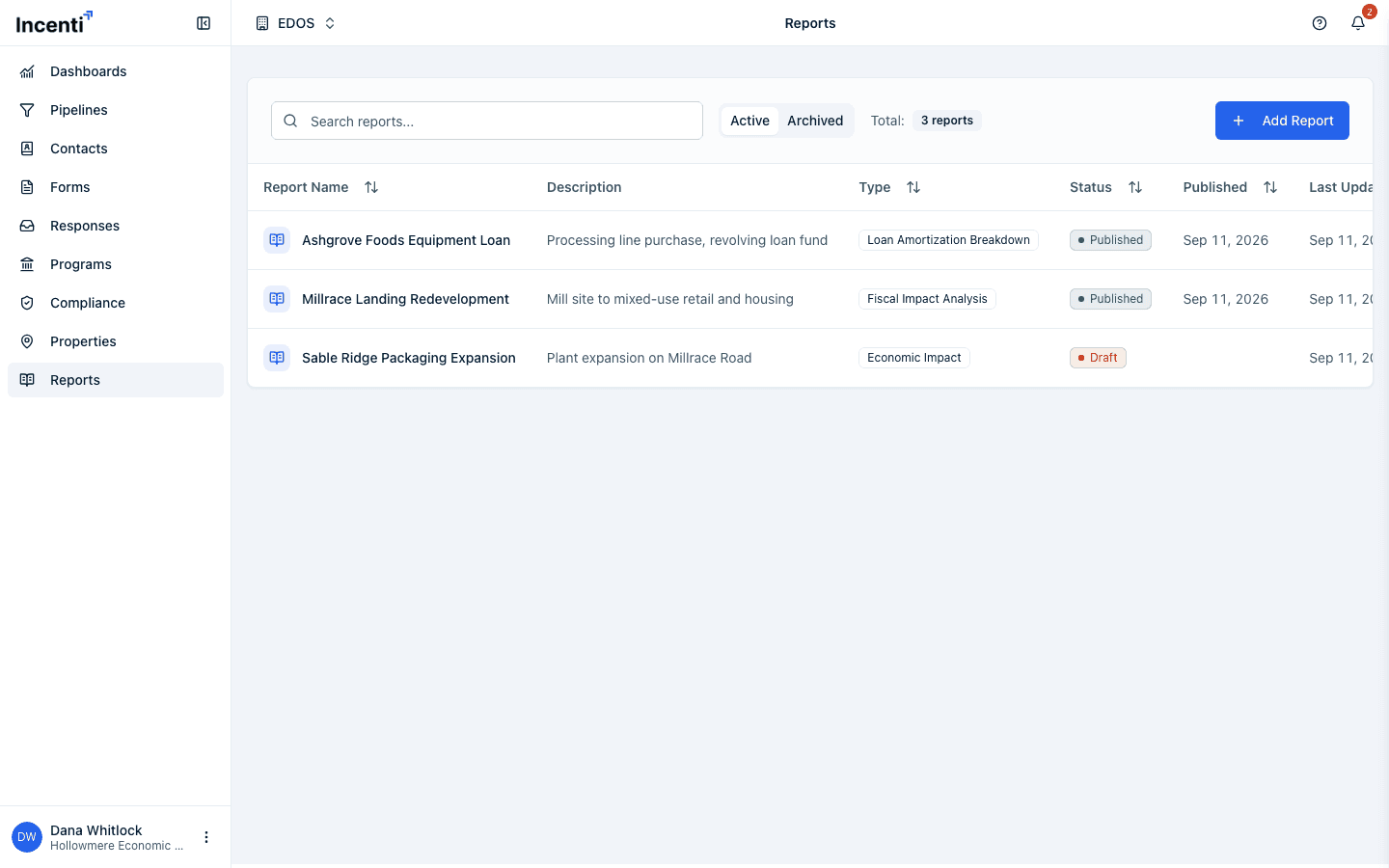
Open Reports in the sidebar. The list shows a Search reports... box, Active and Archived tabs, and a count badge (for example "3 reports").
-
Each row shows Report Name (archived reports carry an "Archived" badge), Description, Type, Status (Draft appears amber, Published appears green), Published date, and Last Updated. Click a row to open that report.
Create a report
-
On the Reports list, click Add Report (or Create Report if your account has no reports yet).
-
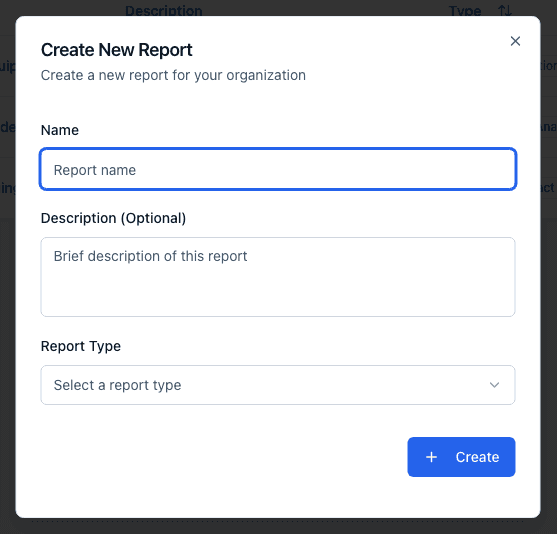
In the Create New Report dialog, enter a Name (required) and, optionally, a Description (Optional). Then choose a Report Type.
-
The Report Type list offers Economic Impact, Fiscal Impact Analysis, and Loan Amortization Breakdown. The type can't be changed after the report is created.
-
Click Create. You'll see a "Report created successfully" message and land on the new report, ready to fill in.
See what's on a report page
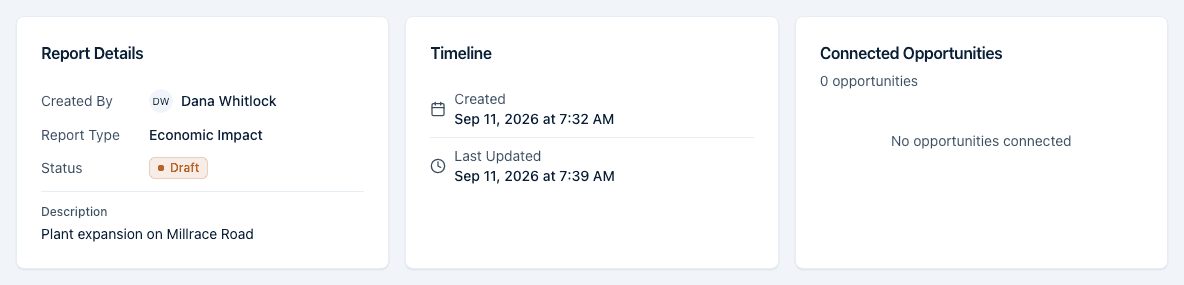
Every report page starts with three cards: Report Details (Created By, Report Type, Status, Published date once published, and Description), Timeline (Created, Last Updated, and Published dates), and Connected Opportunities. Report Type is shown as a readable name — "Loan Amortization Breakdown", "Economic Impact", "Fiscal Impact Analysis" — and a date that isn't set yet reads "Not set". The Connected Opportunities card only appears when your account also has the Pipelines module.
Connected Opportunities is read-only
The Connected Opportunities card lists projects linked to the report, with a View button per row that opens the project. In practice it almost always reads "No opportunities / No opportunities are connected to this report": there is no control anywhere in the portal for connecting a project to a report, so the card has nothing to list unless the link was created for you.
If you want an exported file to live on a project, link the file instead — tick it in Exported Documents and use Link to Project. That's a different connection from this card, and it's the one you can make yourself. See Publish and export a report.
Below those, the Exported Documents card lists every file exported from the report ("Documents generated from this report" plus the total), or "No Documents / No documents have been exported from this report" if none exist yet. See Publish and export a report for how those get created.
Under Exported Documents is the report's own section, headed by its type name (for example "Loan Amortization Breakdown"), where you enter the report's data. There's no Save button — fields save themselves a short moment after you stop typing, with a small spinner next to the section heading while a save is in progress. The Timeline card's Last Updated time moves each time a save completes.
Archive, unarchive, and restore a report
-
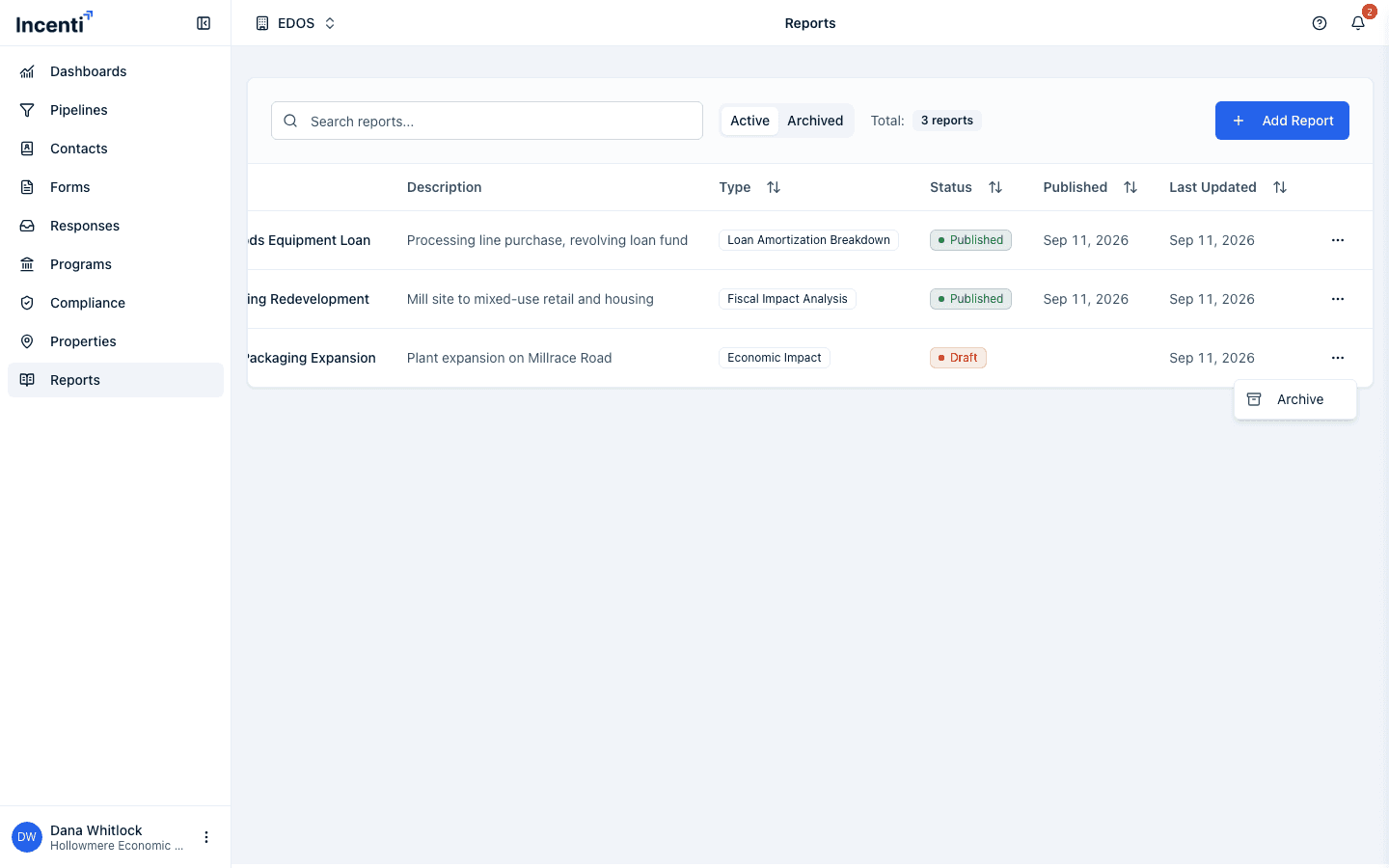
From the Reports list, click the ⋯ menu on a row and choose Archive — or use the same ⋯ menu at the top of an open report.
-
A confirmation dialog asks Archive report?:
"<name>" will be hidden from the reports list. You can restore it later from the "Archived" tab.Confirm with Archive. -
To restore a report, switch to the Archived tab, then use the ⋯ menu on its row and choose Unarchive — no confirmation needed.
What happens next
- Archiving a report only hides it from the Active tab — its status, data, and exported documents are untouched. There is no delete option anywhere; archive is the only way to put a report away, and it's always recoverable from the Archived tab.
- Creating a report sends no notification — you land straight on the new report to start entering data.
Common questions
Q: I picked the wrong report type. Can I change it? A: No. The type is fixed when the report is created, so archive the report and create a new one with the right type. Nothing you entered carries over.
Q: Where is the delete button for a report? A: There isn't one. Reports can only be archived, which hides them from the Active tab without deleting anything. Archived reports stay recoverable from the Archived tab at any time.
Q: I've been typing in the Loan Amortization fields for a while — did my changes save? A: Yes, as long as you saw the small spinner next to the section heading — that's the autosave running. There's no Save button; check the Timeline card's Last Updated time to confirm the latest save went through.
Q: Why don't I see a Connected Opportunities card on my report? A: That card only shows up when your account also has the Pipelines module enabled.
Q: How do I connect an opportunity to a report? A: You can't — the Connected Opportunities card is read-only and the portal has no control for adding a project to it. What you can link is an exported file: tick it in Exported Documents and click Link to Project, which attaches the PDF or CSV to that project's Documents.
Q: Which plan includes Reports? A: EDOS and EDOS (Reports Only). If Reports isn't in your sidebar, your account has neither.
Q: Can I duplicate a report to reuse its numbers? A: No. There's no duplicate action — create a new report of the same type and re-enter the figures.
Q: Can a member archive a report an admin created? A: Yes. Everyone in the account has the same rights over reports: create, edit, export, archive, and unarchive, whoever made them.
Related
Last updated on