Build a Loan Amortization report
Enter a loan's amount, rate, term, and start date to generate a monthly payment schedule you can share with a company or export.
Before you start
- You need a report of type Loan Amortization Breakdown (see Create and manage reports if you haven't created one yet).
- Have the loan's amount, annual interest rate, and term in years on hand.
A Loan Amortization report is for revolving loan funds, gap financing, or any loan your organization is offering a company — it works out the monthly payment and builds a full payment schedule you can walk the company through or hand them directly.
Steps
Enter the loan details
-
Open the report and find the Loan Calculator card.
-
Fill in the four fields:
- Loan Amount ($) — placeholder 100000.
- Annual Interest Rate (%) — 0 to 100, placeholder 5.
- Loan Period (Years) — 1 to 50, placeholder 30.
- Start Date — defaults to today.

-
Once all four fields have values, the report saves automatically and the Loan Summary and Payment Schedule fill in.
When the first payment is dated
Payment 1 is dated on the Start Date itself, not a month after it. Each following payment is one month later, so a 12-month loan starting 1 March 2026 runs from 1 March 2026 to 1 February 2027. If you want the borrower's first payment a month after closing, set the Start Date to that first payment date rather than the closing date.
Read the Loan Summary
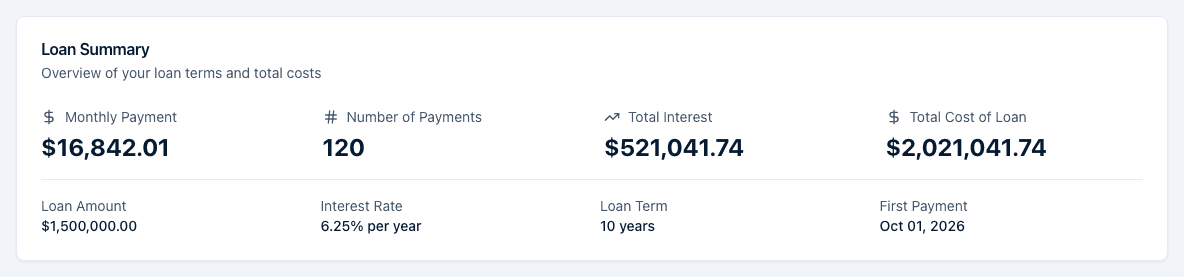
The Loan Summary card shows Monthly Payment, Number of Payments, Total Interest, and Total Cost of Loan, followed by the Loan Amount, Interest Rate, Loan Term, and First Payment date.
Read the Payment Schedule
The Payment Schedule table lists one row per month: Payment #, Payment Date, Beginning Balance, Payment Amount, Principal, Interest, and End Balance. A footer below the table repeats Total Payments, Total Principal, Total Interest, and the Last Payment Date.
How the numbers are calculated
This is standard monthly loan amortization, the same math a bank uses:
- The annual interest rate is divided by 12 to get a monthly rate, and the loan period in years is multiplied by 12 to get the total number of payments.
- The Monthly Payment is calculated with the standard amortization formula, so it stays the same for every payment over the life of the loan.
- If the interest rate is 0%, there's no formula to apply — the Monthly Payment is simply the loan amount divided by the number of payments.
- Each row's Interest is that month's beginning balance times the monthly rate; Principal is the rest of the payment. The End Balance carries forward as the next row's Beginning Balance, one month after the previous Payment Date.
What the export adds
The CSV and PDF both restate the loan details and the full schedule, and both add three figures the page doesn't show on its own: Total of All Payments (the monthly payment times the number of payments), Interest as % of Principal (total interest divided by the loan amount), and the First Payment Date / Last Payment Date pair. See What's in an exported file for the exact sections and columns.
What happens next
Changes auto-save as soon as all four Loan Calculator fields have values — there's no Save button. Until then nothing at all is written: a report where you typed only the loan amount and walked away reopens completely empty, because a partly-filled calculator is never saved. If a save is attempted with an amount of zero or less, a negative rate, or a term of zero or less, it fails with the toast "Please enter valid loan details" and nothing is written until you correct it. Once you publish the report (the first time you export it), all four fields become locked and can no longer be edited. See Publish and export a report to export the schedule as a PDF or CSV.
Common questions
Q: Can I model a balloon payment or extra principal payments? A: No. The calculator only supports a standard fixed-rate, fixed-term amortization schedule — equal monthly payments for the full term. There's no way to add a balloon payment or extra principal payments.
Q: I entered my loan details but nothing shows up — why? A: Check that Loan Amount is greater than 0, Annual Interest Rate isn't negative, and Loan Period (Years) is greater than 0. The report won't save or generate a schedule until all four fields hold valid values, and you'll see the toast "Please enter valid loan details" if a save is attempted with bad data.
Q: Can I still edit the loan amount after publishing? A: No. Publishing locks all four Loan Calculator fields. There's no way to unpublish from the portal, so double-check the figures before your first export.
Q: Why is the first payment dated the same day as the start date? A: That's how the schedule is built — payment 1 falls on the Start Date, and each later payment is one month after the one before it. If you want a month's gap before the first payment, set Start Date to the date that first payment is due.
Q: Why did my report reopen blank after I typed the loan amount? A: Nothing is saved until Loan Amount, Annual Interest Rate, Loan Period, and Start Date all hold values — a partly-filled calculator is never written. Fill in all four and the report saves on its own.
Q: What is "Interest as % of Principal" in the export? A: Total Interest divided by the Loan Amount, as a percentage — how much extra the borrower pays over the life of the loan relative to what they borrowed. It only appears in the exported PDF and CSV, not on the report page.
Related
Last updated on