Browse the property directory
Open Properties, read the stat cards, search and filter the list, switch between grid, list, and map views, and open a property's detail panel from a shareable link.
Before you start
- A property is a site or building record — a piece of land or a building your organization tracks, with a status, an address, acreage, price, and other details. An economic development organization (EDO) lists sites and buildings it markets; a site selector tracks sites it's evaluating.
- Anyone signed in on the account can view, add, edit, import, export, and delete properties — there's no separate admin-only step for this module.
Steps
Open Properties
-
Open Properties from the main navigation.
-
Three stat cards at the top summarize every property on the account — they always reflect the full account, not just what your current search or filter shows:
Card What it counts Total Properties Count of every property on the account Available Count of properties whose status is Available Available Acres Sum of the Available Acres field across every property on the account, regardless of status
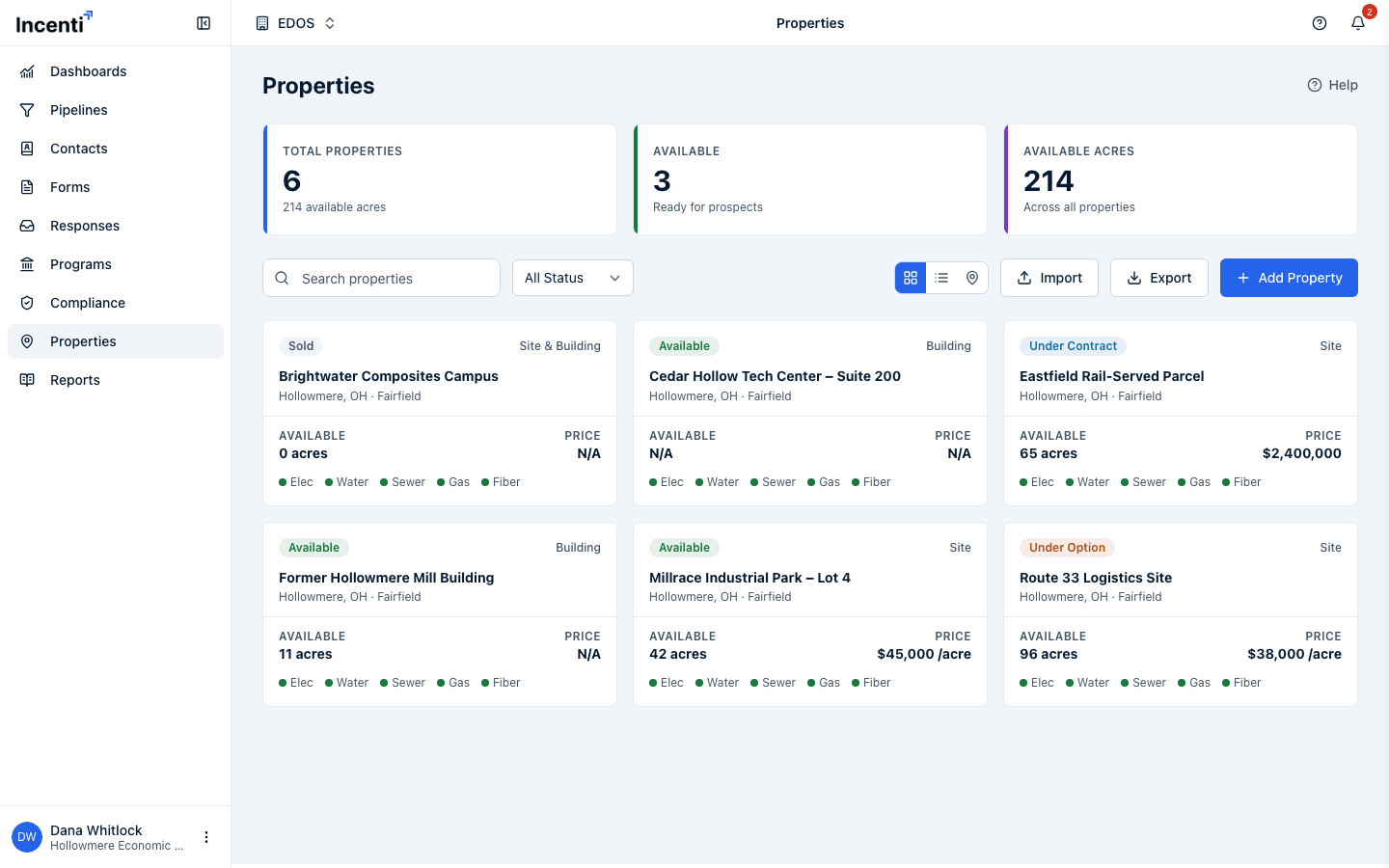
Search and filter
- Type in the Search properties box to match a property's name, city, or county. The match is case-insensitive and matches anywhere in the text.
- Use the status dropdown to narrow the list to one status: All Status, Available, Under Option, Under Contract, or Sold.
- Search and the status filter apply together to whatever's already loaded in your browser — up to the first 500 properties on the account. On accounts with more than that, properties beyond the first 500 won't appear in search or filter results here.
Switch views
The toolbar's three view buttons are icon-only, with no text label:
- The grid icon shows properties as cards (the default view).
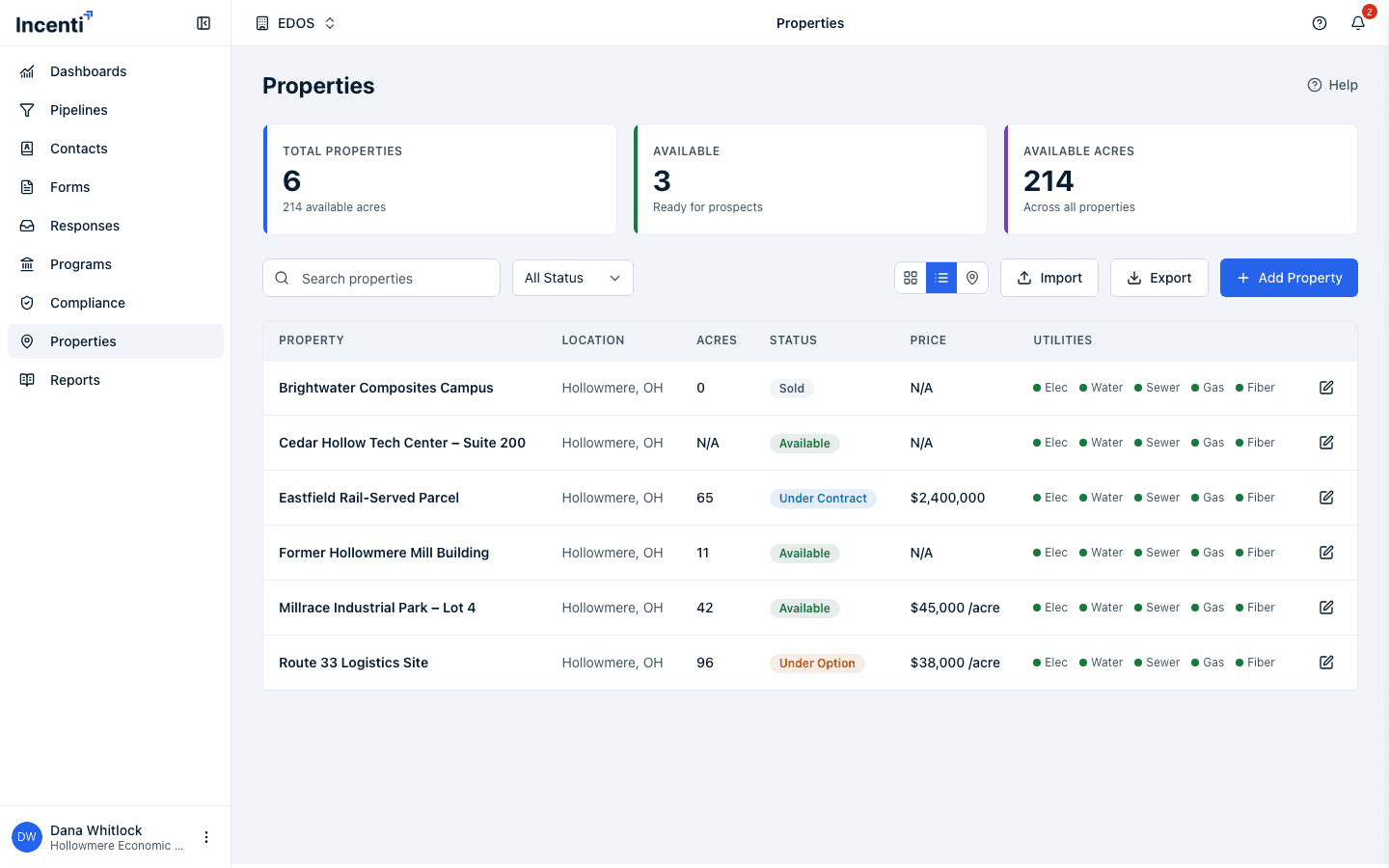
- The list icon shows properties in a table.
- The pin icon shows properties on a map. See See properties on the map.
Read a property card
Each card in the grid shows:
- A status badge and, if the property has a type set, a type label (Site, Building, or Site & Building) in the top corner.
- The property name and, if set, its city, state, and county.
- A Featured badge, if the property has been marked featured.
- Available acreage and Price, each reading "N/A" when not set.
- Five small utility dots — Elec, Water, Sewer, Gas, and Fiber — filled in when that utility is marked on-site (or, for Fiber, when fiber is marked available) and dimmed otherwise.
Read the list view
The table (list view) shows one row per property with columns for Property (name, with its subtype underneath when set), Location, Acres, Status, Price, Utilities (the same dots as the card), and an edit button.
Open a property
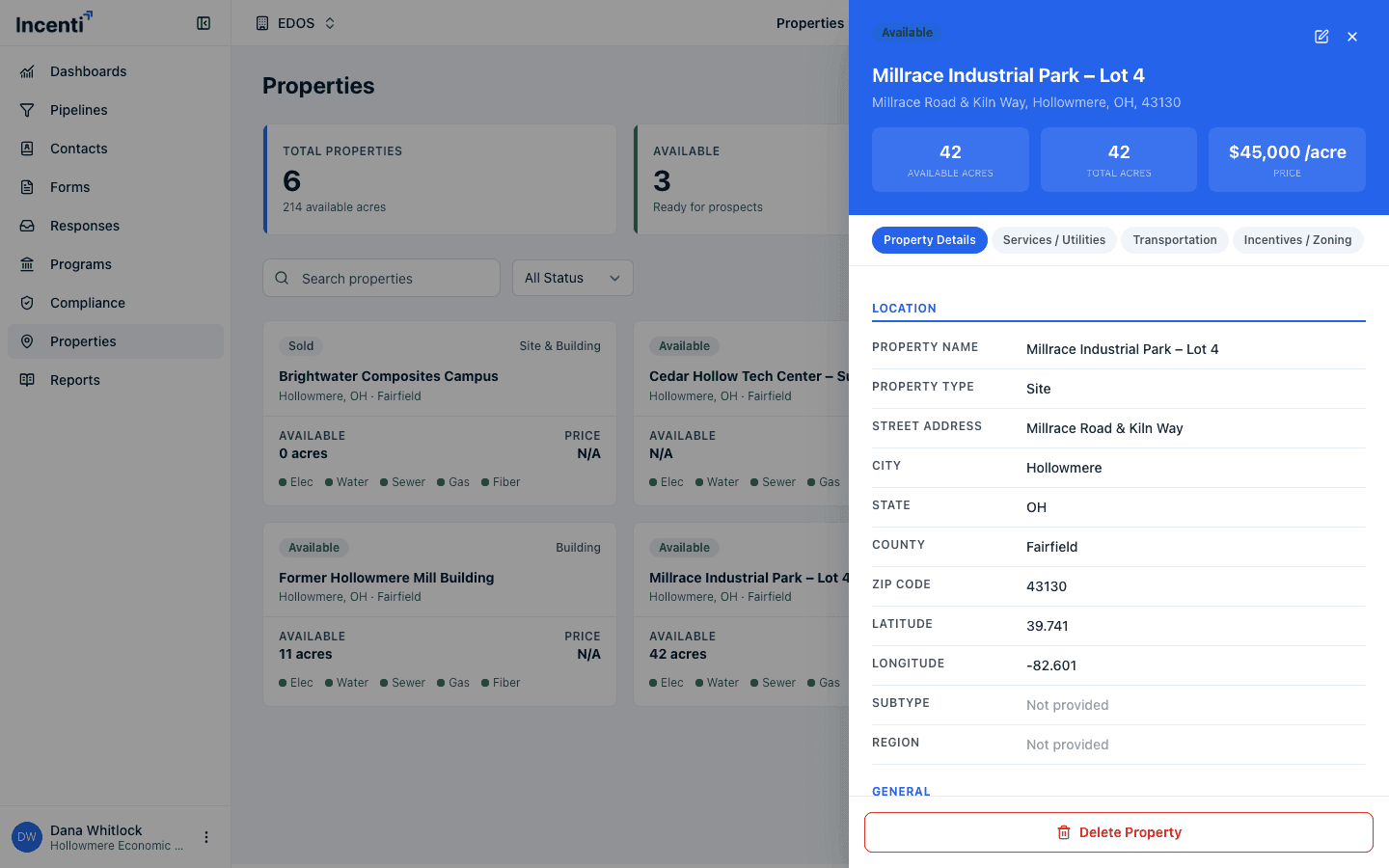
- Click a card or a table row to open that property's detail panel on the right.
- Opening a property adds
?selected=<property id>to the page's address, so you can copy the link and send it to someone else on your account — opening it takes them straight to that property's panel. If the id in the link doesn't match a property you can see (it was deleted, or belongs to a different account), you'll see a Property not found toast and the panel doesn't open. - The panel header shows the status badge, the property name and address, and three stat boxes: available acres, total acres, and price.
- Below the header, four tabs organize the rest of the record: Property Details, Services / Utilities, Transportation, and Incentives / Zoning.
- If a form submission supplied details that don't fit a standard property field, they appear under an Additional details heading at the bottom of the Property Details tab. Fields with no value read "Not provided".
- If the property is linked to any form responses, a Form Responses section lists them at the bottom of the panel on every tab; clicking one opens that response. See Review a response.
What happens next
- Nothing on this page changes a property. Searching, filtering, switching views, and opening the detail panel only read your data.
- The view, search text, and status filter are not part of the page
address, so a shared link opens the property's panel but not your
filters. Only
?selected=travels with the link. - The stat cards and the list refresh when someone adds, edits, imports, or deletes a property and you reload the page.
- To change properties, see Add, edit, and delete properties and Import and export properties. To see how a property gets linked to a response or a project, see Use properties with responses and projects.
Common questions
Q: Why don't the stat cards change when I search or filter? A: The three stat cards always summarize every property on the account. Search and the status filter only change what's shown in the grid, list, or map below them.
Q: I shared a property link with a teammate and they got "Property not found" — why? A: That happens when the property in the link was deleted, or when your teammate is signed into a different account than the one that owns the property. Confirm the property still exists and that you're both on the same account.
Q: Can I search by address or utility? A: No — the search box only matches a property's name, city, or county. Address and utility details are visible in the card, list, and detail panel, but they aren't searchable.
Related
Last updated on