Use properties with responses and projects
See how a mapped form submission creates or updates a property, where the link shows on the property and the response, how properties connect to a project through its responses, and where properties feed autofill.
Before you start
- A property connects to the rest of Incenti through form submissions. A respondent has to submit a form whose fields are mapped to property fields — either individual Property field mappings or Property Information pages — for a property to appear here. See Map fields to your CRM and Field groups and reusable field sets for how to set that up on a form.
- Anyone signed in on the account can view these connections — there's no separate admin-only step.
How a submission creates or matches a property
When a mapped submission comes in, Incenti decides whether it describes a property you already have or a new one:
- A property is matched by its street address and city — both must be present on the submission and match an existing property's address and city exactly once normalized (case, punctuation, and abbreviations like "Tennessee" vs. "TN" are ignored; a ZIP+4 extension matches its 5-digit form). State and postal code, when present on both sides, must also agree — a same-street match in a different state or ZIP is treated as a different property. Street suffixes are not treated as equivalent: "123 Main St" does not match "123 Main Street", and a new property is created instead.
- If the submission's street address or city is blank, Incenti neither matches nor creates a property from it — an address that could never be matched again would just seed duplicates on every later submission.
- No match creates a new property. A match fills in only the blank fields on the existing property; a field the property already has a value for is never overwritten, even if the submission disagrees. Where a submitted value disagrees with an existing value, that difference is recorded as a sync conflict — see CRM sync and conflicts.
- A form with Property Information pages can submit more than one property in a single response (one page per property). Each page is matched and filled independently, in order — if two pages on the same response share an address, the second is matched against the property the first one just created or updated, rather than creating a duplicate.
Where the link shows on the property
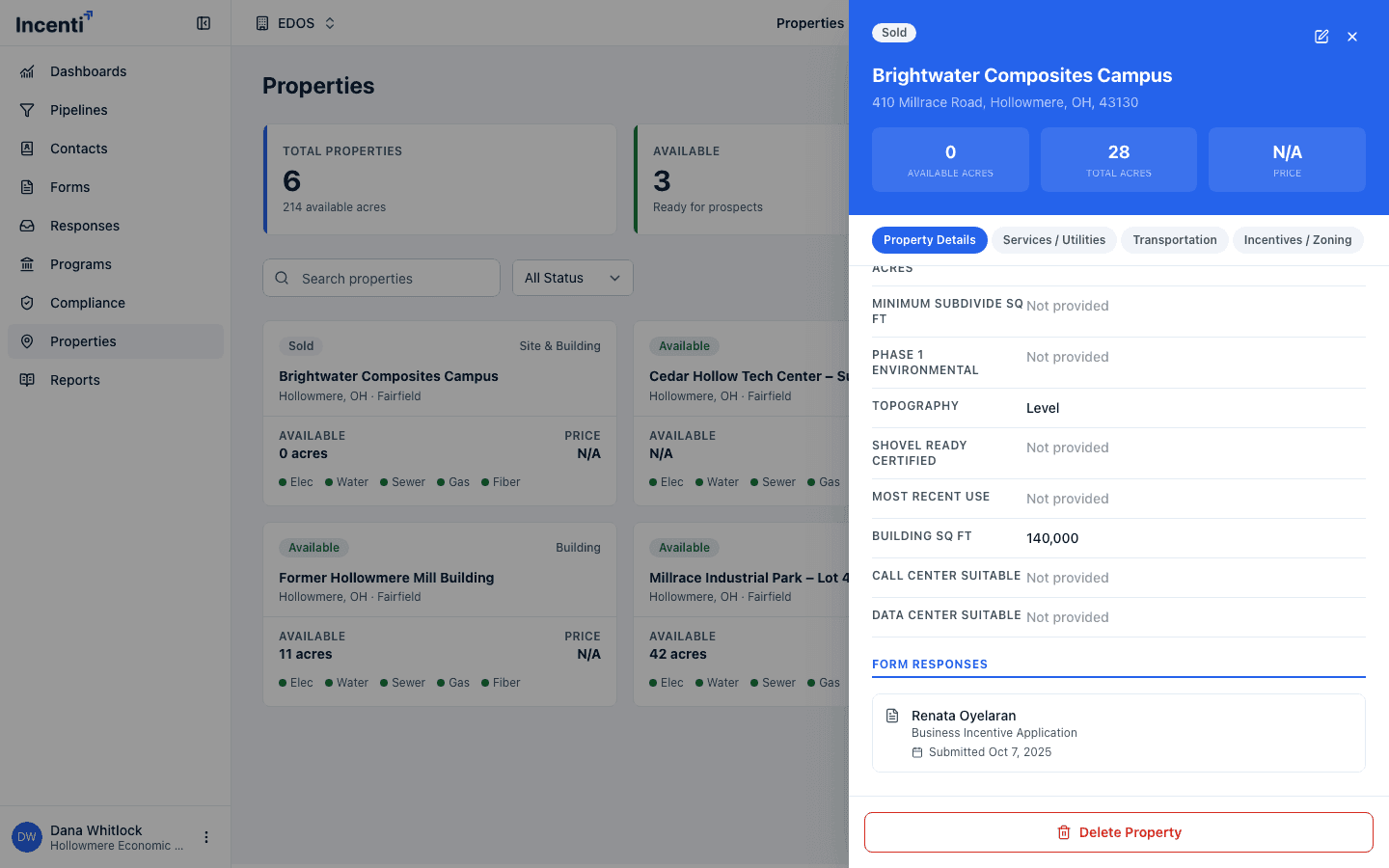
Open a property and its detail panel lists every response that created or updated it under Form Responses, each showing the response's title, the form it came from, and when it was submitted (or created, if it hasn't been submitted yet). Click a response to open it; the response page's Back to property link returns you to Properties.
Where the link shows on the response
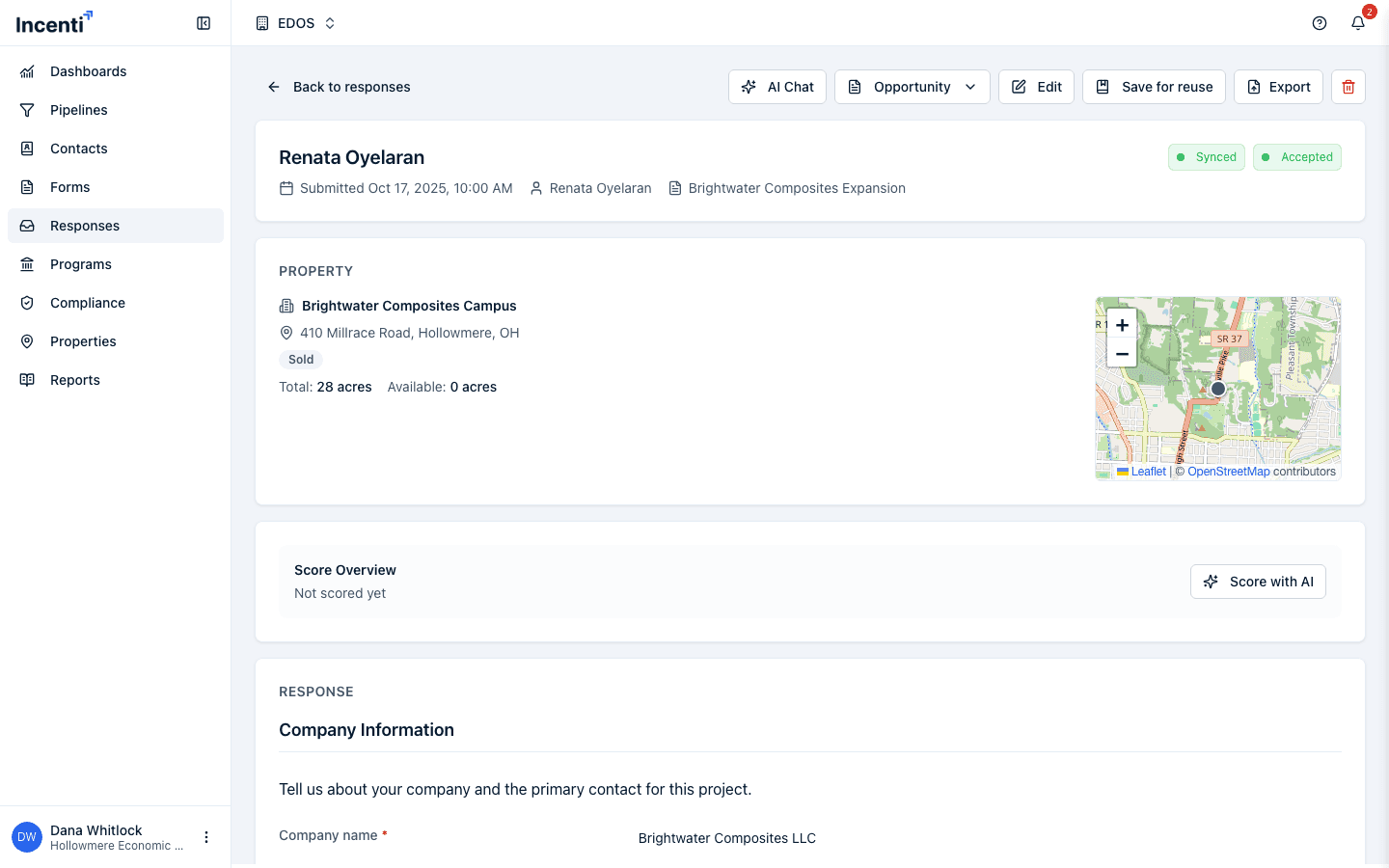
A response created or updated from a mapped submission shows a Property
card with the property's name (linking to /properties?selected=<id>, which
opens that property's detail panel directly), its address, status badge,
total and available acreage, and a small map when the property has
coordinates. Until it does, the card reads "Awaiting geocoding" in place of
the map (see See properties on the map for how a
property gets its coordinates). If
the response's form has Property Information pages and more than one
property was submitted, the card shows the first one plus a "+N more
property/ies connected" line. A response whose form has no property mapping
shows no Property card at all.
How properties connect to a project
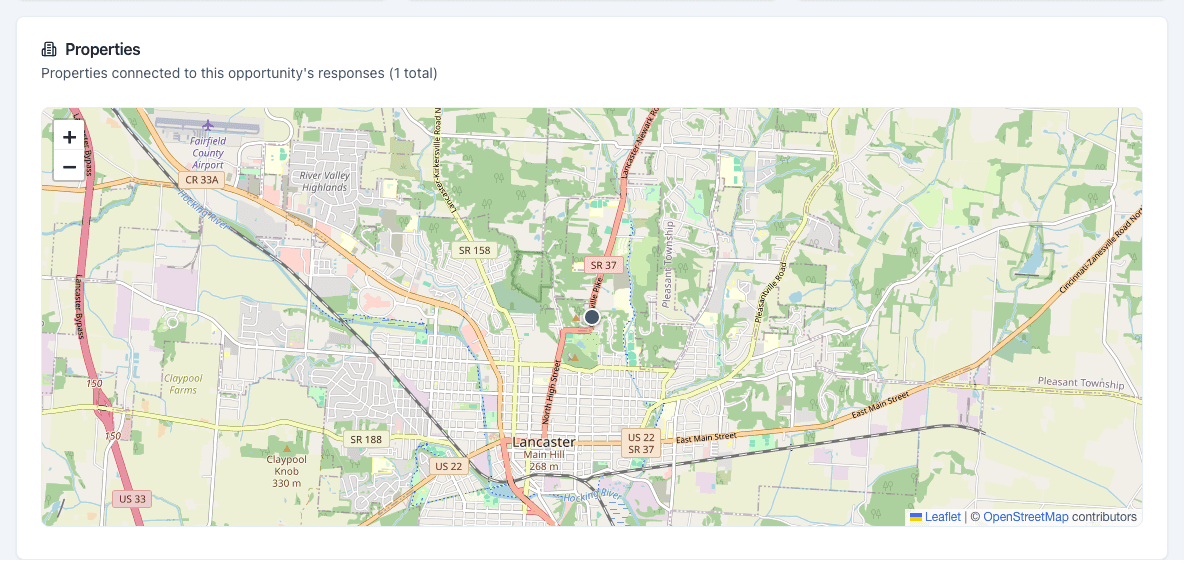
A project (opportunity) page shows a Properties section listing every property connected to any response linked to that project — there's no way to connect a property to a project directly or by hand. The section is a clustered map: each pin opens a popup with the property's details and a "Via N response(s)" line naming how many responses connected it. When exactly one response did, the line is a link to that response, and the response's back link returns you to the project. The section only appears once at least one property is connected; a project with none shows nothing here.
Properties as an autofill source
When someone with their own Incenti account answers another organization's form inside the portal, Autofill can fill property-mapped questions straight from one of their properties — they pick the property in a card the AI assistant shows (or it's chosen automatically when exactly one is already linked to the response), and the values copy over exactly, with a source chip so you can see what came from where. See Autofill a response for the full flow, including the profile and organization details it also draws on and how to change the source afterward.
Common questions
Q: I submitted a form with a property address but nothing shows up on my Properties page — why? A: The submission needs both a street address and a city for Incenti to match or create a property from it. If either is blank, the property step is skipped entirely for that submission.
Q: A response updated the wrong property — can that happen? A: Only if the submitted street address and city exactly match an existing property's (state and ZIP, when both are present, must also agree). Two different properties on the same street in different states or ZIP codes are never confused for each other.
Q: Why didn't a submission change a field on my property? A: Matching a property only fills fields that are currently blank. If the property already had a value, it's kept, and the submission's value is recorded as a sync conflict instead of overwriting it.
Related
Last updated on