See properties on the map
Switch the property directory to the map view, read pin colors and clusters, click between pins and list rows, and understand how a property gets a pin in the first place.
Before you start
- You need at least one property with a location on the account. See Add, edit, and delete properties for how to enter one.
- A property's pin comes from its Latitude and Longitude, or from an address lookup when you leave those blank. See "How a property gets its pin" below.
Steps
Switch to the map view
- Open Properties from the main navigation.
- Click the map-pin icon, the third of the three view icons above the property list, to switch from grid or list to the map view.
- The map view splits the screen: the map on the left, and a scrollable list of the same properties on the right. The list header reads "N on map" for the number of properties currently shown as pins, and, whenever any are missing a location, "N without coordinates" next to it.
Read the pins
- Each pin is colored by the property's status: green for Available, amber for Under Option, blue for Under Contract, and gray for Sold.
- Pins that are close together at the current zoom level group into a cluster; zoom in or click a cluster to spread it into individual pins.
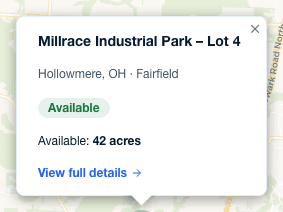
- Click a pin to open its popup, showing the property's name, its city and state (and county, if set), a status badge, and its available acreage. Click View full details in the popup to open the property's full detail panel.
Use the list alongside the map
- Click a row in the list on the right to recenter and zoom the map on that property's pin and open its popup — the same as clicking the pin directly.
- A property with no location is dimmed in the list, tagged no pin, and can't be clicked, since there's no pin for the map to jump to.
- The search box and the status filter above the list apply to the map too: narrowing either one updates both the pins shown and the list at the same time.
Large property lists
The directory loads up to 500 properties at a time. Once your account reaches 500, the map switches to loading only the properties inside the area you're looking at, up to 500 per area, and reloads a moment after you stop panning or zooming. In that mode:
- The list header reads "N in view" instead of "N on map."
- If more properties are in view than the map loads at once, a note above the list reads "Showing the first N in view — zoom in to see the rest."
- If a viewport load fails, a note reads "Couldn't load properties for this area. Move the map to retry."
How a property gets its pin
- If you type Latitude and Longitude on the property's Location tab (or supply them in an import), those coordinates are used for the pin and Incenti does not look the address up.
- If you leave them blank, Incenti looks the address up in the background right after the property is added or imported, using whatever you entered of street address, city, county, state, and zip code, and fills in the coordinates. County and state alone are enough to try a lookup, which helps for rural sites with no street address.
- Editing the address later does not move an existing pin by itself. The Edit Property dialog saves the Latitude and Longitude it shows along with everything else, so the old coordinates stay. To get a fresh lookup, clear Latitude and Longitude in the same save in which you change the address. Clearing them without changing any address field does not start a lookup.
- If the address can't be found, the property is left without a pin and counts toward "without coordinates". Nothing else in Incenti reports the failed lookup. Correct the address, or type the coordinates yourself.
- There is no notification when a lookup finishes. If a property you just added has no pin yet, refresh the page after a bit.
A separate, smaller map on a project's page shows only the properties connected to that project — see Use properties with responses and projects.
What happens next
- Nothing about the map view itself changes other data — moving the map, clicking pins, and clicking rows are all read-only actions.
- New or edited properties without manual coordinates get a pin once their background address lookup finishes; there's no notification when this happens, so revisit the map view to check.
Common questions
Q: I just added a property with an address, why doesn't it have a pin yet? A: Incenti looks the address up in the background after you save, so there can be a short delay. Refresh the page after a bit; if it still has no pin, the address may not have been found, or one of the address fields (street address, city, county, state, zip code) may need correcting.
Q: Why is a row in the list grayed out and not clickable? A: That property has no coordinates yet, either because the address lookup hasn't finished or because its address couldn't be found. It's tagged no pin and can't be clicked in the map view, but you can still open and edit it from the grid or list view.
Q: I typed in coordinates myself. Will Incenti ever change them? A: No. Coordinates on the Location tab are used as they are, and a background lookup only runs for a property whose Latitude or Longitude is blank.
Q: I corrected a property's address but the pin is still in the old place. Why? A: The old coordinates were saved again with your edit. Open Edit Property, clear Latitude and Longitude, make the address change in the same save, and Incenti looks the new address up. If the address is already right, type the correct coordinates instead.
Related
Last updated on