Create a dashboard from a template
Open the New dashboard chooser, browse the template gallery with its sample-data preview, and create a dashboard from a template you can adapt.
Before you start
- Dashboards appears in the sidebar when your account's plan includes the Dashboards module. What that page shows depends on a second setting: the Dashboards 2.0 experience this page describes is turned on per account by Incenti and is off by default. If your Dashboards page opens a single embedded dashboard with no New dashboard button, you're on the older experience — see Classic dashboards.
- Any user in the account — admin or member — can create a dashboard from a template.
- Your account type decides which template you see. See Which template you see below.
Steps
Find Dashboards
-
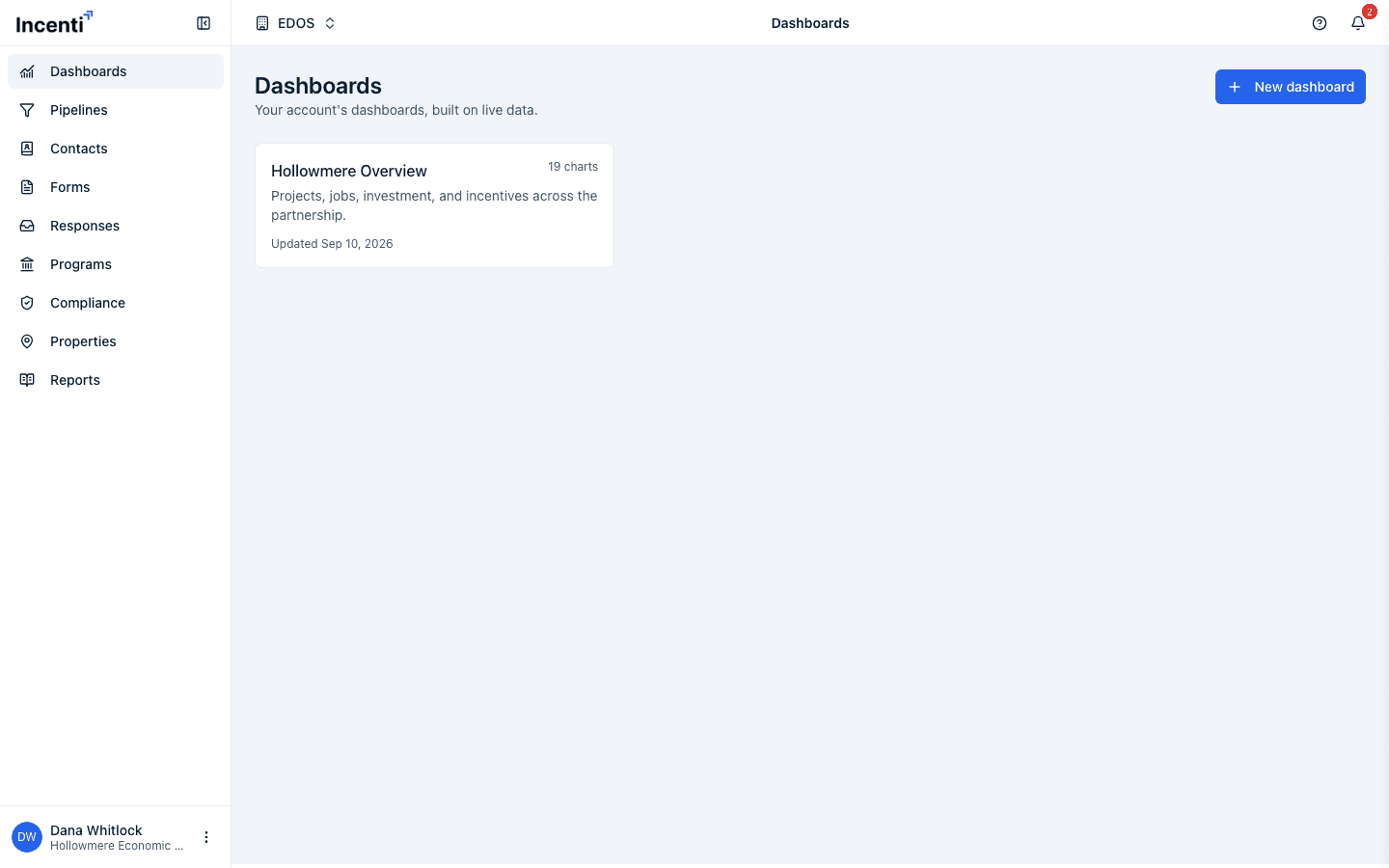
Open Dashboards in the sidebar. The list shows every dashboard your account owns as a card (title, chart count, and last-updated date), most recently updated first.
-
Click a card to open that dashboard, or click New dashboard at the top of the page to start another one.
-
On a brand-new account with no dashboards yet, the list shows an empty state instead: "Create your first dashboard," with Browse templates and Build with AI buttons that skip straight to the same two paths below.
Choose how to start
-
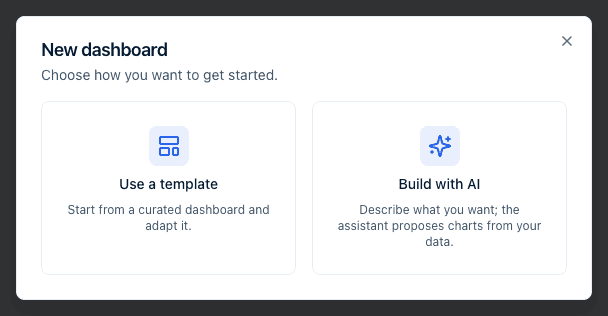
Click New dashboard. The New dashboard dialog opens with two equal cards: Use a template ("Start from a curated dashboard and adapt it") and Build with AI ("Describe what you want; the assistant proposes charts from your data").
-
Click Use a template to open the template gallery. Click Build with AI instead to open the AI chat and describe the dashboard you want — see Build a dashboard with AI.
Browse the template gallery
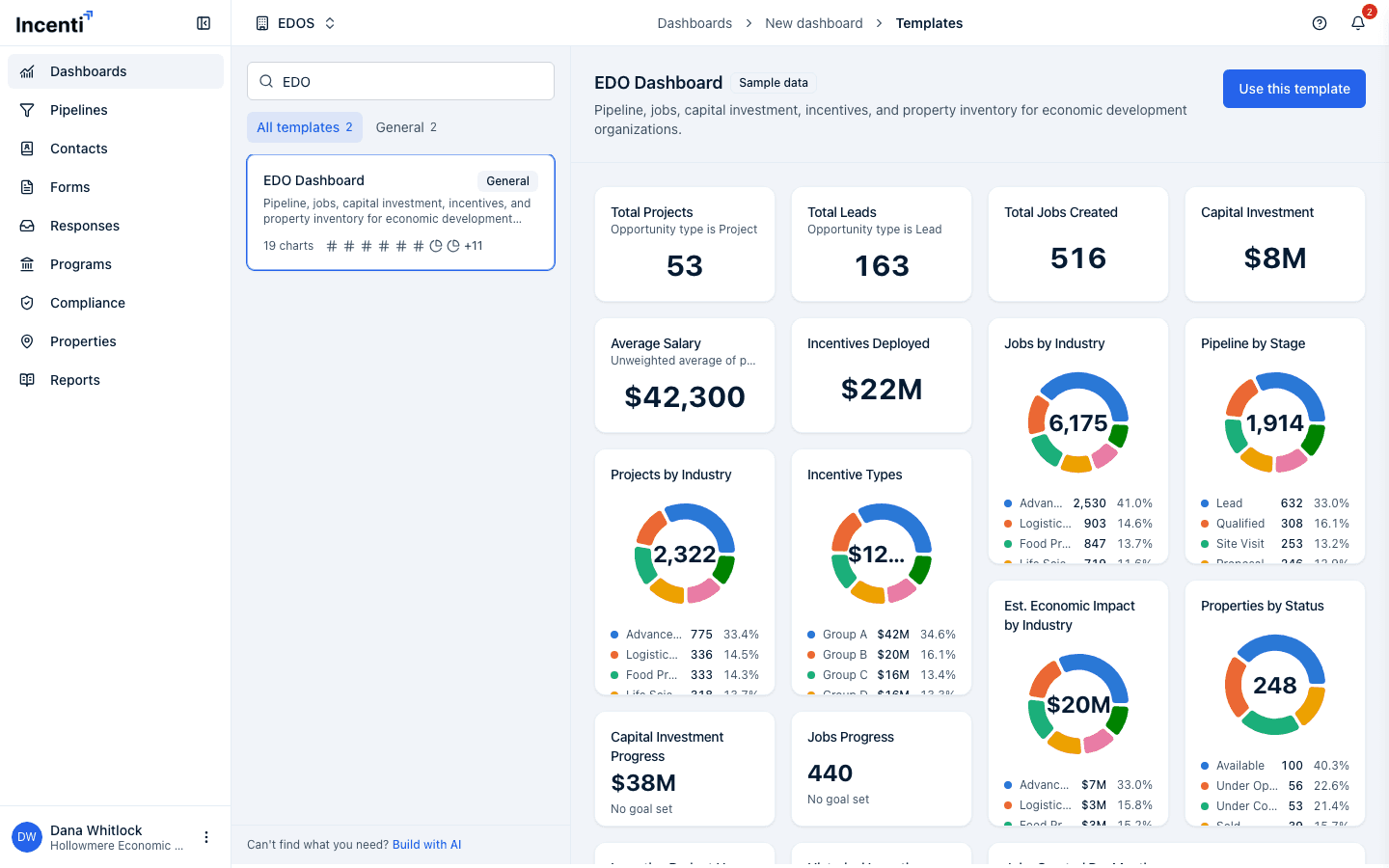
The gallery has two panes: a narrow column on the left with a Search templates… box, category chips (All templates and General, each with a count), and the template cards, and a large preview of the selected template on the right.
-
Use the Search templates… box to filter by title or description. Each template card shows its title, description, category badge, chart count, and a row of small icons representing its chart types at a glance.
-
The category chips (All templates and General) are there for future template categories. Every template shipped today is in the General category, so clicking either chip shows the same list — only the search box actually narrows it.
-
Click a card to select it. The first template is selected automatically when the gallery loads. The preview pane on the right updates to show that template's charts, laid out exactly as they'll appear on a real dashboard.
-
Every chart in the preview carries a Sample data badge. Hover it to see the reminder: "Sample data — your dashboard will use your account's live data." The numbers, names, and trends in the preview are synthetic placeholders generated to show the shape of the dashboard — they are never pulled from your account or anyone else's.
-
On a narrower screen, the preview isn't shown inline — tap a card's Preview link to open it in a full-height panel, with Use this template in the panel's footer.
-
If none of the templates fit, use the Build with AI link below the category list to jump straight to the AI chat instead.
Create the dashboard
-
With a template selected, click Use this template.
-
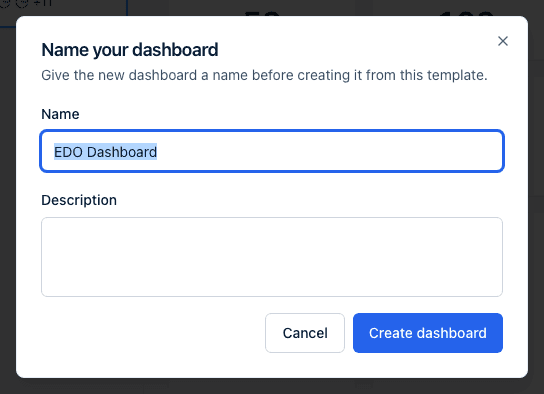
In the dialog, the Name field is pre-filled with the template's title — change it if you like — and you can add an optional Description.
-
Click Create dashboard. You'll see a "Dashboard created" message and land on the new dashboard, now built from your account's real data — the same charts you saw in the preview, but showing actual numbers.
What a template gives you
A dashboard created from a template starts with every chart the template defines, in the same layout and order — copied into your account, not linked to the template. From there you can drag to reorder charts, resize them, remove ones you don't need, and open the dashboard's own AI chat to add or edit charts — see Edit a dashboard. The new dashboard is independent from the moment it's created: later changes to the template itself don't flow into dashboards already made from it, and changes you make to your dashboard never flow back.
Which template you see
Each template is published to one account type, and the gallery only lists the templates that match yours. That means you normally see exactly one template, not a choice of several — which is expected, not a missing template.
As an EDO account you see the EDO Dashboard template: 19 charts covering pipeline, jobs, capital investment, incentives, and property inventory. The Site Selector template is never listed for you.
As a site selector account you see the Site Selector Dashboard template: 8 charts covering project and lead pipeline alongside available property inventory. It's a shorter set than the EDO template because it only includes charts backed by data your account actually has, and the EDO template is never listed for you.
For a chart-by-chart list of both templates, see Dashboard templates reference. If the gallery is empty, it reads "No templates available for your account yet." — contact support, since templates are published by Incenti.
What happens next
- Creating a dashboard from a template sends no notification — you land straight on the new dashboard.
- The template gallery and its previews never touch your account's data; only clicking Create dashboard creates something and runs a real query for the first time.
- To get back to the list, click Dashboards in the sidebar or in the breadcrumb at the top of any dashboard or the gallery page.
Common questions
Q: The numbers in the template preview don't match anything in my account — is that a bug? A: No. Preview charts always use generated sample data, never your account's real numbers, so you can see the shape of a dashboard before creating it. The "Sample data" badge on each chart is a reminder of this. Once you click Create dashboard, the new dashboard runs live queries against your account's actual data.
Q: I created a dashboard from a template, but now I don't see all the charts the preview showed. What happened? A: Every chart from the template should be copied over exactly. If one is missing, check whether its card shows an error message instead — a chart can fail to load if the data it depends on isn't available. Contact support if a chart is missing entirely rather than showing an error.
Q: Can I preview a template with my own account's data instead of sample data? A: Not from the gallery — previews are always sample data, by design, so browsing the gallery never runs a query against your account. Once you create the dashboard from the template, every chart immediately shows your account's real data.
Q: I don't see a template that fits what I want. What are my options? A: Use the Build with AI link at the bottom of the gallery's left column, or the Build with AI card in the New dashboard dialog, to describe the dashboard you want instead. See Build a dashboard with AI.
Q: Why do I only see one template in the gallery? A: Templates are published to one account type each, and the gallery only lists the ones matching your account. An EDO account sees the EDO Dashboard template; a site selector account sees the Site Selector Dashboard template. Neither ever sees the other's.
Q: What does the General category chip filter? A: Nothing today. Every published template is in the General category, so All templates and General show the same list. Use the Search templates… box to narrow the gallery instead.
Q: Which charts does my template include? A: See Dashboard templates reference for the full chart-by-chart list of both the EDO and Site Selector templates, including what each chart measures.
Related
Last updated on