Build a dashboard with AI
Start a dashboard from a chat prompt instead of a template, review the charts the assistant proposes, confirm or reject them, and keep refining the dashboard from its chat panel afterward.
Before you start
- Dashboards appears in the sidebar when your account's plan includes the Dashboards module. What that page shows depends on a second setting: the Dashboards 2.0 experience this page describes is turned on per account by Incenti and is off by default. If your Dashboards page opens a single embedded dashboard with no New dashboard button, you're on the older experience — see Classic dashboards.
- Any user in the account — admin or member — can build a dashboard with AI.
- The assistant only charts your own account's data — opportunities, contacts, forms and form responses, properties, programs and incentives, tasks, incentive awards, and tracked metric values. It can't chart anything outside those sources.
Steps
Start a new dashboard with AI
-
Open Dashboards in the sidebar, then click New dashboard.
-
In the New dashboard dialog, choose Build with AI (the other option, Use a template, starts from a curated dashboard instead — see Create a dashboard from a template). Build with AI reads "Describe what you want; the assistant proposes charts from your data."
-
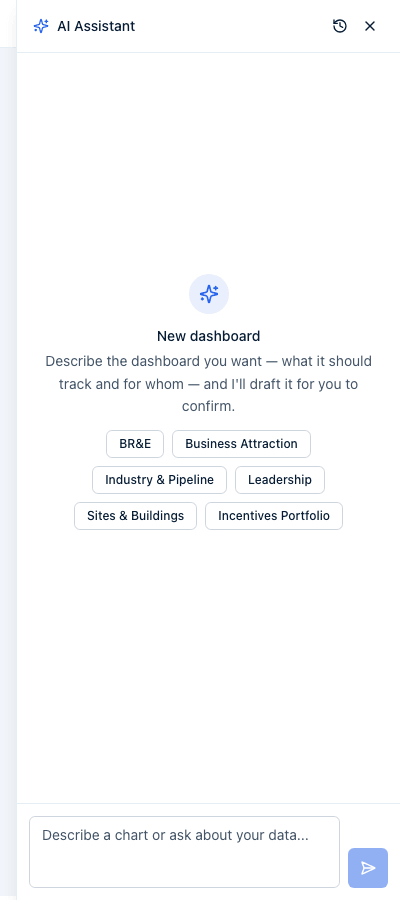
The AI Assistant drawer opens on the right, headed "New dashboard" and empty except for a prompt — "Describe the dashboard you want — what it should track and for whom — and I'll draft it for you to confirm" — and a row of quick-start chips: BR&E, Business Attraction, Industry & Pipeline, Leadership, Sites & Buildings, and Incentives Portfolio. Clicking a chip sends a ready-made prompt for that kind of dashboard; you can also just type your own description in the message box at the bottom instead. The chips are the same for every account type.
-
When you have no existing dashboards, the Dashboards list also shows a Build with AI button directly in its empty state, next to Browse templates — it opens the same chat.
Review and confirm what the AI proposes
- After you describe what you want (by chip or by typing), the assistant replies and, when it's ready, shows a Proposed changes card listing each change in plain language — for example "Create dashboard 'BR&E Overview'", "Add bar chart: 'Opportunities by stage'", or "Add stat chart: 'Jobs created'".
- Nothing is saved yet. Review the list, then click Confirm changes to apply everything in the card, or Reject to discard the whole proposal. There's no way to confirm only some of the listed changes — accept the batch or ask the assistant to redo it differently.
- Once you confirm, you're taken straight to the new dashboard with its charts in place, and the conversation follows you there — the same chat session continues in the dashboard's own AI Chat panel.
Before proposing a chart, the assistant runs the underlying query itself to sanity-check the data — so a proposed chart has already been validated against your account's real numbers, not guessed at blind.
Continue refining an existing dashboard
- Open any dashboard you own and click AI Chat in its header. The same drawer opens, now scoped to that dashboard — its empty state is headed "Dashboard AI" and reads "Ask about your data, or tell me to add, change, remove, or rearrange charts. Nothing changes until you confirm." The message box at the bottom reads "Describe a chart or ask about your data...".
- Ask questions about your data ("how many opportunities closed last quarter?") and the assistant answers directly, without proposing any changes. Ask it to change something on the dashboard and it proposes those changes instead — a card you confirm or reject before anything is saved.
- Every dashboard's chat also remembers past sessions — click the history (clock) icon in the drawer's header to switch between earlier conversations or start a new one for that dashboard.
The assistant works the same way for EDO and site selector accounts; only the data it can see differs, because it charts your own account's records.
Everything the assistant can propose
Each line on a Proposed changes card is one of these, written in plain language with the chart or KPI named:
| Change | Reads on the card like |
|---|---|
| Add a chart | "Add bar chart: 'Opportunities by stage'" |
| Update a chart | "Update chart 'Jobs by industry': measures" |
| Remove a chart | "Remove chart 'Projects by industry'" |
| Move a chart | "Move chart 'Total Leads' to position 2" |
| Rename or re-describe | "Rename dashboard to 'BR&E Overview'" |
| Create a dashboard | "Create dashboard 'BR&E Overview'" |
| Set the dashboard filters | "Set dashboard filters: Date range · Status" |
| Clear the dashboard filters | "Remove all dashboard filters" |
| Create, update, or delete a saved KPI | "Create saved KPI 'Win rate'" |
Two things it deliberately cannot do: it can't resize a chart (change its width or height on the grid — do that from the chart's ⋯ menu or by dragging), and it can't reach any data outside your own account.
Card states after you confirm
Under the applied summary, a short italic line reports what happened:
- "N changes applied" — everything in the batch went through.
- "Changes declined — nothing was saved" — you clicked Reject.
- "The change failed to apply" — the server refused the change; the specific reason replaces this line when there is one.
- "Can't delete — used by …" — a saved-KPI deletion was blocked because charts still reference that KPI; the line names up to two of them. Repoint or remove those charts first.
- "Expired — this change was not applied" — the proposal was never answered before the session moved on (usually because the page was reloaded or the chat was cleared while the card was still pending). Nothing was saved; ask again.
Chat history, Clear chat, and privacy
- The drawer's header carries a history (clock) icon — Chat history — listing this dashboard's earlier conversations. A session with no title reads "Untitled chat", and one you never sent a message in reads "No messages".
- The circular-arrow icon — Clear chat — starts a fresh conversation. It doesn't delete the old one; switch back to it from Chat history. There's no way to delete a conversation from the portal.
- Close chat (the X) just closes the drawer; the conversation is kept.
- Your conversations are private to you. Other people in your account can't read them, even on a dashboard everyone can see. The dashboards and charts the assistant creates, on the other hand, belong to the account and are visible to everyone in it.
- Sending more than 20 messages in a minute shows the toast "You're sending messages too quickly — wait a minute and try again." Wait about a minute and send again; nothing is lost.
What happens next
- Confirming a proposal applies every change in it immediately — there's no approval queue or delay. The dashboard is ready to view as soon as you land on it.
- Right after confirming, a small Undo link appears next to the applied summary for chart- and KPI-level changes (not for creating or renaming the dashboard itself). It only works for that session and disappears once you reload the page — after that, undo a change by asking the assistant to reverse it, or by editing the chart manually.
- Nothing about the AI chat sends a notification to anyone else on the account. Other users see the new dashboard or updated charts the next time they open Dashboards.
- The conversation is saved per dashboard (and, until you create one, as its own "new dashboard" session) — closing the drawer doesn't lose it, and reopening the panel picks the conversation back up.
- Manual editing (drag to reorder, resize, remove, or rename charts) still works directly on the dashboard grid — the AI chat isn't the only way to adjust a dashboard once it exists, just the only way to add or fundamentally change what a chart queries. See Edit a dashboard.
Common questions
Q: The AI added a chart I didn't ask for — how do I undo it? A: Right after you confirm, look for the small Undo chart changes (or Undo changes) link under the applied summary in the chat — it reverses that batch. If you've reloaded the page since, that link is gone; instead tell the assistant to remove the chart, or remove it manually from the dashboard grid.
Q: Can I edit just one of the changes in a proposed batch, not all of them? A: No — Confirm changes applies every change in that card, and Reject discards all of them. If only part of a proposal is right, reject it and describe more precisely what you want, or confirm it and then ask for a follow-up change to fix the part you didn't like.
Q: I asked the assistant a question and it just answered in the chat — did it change my dashboard? A: No. Data questions ("how many...", "what's our...") get a plain-text answer with no proposed changes and nothing to confirm. Only a request to add, edit, remove, move, or rename something produces a confirmation card, and even then nothing saves until you click Confirm changes.
Q: Why does the assistant keep asking what I want to track instead of just building something? A: In a brand-new "Build with AI" session there's no dashboard yet, so its first proposed change always has to create one — if your prompt didn't say what the dashboard should track or for whom, it asks before drafting charts. A quick-start chip skips this by supplying a ready-made description.
Q: Can the AI chart data from other accounts, or from Insights? A: No. Every chart it proposes is scoped to your own account's opportunities, contacts, forms/responses, properties, programs/incentives, tasks, incentive awards, and tracked metric values. It can't reference another account's data or the Insights module's regional metrics.
Q: Can the assistant set up my dashboard's filter bar or create a saved KPI for me? A: Yes to both. Ask it to filter the dashboard by a field or a date range and it proposes "Set dashboard filters: …"; ask for a reusable measure and it proposes "Create saved KPI '…'". It can also update or delete a saved KPI. The only thing it can't do to a chart is resize it.
Q: The card says "Expired — this change was not applied". What happened? A: The proposal was never confirmed or rejected before the conversation moved on — usually because the page was reloaded or the chat was cleared while the card was still waiting. Nothing was saved. Ask for the same change again and confirm it this time.
Q: I'm getting "You're sending messages too quickly" — how long do I wait? A: About a minute. The assistant accepts up to 20 messages per minute per person; the limit clears on its own, and your conversation isn't affected.
Q: Can anyone else in my account read my chat with the assistant? A: No. Conversations are saved per person, so even on a dashboard your whole team uses, your chat history is only visible to you. The charts and dashboards you confirm are account-wide, as usual.
Q: Can I delete a conversation? A: Not from the portal. Clear chat starts a new conversation and leaves the old one in Chat history, where you can switch back to it.
Related
Last updated on