Tasks on an opportunity
Create, edit, complete, and delete the tasks tracked on an opportunity, see who gets notified, and understand what tasks deliberately don't do — no emails, no reminders, and no account-wide task list.
Before you start
- Every opportunity has a Tasks card on its Overview tab. That card is the only place tasks live: there's no Tasks item in the sidebar and no page that lists your tasks across opportunities.
- Anyone on your account can create, edit, and delete tasks on any opportunity — admins and members alike.
- A task's Assignee can only be a user on your account. Contacts can't be assigned tasks.
Steps
Read the Tasks card
Open an opportunity and scroll to Tasks. The card header counts the tasks on this opportunity, and the table shows Task, Assignee, Priority, Status, and Due Date, with a trash icon at the end of each row.
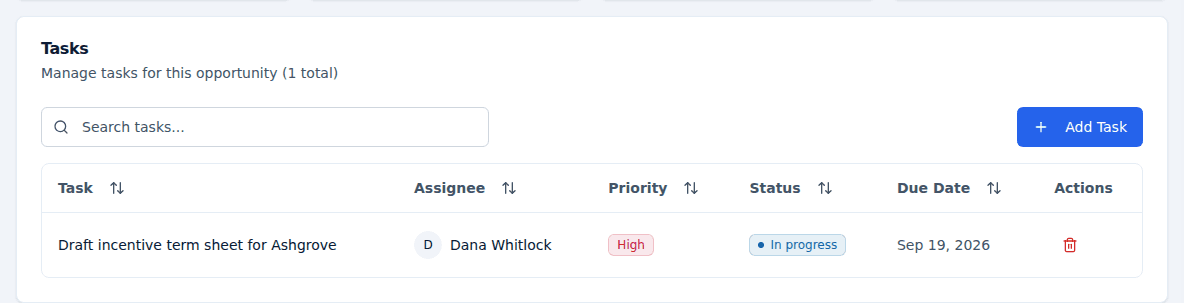
Rows are sorted by Due Date, furthest-out first; click any column header to sort by that column instead. Search tasks... filters the table, and once there's more than a page of tasks, Page 1 of N with Previous and Next appears below it. With nothing to show, the card reads "No tasks yet. Click 'Add Task' to create one."
Create a task
Click Add Task to open Create Task:
- Task Name — required ("Task name is required").
- Description (optional).
- Assignee — "Select assignee" lists the users on your account. Leaving it empty is allowed; the task simply has no assignee.
- Due Date — pick a date, or leave it empty.
- Priority — Low, Medium, or High; it starts on Low.
- Status — Pending, In Progress, Completed, or Abandoned; it starts on Pending.
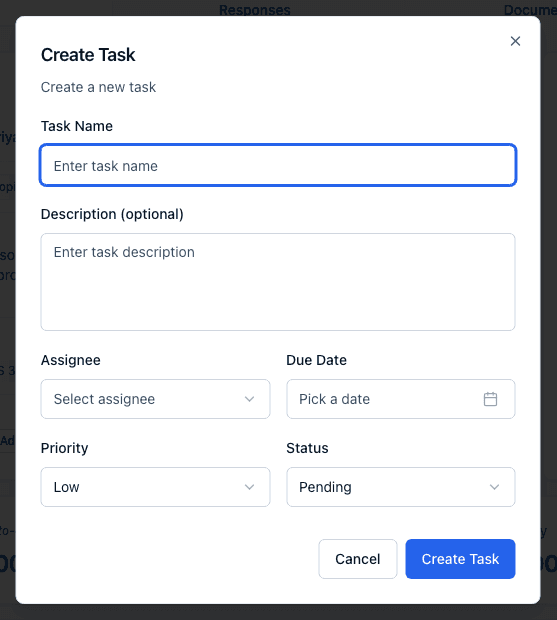
Click Create Task. A task saved without touching Priority or Status is stored as Pending and Low, and whoever created it is recorded as its reporter — the person notified when it's later completed. The reporter isn't shown as a column, and it can't be changed.
Edit a task, or mark it completed
Click anywhere on a task's row (except the trash icon) to reopen the same form as Edit Task, with the task's current values filled in. Change any field and click Update Task.
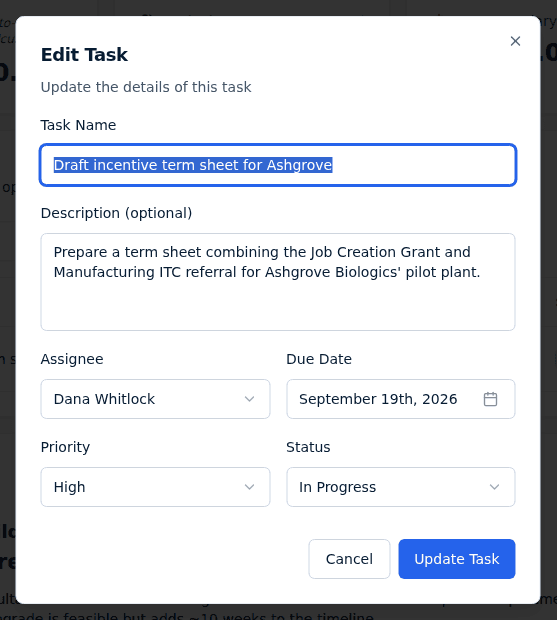
There's no separate "mark complete" checkbox: completing a task means opening it and setting Status to Completed. Abandoned is there for work you've decided not to do — both are just statuses, and either way the task stays on the card.
Delete a task
Click the trash icon at the end of a row. Delete Task asks you to confirm, and warns that the action can't be undone. Deleting removes the task from the card for everyone on the account; nobody is notified.
Tasks assigned to "Incenti AI"
On opportunities that have been around a while you may see rows whose assignee is Incenti AI, with a small robot icon instead of a person's initials. Those are automated tasks an earlier version of the portal created to track an incoming response. Nothing creates them any more, so you won't see new ones. You can edit, complete, or delete an existing one exactly like any other task.
What happens next
Two in-app notifications come from tasks. Both appear in the bell only — there is no email for a task of any kind, and you're never notified about your own action:
- New task assigned goes to the assignee when a task is created with them on it, and Task assigned to you when an existing task is reassigned to them.
- Task completed goes to the task's reporter — the person who created it — the first time the task's status moves to Completed.
Nothing else about a task is announced: changing the due date, the priority, or the description is silent, and so is deleting it. See Notifications and the bell.
Common questions
Q: Will I get an email or a reminder when a task is due? A: No. Tasks never send email, and there's no reminder before or after a due date. The due date is a column you sort and read; nothing watches it for you.
Q: Is there a list of all my tasks across opportunities? A: Not today. Tasks are shown only on the opportunity they belong to, so you'd open each opportunity to see its tasks. If a running list of your work matters, put the tasks on a small number of opportunities so they're easy to find.
Q: An overdue task looks the same as any other — is something missing? A: No, that's how it works today: a past due date isn't highlighted, counted, or flagged anywhere. Sorting by Due Date is the quickest way to see what's slipped.
Q: Can I assign a task to a contact instead of a teammate? A: No. The Assignee list only contains users on your account. A task about a contact usually belongs to the person on your team who owns the relationship — name the contact in the task's description.
Q: Who is "Incenti AI" and why is a task assigned to it? A: It's the label on automated tasks created by an older version of the portal to track a response. Nothing creates them now, and you can edit, complete, or delete them like any other task.
Related
Last updated on