Track compliance on incentive awards
See every incentive award tied to a won project, read the summary cards and filters, sort and search the list, and open an award's detail page to review its terms, documents, and follow-up date.
Before you start
- A project (opportunity) shows up in Compliance once it lands in a pipeline column marked Won and has at least one incentive award recorded on it. You record awards from the project's Incentives tab; see Record an incentive award on a project. If the project later moves out of a Won column, or the project is deleted, its awards drop off the Compliance list (they stay on the project's Incentives tab).
- Anyone signed in on the account can view the Compliance list, open an award's detail page, and edit it — there's no separate admin-only step for this module.
Steps
Read the summary cards
-
Open Compliance from the main navigation.
-
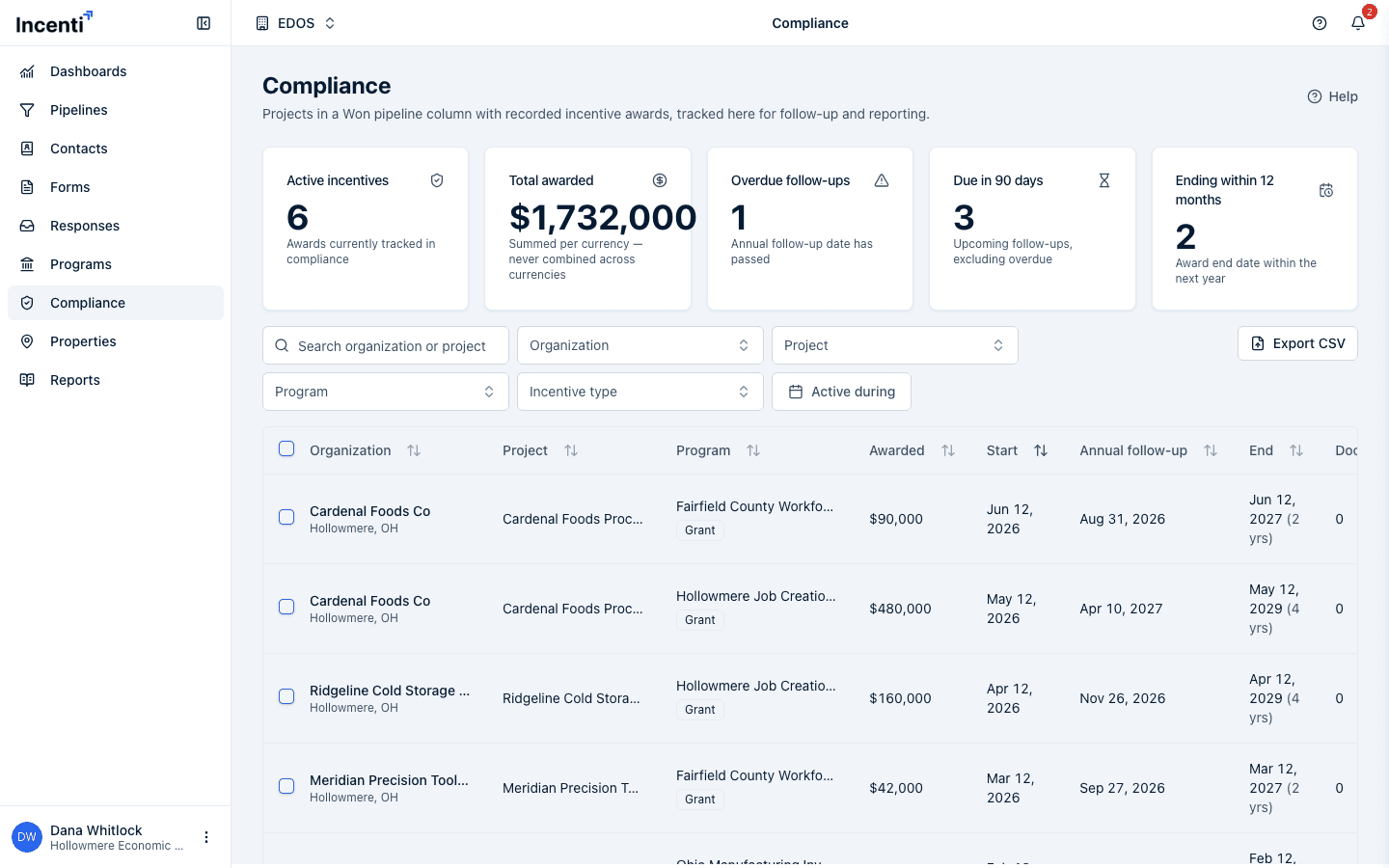
Five cards summarize the awards currently shown below — they recompute every time you search or filter, so they never describe more than what's on screen:
Card What it counts Active incentives Number of awards currently shown Total awarded Sum of Amount awarded, shown as one line per currency — never combined into a single total Overdue follow-ups Awards whose Annual follow-up date is strictly before today Due in 90 days Awards whose Annual follow-up date is today or within the next 90 days (an award already counted as overdue is never also counted here) Ending within 12 months Awards whose End date falls between today and the same calendar date next year

- Total awarded reads "—" when nothing is shown. A follow-up date of today itself counts toward Due in 90 days, not Overdue follow-ups.
Filter and search
- Use the search box to match an award's Organization or Project name (case-insensitive, matches anywhere in the text).
- Use the Organization, Project, Program, and Incentive type dropdowns to narrow the list to one or more exact values. Each dropdown only lists values that appear among the awards you can see — not every organization or program on the account.
- Use the Active during date-range picker to show awards whose term overlaps the range you pick. An award with no start date always matches; an award with a start date but no end date is treated as still open and is excluded only if its start date is after the range's end.
- Click Clear filters to reset the search box and every filter at once.
- Every card and the table below update together — they all read the same filtered list, so changing a filter changes both at the same time.
Sort
The list opens sorted by Start, newest first.
- Click any column header with an arrow icon (Organization, Project, Program, Awarded, Start, Annual follow-up, End) to sort by that column, largest or latest first; click it again to reverse the direction.
- Awards missing a value for the column you're sorting by always sort to the end of the list, regardless of direction.
- The End column shows the award's term after the date, for example "Feb 12, 2029 (4 yrs)". The term counts calendar years from the start date and includes the end date itself, so an award that starts Feb 12, 2026 and ends Feb 11, 2029 shows "3 yrs", while one that ends on the anniversary, Feb 12, 2029, has reached its fourth year and shows "4 yrs". Docs is the number of documents attached to the award.
Open an award
-
Click anywhere on a row (other than its checkbox) to open that award's detail page.
-
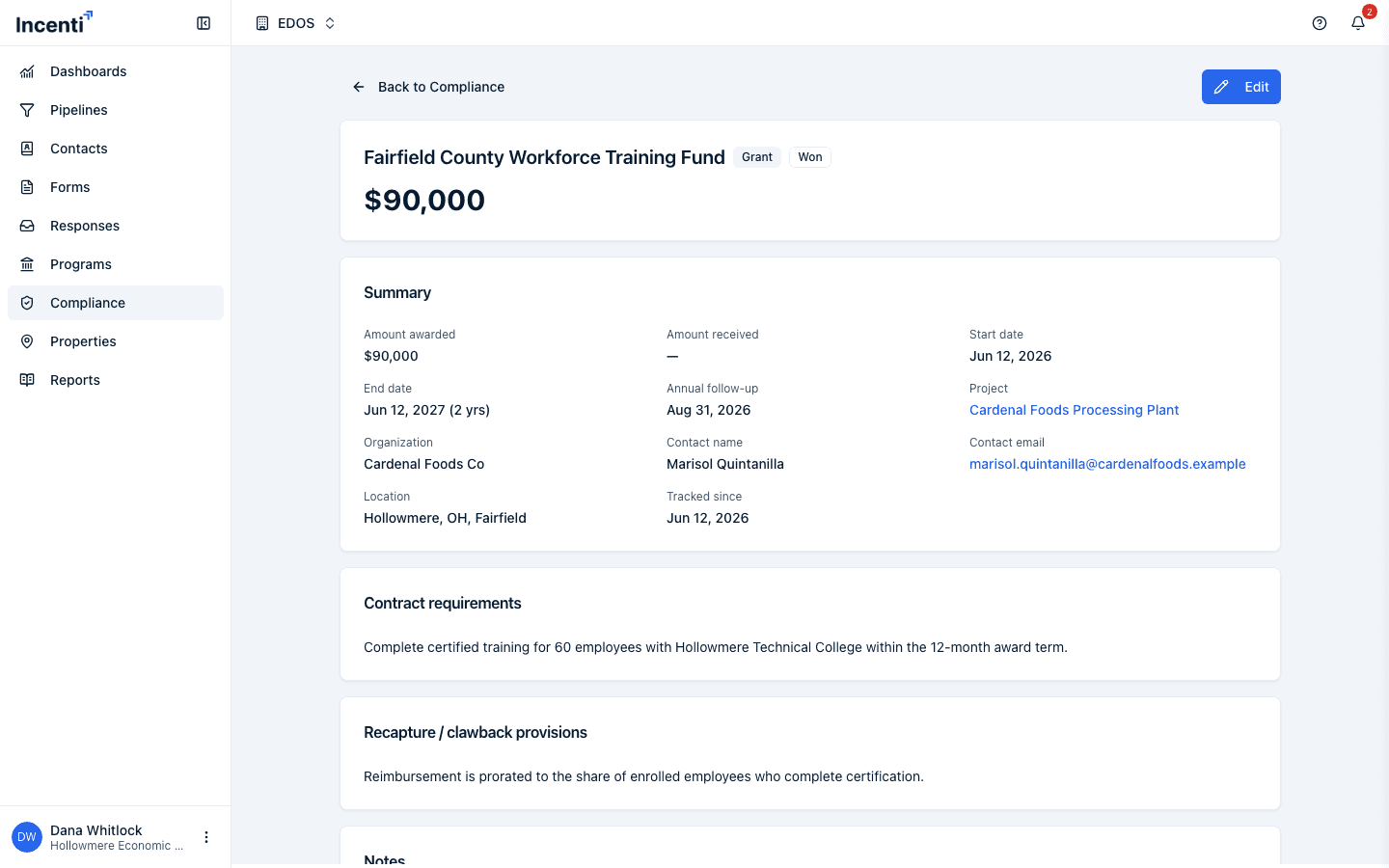
The header shows the program or incentive name, an incentive-type badge, a status badge showing the project's current pipeline column, and the amount awarded.
-
The Summary card repeats Amount awarded and Amount received, then lists Start date, End date (with the same term in years shown in the list), Annual follow-up, a link to the Project, Organization, Contact name, Contact email, Location, and Tracked since — the date the project first entered Compliance.
-
Below the summary, three cards show Contract requirements, Recapture / clawback provisions, and Notes as free text, each reading "—" when empty.
-
A Documents card lists any files attached to the award by name; the list is for reference only — file names aren't clickable or downloadable from this page.
-
Click Edit to open the same dialog used on the project's Incentives tab. See Record an incentive award on a project for what each field does.
What happens next
- Incenti doesn't send reminders or notifications for an award's annual follow-up date or end date — the metric cards and the Annual follow-up/End columns are the way to see what's coming due.
- The only Compliance notification is a one-time, in-app alert to the project's owner the first time that project enters Compliance (lands in a Won column with at least one award recorded). It is skipped when the owner made the change themselves, and it doesn't repeat if the project leaves and re-enters, or if more awards are added later.
- The checkboxes on each row exist to control what an export includes. See Export compliance awards to CSV for how that works.
- If your account also has the Programs module, a program's detail page shows figures — Committed, In pipeline, and a Linked Projects card — derived from the awards recorded here. See Edit a program and its incentives.
Common questions
Q: Why is my award missing from the Compliance page? A: An award only appears once its project is in a pipeline column marked Won. If the project is still open, was marked Lost, or moved to a non-Won column, its awards won't show here even though they still exist on the project's Incentives tab. Deleting the project also removes its awards from Compliance.
Q: Why doesn't Total awarded add my Canadian and US awards together? A: Total awarded is deliberately never summed across currencies — it shows one line per currency so a CAD total and a USD total aren't added into a single misleading number.
Q: Why did the numbers on the cards change when I filtered? A: All five cards recompute from whatever the search box and filters currently show, not from every award on the account. Click Clear filters to see totals across everything.
Q: Can I open the documents listed on an award's detail page? A: Not from there. The Documents card only lists file names for reference. Files uploaded to an award are saved to your account's documents, so open them from there; see Upload and manage documents.
Related
Last updated on