Record an incentive award on a project
Add or edit an incentive award on a project's Incentives tab, understand which fields the Program/Incentive cascade fills in for you, attach supporting documents, and see how recording an award ties the project into Compliance.
Before you start
- Open a project's page (an "opportunity" — see Work an opportunity) and click its Incentives tab. Anyone signed in on the account can add and edit incentive awards; there's no separate admin-only step here.
- The Incentives tab exists independently of a project's pipeline column — you can record an award before or after the project is marked Won. It only shows up on the Compliance list once the project's column outcome is set to Won; see Pipelines for how a column gets that outcome.
Steps
Add an incentive award
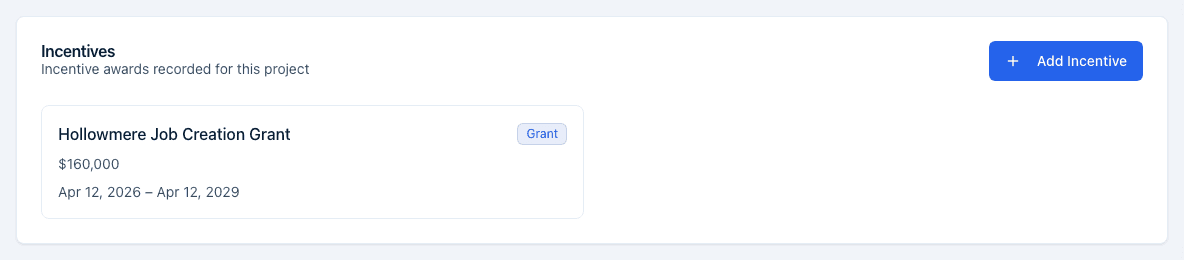
- On the Incentives card, click Add Incentive. The Add incentive dialog opens.
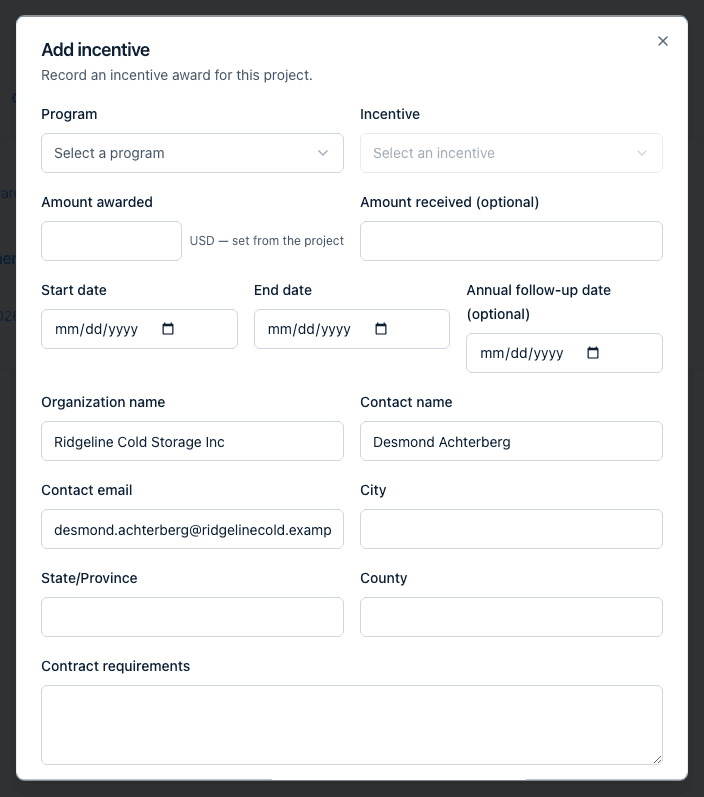
- Say which program the award comes from, fill in the rest of the fields, and click Save. A message confirms "Incentive award saved" and the award appears as a card on the Incentives tab.
How you name the program is the one part of the dialog that depends on your account type:
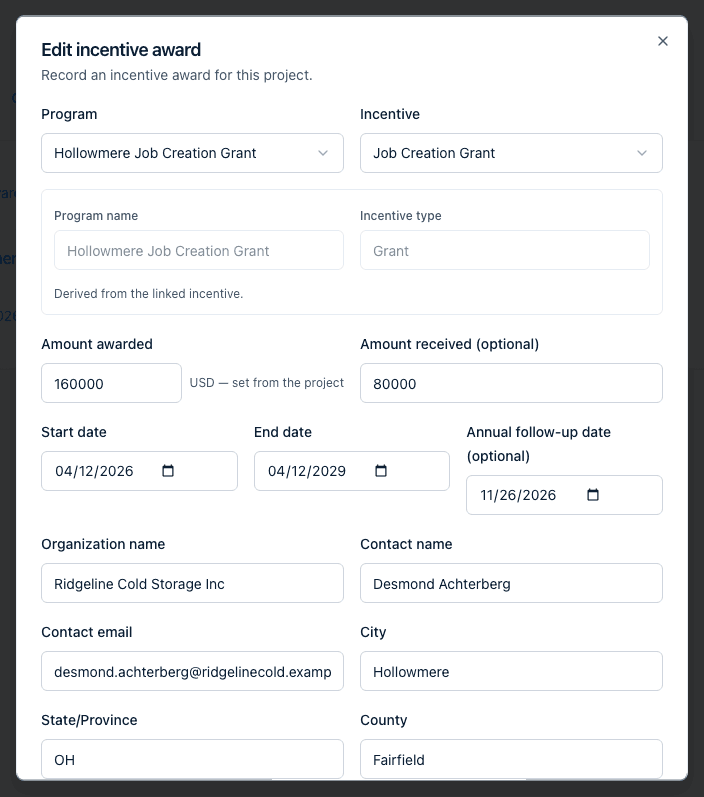
If your account has at least one live incentive to link against, the dialog shows a Program select and, once you pick a program, an Incentive select limited to that program's incentives. Choosing an incentive fills in read-only Program name and Incentive type fields underneath, labeled "Derived from the linked incentive" — you can't edit them directly; change the Program or Incentive select instead. If your account has no live incentives at all, the dialog falls back to the same free-text fields a site selection account sees.
Instead of a Program/Incentive cascade, you get a free-text Program name field and an Incentive type select (populated from your account's incentive types). Both are required.
The rest of the fields are the same for every account:
| Field | Notes |
|---|---|
| Amount awarded | Required, must be greater than zero. Shown with the project's currency code next to it ("USD — set from the project"). |
| Amount received (optional) | Zero or greater when entered. |
| Start date / End date | Both required; End date must be on or after Start date. |
| Annual follow-up date (optional) | Any valid date. |
| Organization name, Contact name, Contact email | Free text. On a new award they start out filled in from the project's primary contact and, when that contact belongs to an organization-type contact group, that group's name. It is a one-time starting value: edit it freely, and later changes to the contact don't rewrite the award. |
| City, State/Province, County | Free text. |
| Contract requirements, Recapture provisions, Notes | Free-text boxes for anything you want on record. |
Attach documents
Click Upload documents to add one or more files to the award. Each uploaded file appears in a list with an X to remove it before saving — removing an uploaded file here only drops it from this award, it doesn't delete the underlying document. Documents already saved on the award show the same way when you reopen it for editing.
Edit an existing award
Click anywhere on an award's card in the Incentives grid to reopen it in the same dialog, titled Edit incentive award, with every field and its documents pre-filled. There's no delete action on an award from here or from its Compliance detail page — awards can only be created and edited, not removed, through the portal UI today.
What happens next
- Saving an award immediately re-checks the project against Compliance: if the project's pipeline column outcome is Won, the award (and any others already on the project) becomes visible on the Compliance list right away.
- The first time a project enters Compliance this way, the project's owner gets a one-time in-app notification, "Project entered Compliance". It is skipped when the owner is the person who made the change, and it never repeats for that project, even if the project later leaves and re-enters a Won column or gets more awards.
- The date the award first entered Compliance shows as Tracked since on its Compliance detail page.
- If the project isn't in a Won column yet, the award is saved but won't appear on the Compliance list until it is.
Common questions
Q: I added an award, but it isn't showing up on the Compliance page. A: An award only appears in Compliance once its project sits in a pipeline column whose outcome is set to Won — see Pipelines for where that's set. Check which column the project's card is currently in; moving it to a Won column (with the award already recorded) is what makes it appear.
Q: Can I record an award in a currency other than my project's? A: No. The award's currency is taken from the project it's recorded on (your account's currency when the project has none) and is fixed when the award is created; the dialog shows it next to Amount awarded but doesn't let you change it. If a project needs a different currency, contact support.
Q: I picked a Program but the Incentive list is empty — what's wrong? A: The Incentive select only lists incentives that belong to the Program you selected. If a program has none, either add an incentive to that program first (see Edit a program and its incentives) or pick a different program.
Q: Can I delete an incentive award once I've added it? A: Not from the portal today — the Incentives tab and the Compliance detail page only let you create and edit awards, not remove them.
Related
Last updated on