Export compliance awards to CSV
Download the Compliance list as a CSV file — either the rows you've ticked or every row currently visible — and know exactly which 22 columns and formats it contains.
Before you start
- Open Compliance in the sidebar. The export button sits above the awards table, next to the filters.
- There's no separate permission for exporting — anyone who can open the Compliance list can export it.
Steps
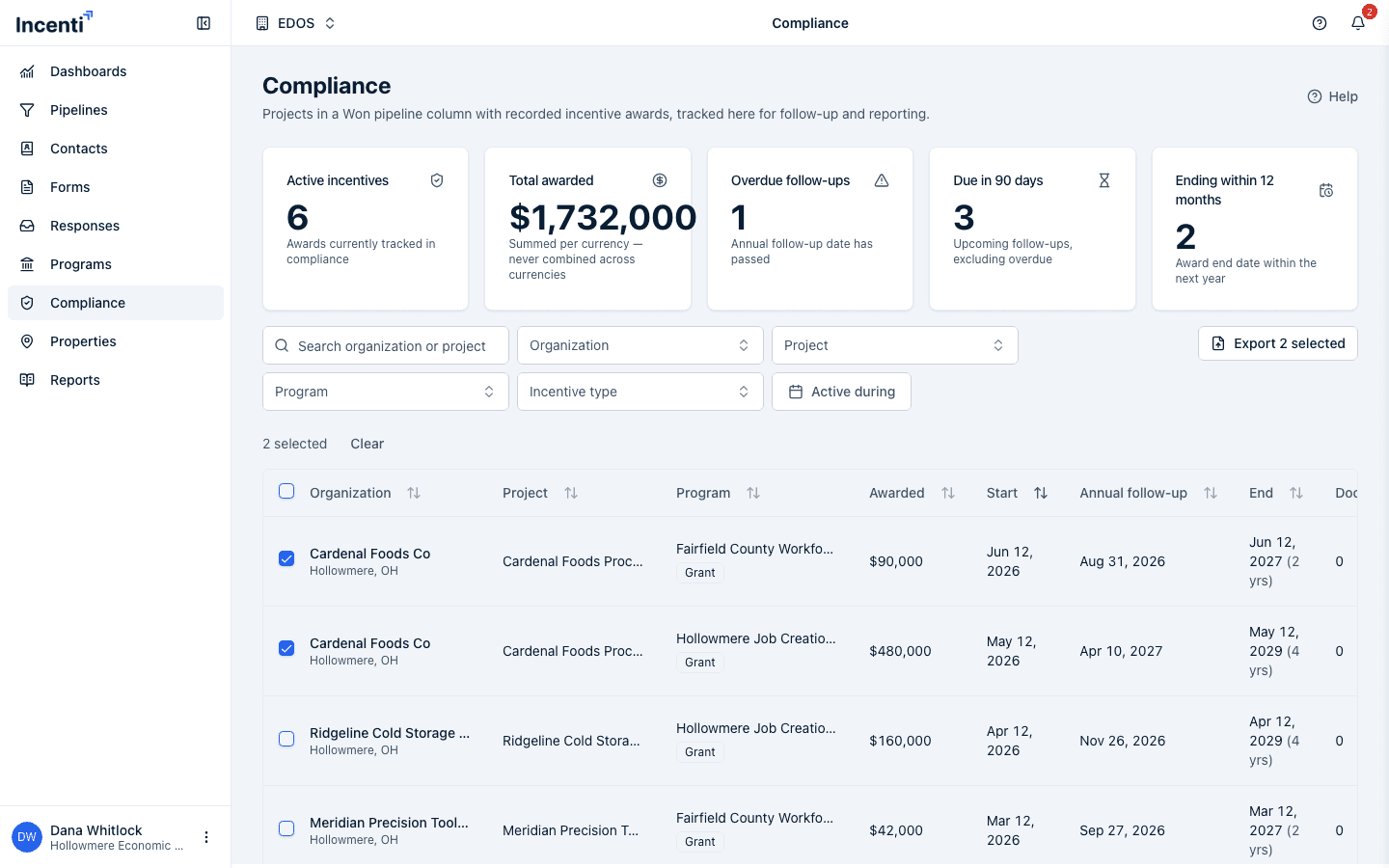
- Optionally filter the list (search, organization, project, program, incentive type, or the active-during date range) to narrow what you'll export.
- Optionally tick the checkbox on specific rows to export only those. Use the header checkbox to select or clear every row currently visible.
- Click the export button above the table:
- It reads Export CSV when no rows are ticked, and downloads every row currently visible (after your filters and sort).
- It reads Export N selected when rows are ticked, and downloads only the ticked rows that are also currently visible.
- It's disabled when there's nothing to export (an empty filtered list with nothing ticked).
- The file downloads immediately as
compliance-awards_YYYY-MM-DD.csv, named for the day you exported — for examplecompliance-awards_2026-09-19.csv.
What happens next
- The download happens entirely in your browser. Nothing is emailed, no background job runs, and nothing is generated on a server. If the file can't be produced, a "Failed to export awards" message appears and you can try again.
- Exporting only reads the list; it changes nothing about the awards, their status, or any linked opportunity.
- Rows come out in the same order they're sorted on screen.
Columns in the file
The CSV always has the same 22 columns, whichever rows you export. In order, they are: Organization, Project, Program, Incentive type, Linked to program, Amount awarded, Amount received, Currency, Start date, End date, Years active, Annual follow-up, Contact name, Contact email, City, State, County, Contract requirements, Recapture provisions, Notes, Documents, Tracked since. The table below groups them by what they hold:
| Column | What it contains |
|---|---|
| Organization, Project, Program, Incentive type | Text as shown in the list; blank if not set |
| Linked to program | Yes or No — whether the award is tied to a program record |
| Amount awarded, Amount received | Bare numbers with no currency symbol or thousands separator |
| Currency | The award's ISO currency code (e.g. USD, CAD) |
| Start date, End date, Annual follow-up, Tracked since | YYYY-MM-DD dates, blank if not set |
| Years active | The award's term in calendar years, the same figure the list shows after the End date (for example 4 for Feb 12, 2026 to Feb 12, 2029); blank if either date is missing |
| Contact name, Contact email | The award's recorded contact, blank if not set |
| City, State, County | The award's location fields |
| Contract requirements, Recapture provisions, Notes | Free-text fields, exactly as recorded |
| Documents | A count of attached documents, not the files themselves |
Blank cells are always empty — never 0 or a dash — so a missing amount or date reads
as nothing, not zero. Text containing a comma, quote mark, or line break is wrapped in
quotes so it still opens correctly in Excel or Google Sheets.
Common questions
Q: I selected 5 awards but the button says "Export 3 selected." A: The count next to Clear above the table includes every award you've ticked, even ones a filter is currently hiding. The export button only counts ticked rows that are also currently visible — a ticked row hidden by a filter is skipped. Clear or adjust your filters to bring all 5 back into view before exporting.
Q: Can I export the documents too? A: No. The Documents column is only a count of attached files, not the files themselves. Files uploaded to an award are saved to your account's documents; see Upload and manage documents.
Q: Why are my US and Canadian amounts in one column?
A: Amount awarded and Amount received are bare numbers with no currency symbol,
so they read correctly as numbers in a spreadsheet — the separate Currency column
(USD, CAD, …) tells you which currency each row is in. Sort or filter by that column
if you need to total each currency separately.
Q: I ticked some rows, cleared my filters, and reloaded the page — where did my selection go? A: Ticks and filters are held in memory for your current session and don't survive a page reload. If you need the same selection again, re-tick the rows or reapply the filters.
Related
Last updated on