Fill out and submit a form
Open a form link, move between pages, fill in required fields, upload files, and submit — including what the validation summary, closed-form message, and duplicate warning mean.
Before you start
- You need a link to the form, typically shared as
.../fm/{id}. You don't need an Incenti account to fill out or submit a public form. - Have any files the form asks you to upload ready — the form tells you which fields are required as you go.
Steps
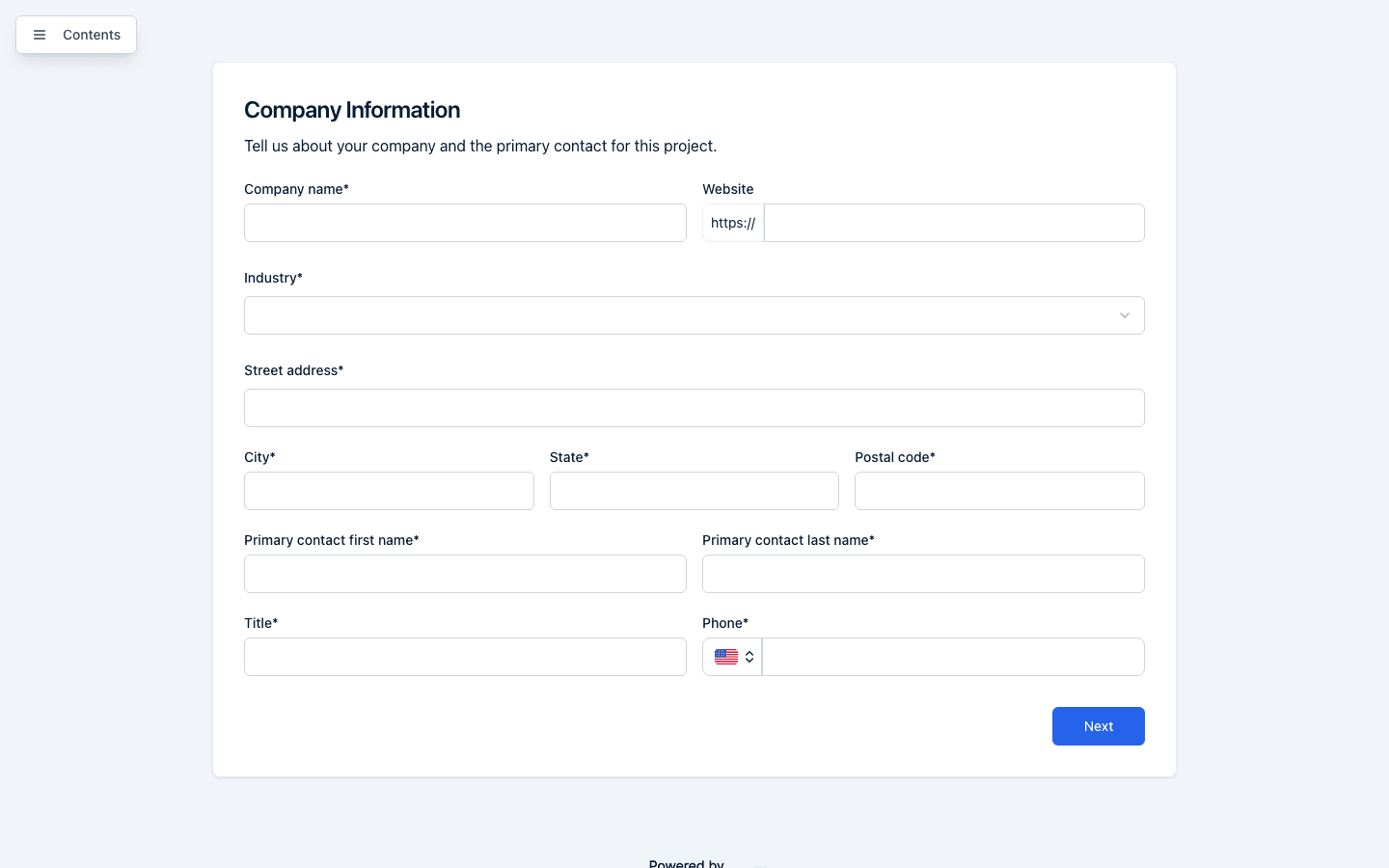
- Open the link you were sent. The form loads with the account's logo at the top (when the account has one set) and, if the form has more than one page, a Contents button you can use to jump between pages (unless the form's owner turned the table of contents off).
- Fill in the fields on the page. Required fields are marked with an asterisk after the label. As you type, your answers are periodically saved in the background — see What happens next.
- To attach a file, click Upload File on any upload field. Once a file is selected it uploads automatically; the field then shows the file's type (for example PDF) and file name, with an X button to remove it and choose a different file.
- If the form has more than one page, click Next to move forward or Previous to go back. A progress bar appears above multi-page forms once you're past the first page.
- On the last page, the button reads Submit instead of Next. Click it to submit your answers.
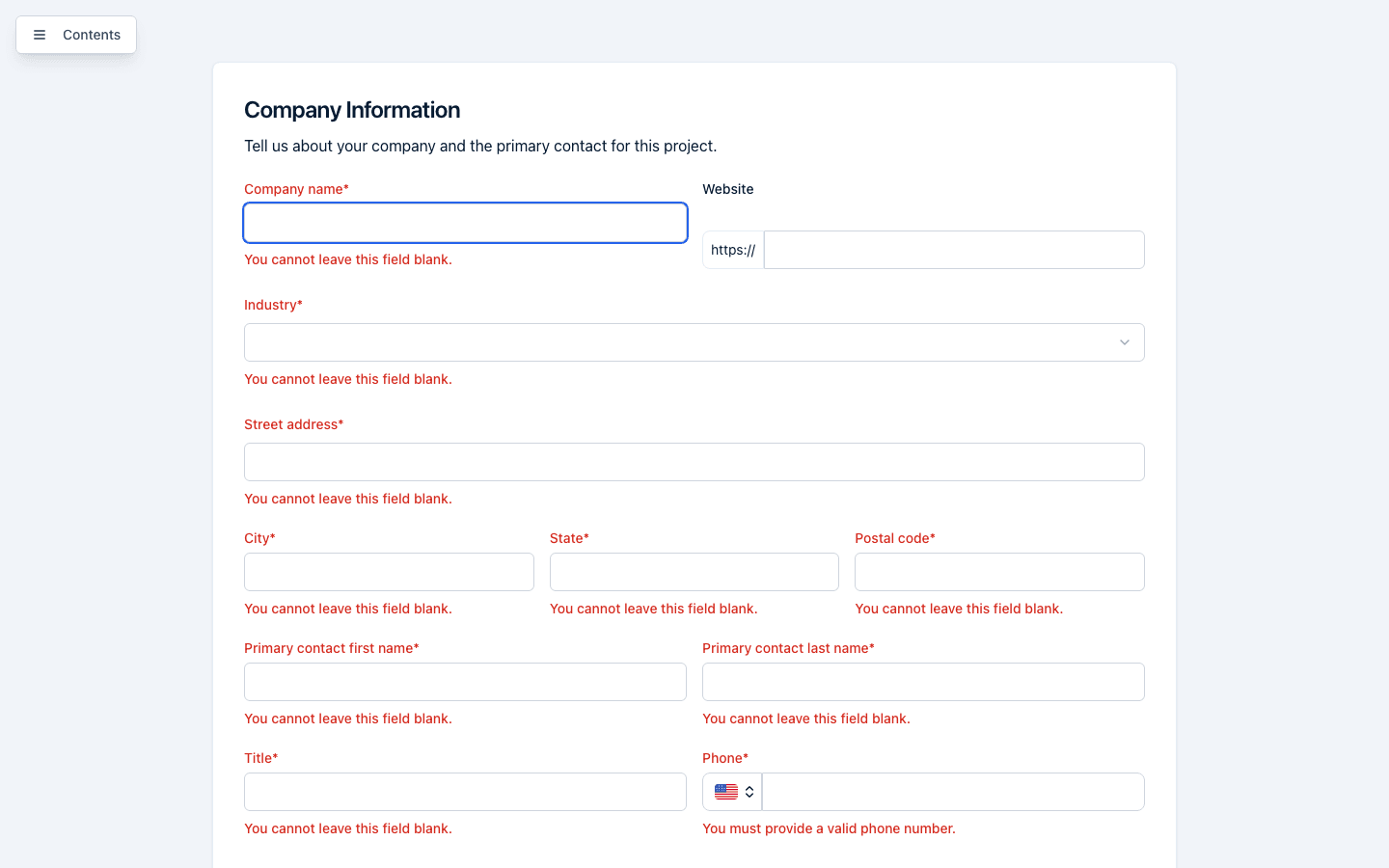
- If any required fields are still empty, a Form Validation Required dialog opens instead of submitting. It lists every incomplete field, grouped by page, with a Go to Page button next to each page — click it to jump straight there. The dialog also shows a running count, for example "3 required fields need to be completed." Click Continue Editing to close it and keep filling in the form.
What happens next
- Your answers are saved as you go. The form auto-saves in the background a couple of seconds after you stop typing or change a field, and shows a small Saving... or Unsaved changes indicator in the top-right corner while it does. If you try to close or navigate away from the tab while changes are unsaved, your browser will warn you before letting you leave.
- Submitting shows a confirmation screen. After a successful submit you'll see "Thank you!" with the message: "We've successfully received your response. A member of our team will review it and reach out to you." If something goes wrong during submit, you'll see an "Uh oh" / "Something went wrong. Let's try that again." screen with a Try again button.
- The organization you submitted to is notified. Once your response is submitted, every active user on the account that owns the form receives an email and an in-app notification that a new response has come in, with a link to view it.
- If you enter the same email again on this form, you may see a warning. If a response already exists for the email address you entered, one of two things happens: if that earlier response is still a draft, you're offered a Resume your draft? dialog with Not now and Resume draft buttons, so you don't create a duplicate; if that earlier response was already submitted (or is further along, such as In Review, Approved, Shortlisted, or Declined), you'll see a "You've already submitted" screen instead of the form, explaining that a response was already received from that email address and to contact the organization that sent you the form if you believe that's a mistake.
- A closed form shows a message instead of the form. If the link is for a form that isn't accepting responses, you'll see one of two messages instead of the form fields: "This form is not yet available" (with the text "[Form name] is not accepting responses yet.") if the form hasn't been published yet, or "This form is no longer available" (with the text "Thank you for your interest. [Form name] is no longer accepting responses.") if it has been closed.
- If you happen to already be signed in to Incenti under a different organization than the one that owns the form, you may briefly see a "Fill this out in Incenti?" prompt offering to continue filling out the form inside the portal instead — you can dismiss it with Stay here and keep filling out the form exactly as described above.
Common questions
Q: Do I need to create an account to fill out this form? A: No. Public forms don't require you to sign in or create an Incenti account to fill them out or submit them.
Q: Will I lose my progress if I close the tab and come back later? A: Your in-progress answers are saved automatically as you fill out the form. To pick up where you left off, open the same link again and enter the same email address you used before; you're offered Resume draft. This works only when the form asks for your email. If your browser warns you about unsaved changes when you try to leave, wait a moment for the Saving... indicator to finish before closing the tab.
Q: Is there a limit on the file size I can upload? A: Yes — uploaded files must be under 10MB. If a file is too large you'll see the message "File size must be less than 10MB" and the upload won't go through.
Q: I got a message that I've already submitted, but I don't think I have. What do I do? A: The "You've already submitted" message means a response already exists for the email address you entered on this form. If you believe that's a mistake, reach out to the organization that sent you the form link.
Related
Last updated on